Custom the column display in the Submittal tool
Background
You can customise the columns in the Submittals tool so it shows data that is relevant to you and your project.
Things to Consider
Required User Permission:
'Read Only' level permissions or higher on the project's Submittals tool.
Supported tabs:
You can customise the columns in the items, packages, spec sections, Ball in Court and recycle bin tabs.
Steps
Navigate to the project's submittals tool.
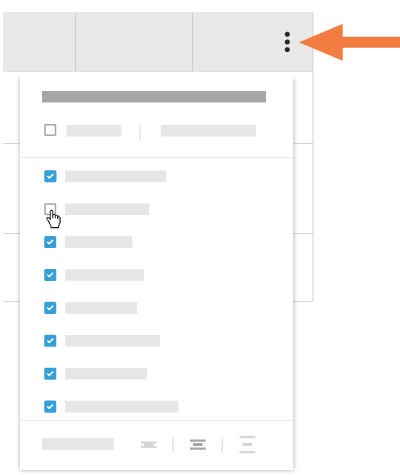
This reveals the submittal page.On the right side of any of the views (see Switch between submittal views), click the vertical ellipsis (⋮).
This opens the Show, hide or reorder columns shortcut menu.Choose from these options:
Show a column
Place a check mark in the box next to column to show on the submittal page. The default setting is to show all available columns.
ORHide a column
Remove the tick from the box that corresponds to the column to hide on the submittal page. This immediately removes the column from the page.
ORReorder the columns
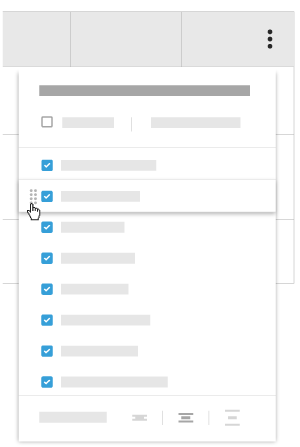
Grab the column name by the dots (⁞⁞). Then use a drag-and-drop operation to place the column into the desired position in the list. This immediately moves the column into the specified position.
ORRestore the default settings
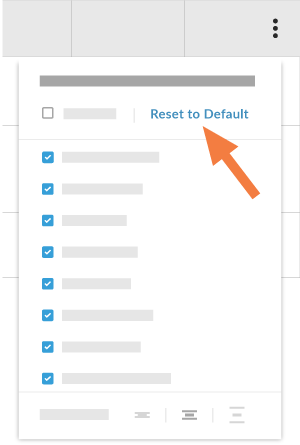
Click the Reset to default link at the top of the drop-down menu.
ORAdjust the row height of the table
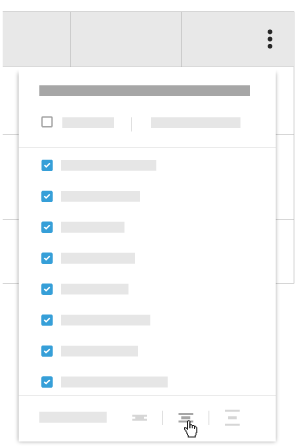
Click the button to adjust the row height of the table in the view.
See Also
Loading related articles...