Mark a submittal as private
Things to Consider
Required User Permissions:
To mark the submittals you create on a project as private, 'Standard' level permissions to the Project level submittals tool
To mark any submittal on a project as private, 'admin' level permission to the Project level submittal tool
Additional Information:
A 'Private' submittal is only visible to the 'submittal manager', users added to the
, members of the distribution list and users with 'admin' level permissions to the project's submittals tool.Submittal workflow. The people assigned to complete the submittal workflow. In Procore, the submittal workflow includes two roles: a submitter and the approvers who are responsible for performing/completing the approval process. Typically, approvers are members of the design team.
Users with the 'View private submittals associated to users within same company' granular permission enabled on their permissions template can view a submittal marked 'Private' if another user in their company is the submittal's creator or is designated as the submittal manager, a submitter, an approver or a distribution list member.
If you are a user with 'admin' level permission to the project's submittal tool, you can change the default privacy setting for new submittal. See Mark new submittal as private by default.
Steps
Navigate to the project's submittal tool.
Click Items.
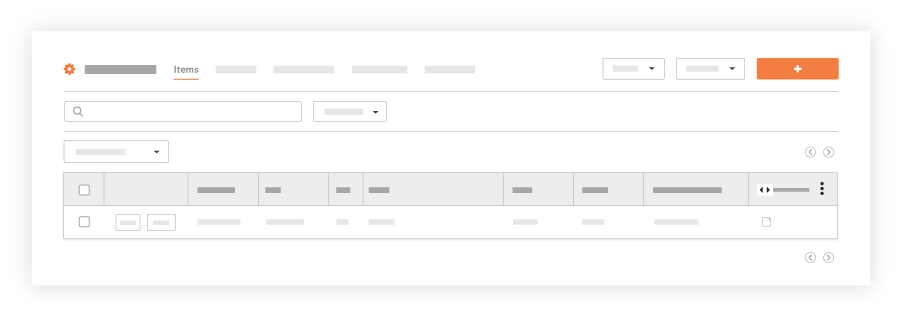
This reveals a list of the submittals on the project.Locate the desired submittal in the list and click Edit.
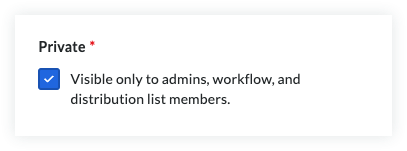
Under 'General information', scroll to the 'Private' label.
Mark the Private tickbox.
Click Update.
See Also
Loading related articles...