Use bulk actions > Edit in the submittal tool
Background
Use the bulk actions > Edit option when you want to apply the same edits on multiple submittal.
Things to Consider
Required User Permissions:
'Admin' level permission to the project's submittal tool.
Supported views:
The bulk actions menu is supported in the Submittals tool's items, packages, spec sections and Ball in Court views. See Switch between submittal views.
The bulk actions menu is dimmed and unavailable in the recycle bin view.
Additional Information:
Automatic email notifications are not sent for submittal update made using bulk actions. To learn more about automatic email notifications for the project's submittal tool, see Who receives an email when a submittal is created or updated?
To bulk edit submittal contained in a single submittal package, follow the steps in Bulk edit submittal in a package.
Steps
Navigate to the project's submittal tool.
Locate the submittals to modify in the items, packages, specification sections or Ball in Court tabs. Then:
To select all of the submittal in the list, mark the tickbox at the top of the left column.
ORTo select one or more of the submittal in the list, mark the tickbox to the left of each desired submittal.
Choose Bulk actions > Edit .
Note: The bulk actions menu is NOT available in the recycle bin. See Perform bulk actions on submittals.Choose from these editing options:
(Note: Editing options in your project's submittal tool can vary if your company has configured custom fields and configurable fieldsets.)
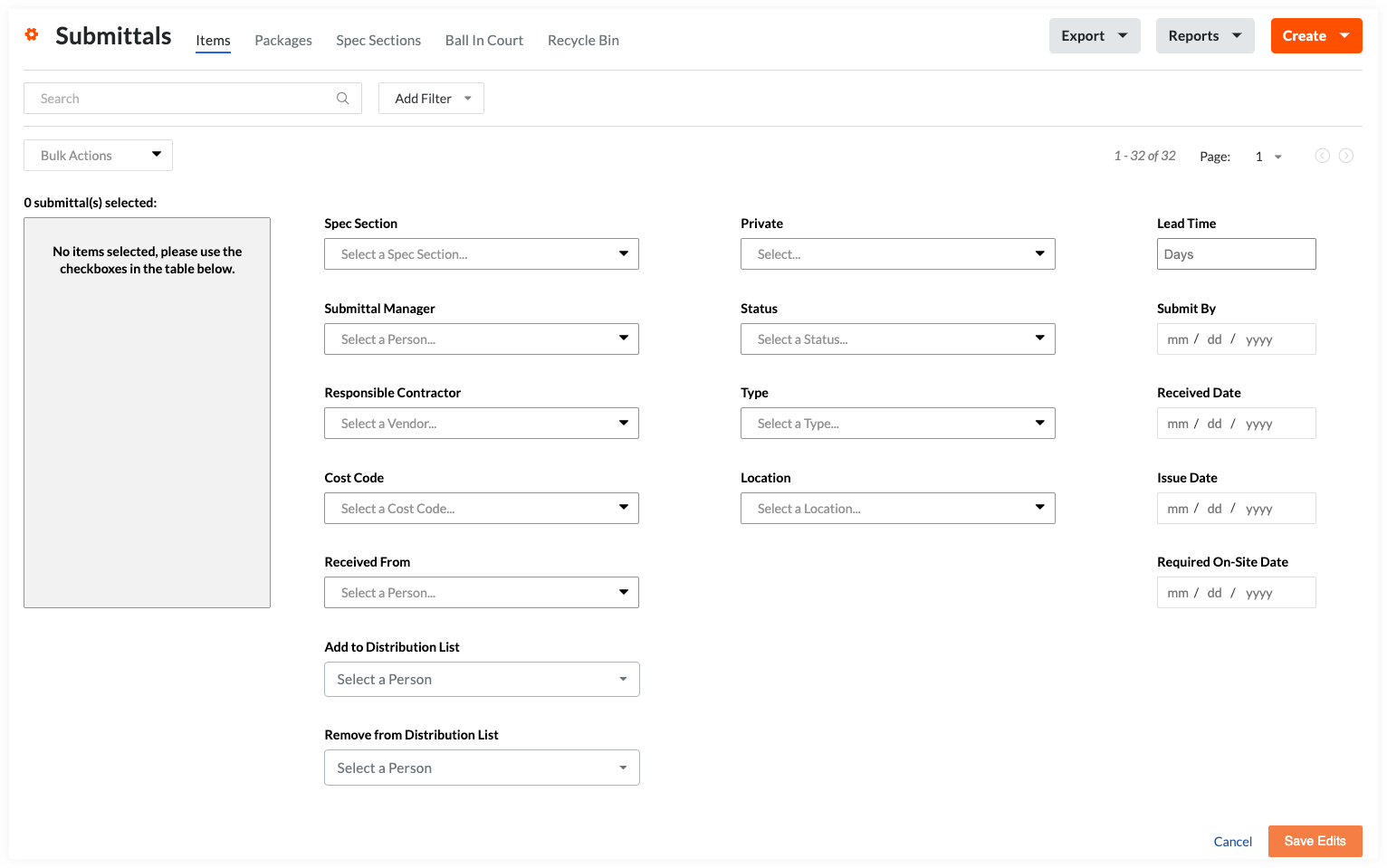
Specification section. Denotes the corresponding section from the project's specifications. See Where do the selections in the 'Specification sections' drop-down list in the submittal tool come from?
Submittal manager. The name of the submittal manager. This is the person who is responsible for overseeing the submittal throughout its lifecycle in Procore. Each submittal can have a different submittal manager or your project team can configure a 'default submittal manager' for all of your submittals. See What is the 'submittal manager' role?
Responsible contractor. The company that is responsible for completing the work specified on the submittal.
Note: Users can only be added to the 'Received From' field if their Procore Directory record is associated to the company listed as the 'responsible contractor' on the submittal.Cost code. Select a cost code to associate with the selected submittal.
Received from. The contact for the responsible contractor who provided the submittal information to the project team.
Note: Users can only be added to the 'Received From' field if their Procore Directory record is associated to the company listed as the 'responsible contractor' on the submittal. To add a user to the 'Received From' field who is not associated with a submittal's current 'responsible contractor', first select the desired user's company in the 'responsible contractor' menu. Then you are able to select the user's name in the 'Received from' menu.Add to distribution list. Add one (1) or more users and/or distribution groups to selected submittals’ distribution lists.
Remove from distribution list. Remove one (1) or more users and/or distribution groups from selected submittals’ distribution lists.
Private. Select Yes to make the selected submittals private. Otherwise, choose No.
Status. The current status of the submittal. Only a user with 'admin' level permission to the submittal tool can change a submittal's status. See What are the default submittal status in Procore? and What is a 'draft' submittal?
Type. The information type associated with the submittal. The default type selections in Procore include: Document, Plans, Prints, Product Information, product manual, Sample, Shop Drawing and Other. See Create custom submittal types.
Location. The location at the job site for the submittal. This can be an existing location from the location list or a tiered location. See Add tiered locations to a project.
Sub job. If sub jobs are enabled on your project, select one to associate it with the selected submittals. See What's the difference between a job, a parent job and a sub job?
Lead time. The expected number of calendar days that will be required for the material/services for the submittal to arrive.
Submit by. Select the date by which a contractor/subcontractor must submit all relevant documentation (i.e., documents, drawings, manuals, plans and so on) for the submittal to the project's design team for review.
Received date. The date that the submittal information was received from the contractor/subcontractor responsible for the performing work associated with the submittal.
Issue date. The date the contractor/subcontractor submitted the submittal item (i.e., documents, plans and so on) to your project team for the review process.
Required on-site date. The date by which materials related to the work detailed on the submittal must be delivered and available at the construction site.
Click Update.
A GREEN banner appears to confirm the total number of submittal successfully edited. A RED banner appears when edits are not successfully saved.
See Also
Loading related articles...