Configure advanced settings: Transmittals
Background
The transmittal tool lets your project team keep documented records of any Correspondence.
Things to Consider
Required User Permissions:
'admin' level permission on the project's transmittal tool.
Prerequisites
Add the transmittal tool to the project. See Add and remove project tools.
Steps
Configure transmittal settings
Set user permissions
Configure transmittal settings
Navigate to the project's transmittal tool.
Click the Configure Settings
 icon.
Under 'transmittal settings', do the following:
Transmittals private by default: Mark this tickbox to set all new transmittals to 'private' by default. A 'private' transmittal is visible only to users with 'admin' level permission to the Transmittals tool, the creator of the transmittal, the recipients in the 'to' and 'CC' fields and members of the 'default distribution' list.
Default distribution: Add one (1) or more people to the default distribution group. To appear in this list, a person must be added to the Project Directory (see Add a user account to the Project Directory). The system will automatically add these group members to new transmittals.
Click Update.
A banner appears to confirm that your changes have been saved.
Set user permissions
Navigate to the project's transmittal tool.
Click the Configure Settings
icon.In the right pane, click Permissions table.
Set the access permission level for the tool's users by clicking the icon in the permission column until the GREEN tick appears:
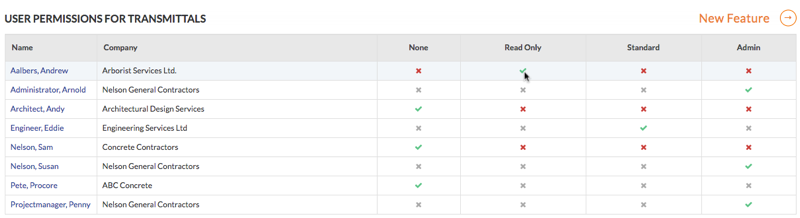
The colour-coded icons in the user permission area denotes the user's access permission level to the tool.
To learn more, see What are the default permission levels in Procore?Icon
Colour
Definition

GREEN
The user has been granted this access permission level to the tool.

RED
The user has NOT been granted this access permission to the tool.

GREY
The user is either a Procore administrator or has been granted permission to the Procore tools on this project using a permission template (see What is a permission template?).
See Also
Loading related articles...