How do I set and release retainage on a subcontractor invoice in Procore?

Using Owner or Specialty Contractor Terminology?

Procore can be configured to use terminology specific to General Contractors, Owners, or Specialty Contractors. Learn how to apply the dictionary options.

  • To learn the differences: Show/Hide

    • This table shows the differences in tool names (bold) and terms across the point-of-view dictionaries for Project Financials.

      Contratistas Generales
      Inglés (Estados Unidos) - Predeterminado

      Propietarios
      Inglés (Terminología de propietario V2)

      Contratistas especializados
      Inglés (terminología de contratistas especializados)

      Facturación

      Facturación

      Requisiciones de pago

      Dueño

      Financiación

      Dueño

      Propietario/Cliente

      Propietario/Cliente

      GC/Cliente

      Orden de cambio de contrato primario

      Orden de Cambio de Fondos

      orden de cambio del contrato del cliente

      Contratos primarios

      Financiación

      Contratos de cliente

      Ingresos

      Financiación

      Ingresos

      Subcontrato

      Contrato

      Subcontrato

      Contratista

      Contratista

      Contratista

      Partidas del contratista (SSOV)

      Partidas del contratista (CSOV)

      Partidas del contratista (SSOV)

      About These Dictionaries
      • Default Setting: The 'General Contractor' dictionary is enabled by default for all accounts.

      • Availability: These alternate dictionaries in italics are available in US English only.

      How to Switch Your Dictionary

      To change your company's terminology to the Owner or Specialty Contractor dictionary, contact your company's . They will work with your Procore Point of Contact to make the change.

Background

In Procore, the term Retainage refers to the practice of withholding of a portion of a contract amount until the work is deemed satisfactorily complete. The withheld amount is specified in an agreement between the contracting party (the party paying for the work) and a contracted party (the person or company performing the work). A common practice is to withhold 5-10% of a contract's total value until a milestone is reached. Then, the withheld amount can be released as a progress payment. When work is substantially complete, the withheld amount can be released as a final payment.

Answer

The practice of setting and releasing retainage on invoices protects contractors from potential losses and helps to ensure quality work by subcontractors. To set or release retainage on a subcontractor invoice, you must be an invoice administrator.

Set Retainage

To set retainage on one (1) or more line items in a subcontractor invoice's schedule of values:

  1. Navigate to the Invoicing tool.

  2. Click the Subcontractor tab.

  3. Find the subcontractor invoice to edit.

  4. Click the Invoice # link to open it.

     Tip

    Alternatively, you can navigate to the Commitments tool, open the desired commitment, and then click the Invoices tab. Then, click the Invoice # link to open it.

  5. Scroll to the invoice's Schedule of Values.

  6. Click Edit.

  7. Mark one (1) or more line item checkboxes and click the Edit Values button.
    This opens the Edit Values panel.

  8. Enter a value in the Work Retainage this Period (%) box to set the amount to withhold on the selected line items.

  9. Click Apply.

Example

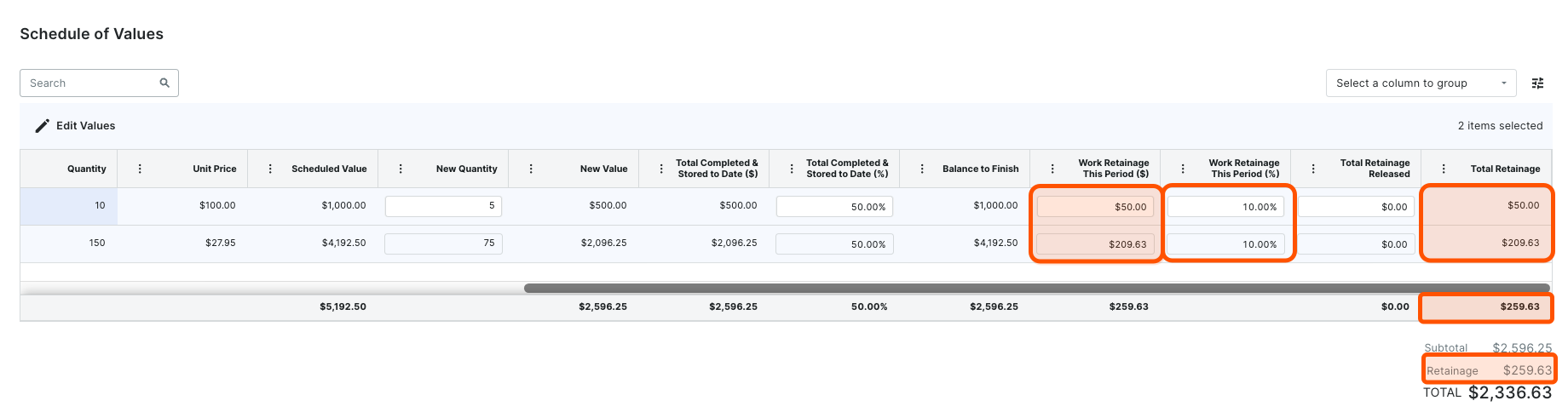
For example, to withhold 10% retainage on the first invoice's selected line items, type 10 in the Work Retainage This Period (%) box in the Edit Values panel. After clicking Apply:

  • The first line item has a Total Completed & Stored to Date Value ($) of $500.00 USD. Procore calculates the amount to withhold to update the Work Retainage this Period ($) value to $50.00 USD.

  • The second line item has a Total Completed & Stored to Date Value ($) of $2,096.25 USD. Procore calculates the amount to withhold to update the Work Retainage this Period ($) value as $209.63 USD.

    first-invoice-set-retainage.png

Procore updates the Total Retainage column on the far right of each line item to show the total retainage amount the line item on this invoice. The system also updates the Total Retainage column's subtotal row, as well as the Retainage total the bottom of the invoice. In this example, the amounts withheld for each line item are $50.00 USD and $209.63 USD for a Retainage total of $259.63 USD on the invoice.

Release Retainage

To release retainage on one (1) or more line items in a subcontractor invoice's schedule of values:

  1. Navigate to the Invoicing tool.

  2. Click the Subcontractor tab.

  3. Find the subcontractor invoice to edit.

  4. Click the Invoice # link to open it.

  5. Scroll to the invoice's Schedule of Values.

  6. Click Edit.

  7. Mark one (1) or more line item checkboxes and click the Edit Values button.

  8. Enter a value in the Retainage Released (%) box to set the amount of retainage to release for the selected line items.

  9. Click Apply.

Example

When creating a new invoice for the commitment in the next billing period, note that Procore automatically inputs some of the previous invoice's data on the new invoice.
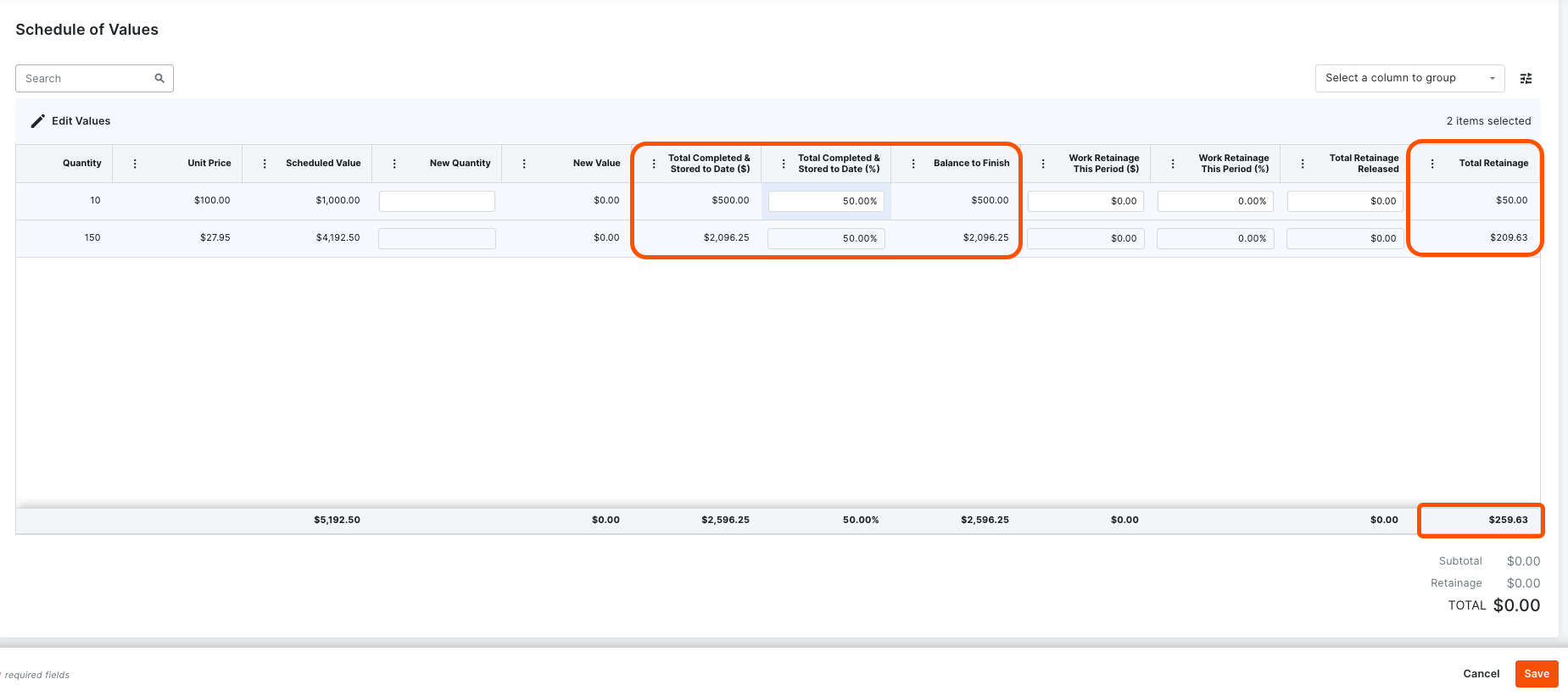
from-previous-invoice.png

For this example, the subcontractor has completed 100% of their work, so 100% of the retainage withheld on the previous invoice will be released. To release 100% of the retainage, type 100 in the Total Completed & Stored to Date (%) box in the Edit Values panel. After clicking Apply, Procore updates the highlighted values to release 100% of the retainage withheld on the previous invoice or $259.63 USD.
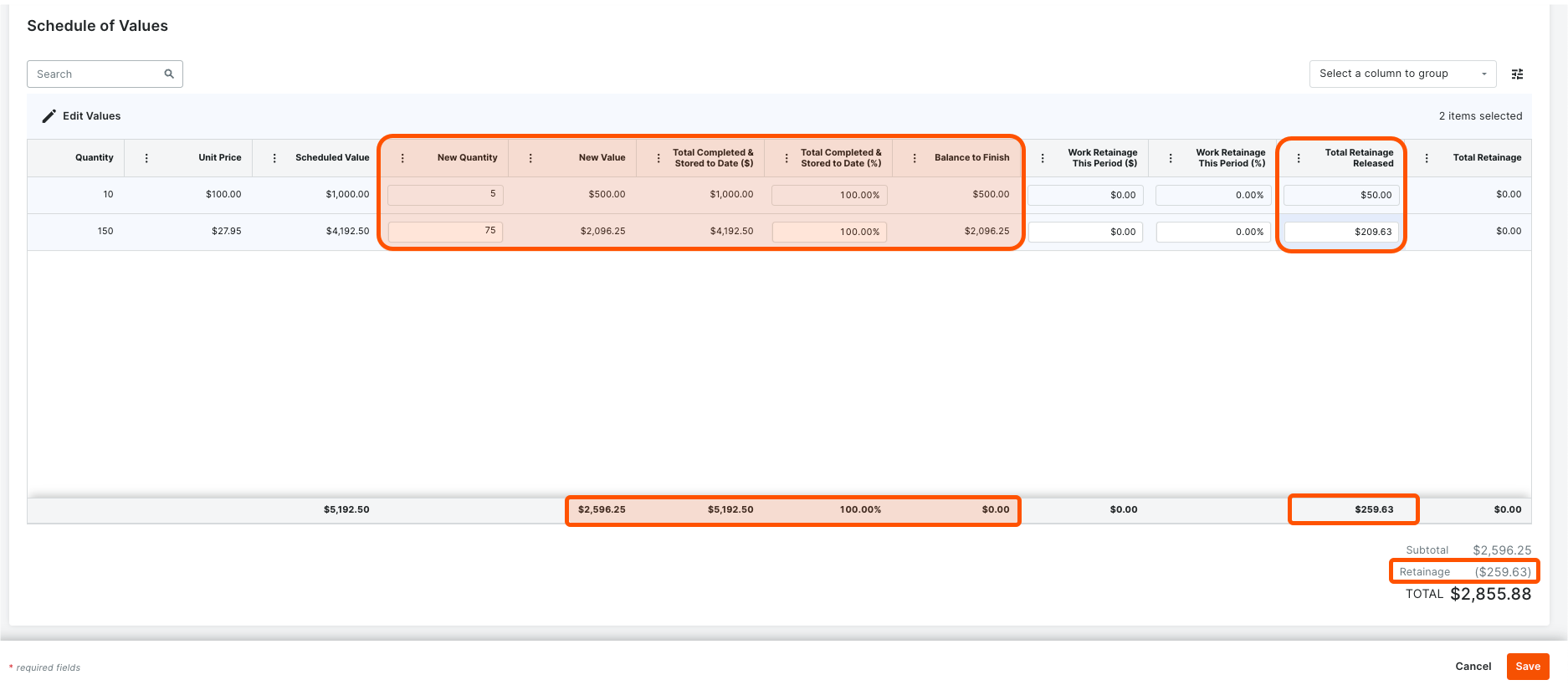
release-retainage-values.png

See Also

Loading related articles...