View a Commitment's Schedule of Values (SOV) (Android)
Things to Consider
Required User Permissions:
'Admin' level permissions on the project's Commitments tool.
OR'Read Only' and 'Standard' level permissions can only view commitments that they have been granted access via the privacy drop-down menu when editing or creating a commitment.
OR'Read Only' or 'Standard' level permissions on the project's Commitments tool with the 'View Private Purchase Order Contract' granular permission enabled on your permissions template.
Additional Information:
Este activo o ítem se puede ver o editar en modo sin conexión si se vio y almacenó en caché previamente en su dispositivo móvil. Las tareas realizadas en modo fuera de línea se sincronizan con Procore una vez que se restablece la conexión de red.
Prerequisites
Steps
Navigate to the project's Commitments tool using the Procore app on an Android mobile device.
Tap the purchase order to which you want to add a line item.
Tap Schedule of Values.
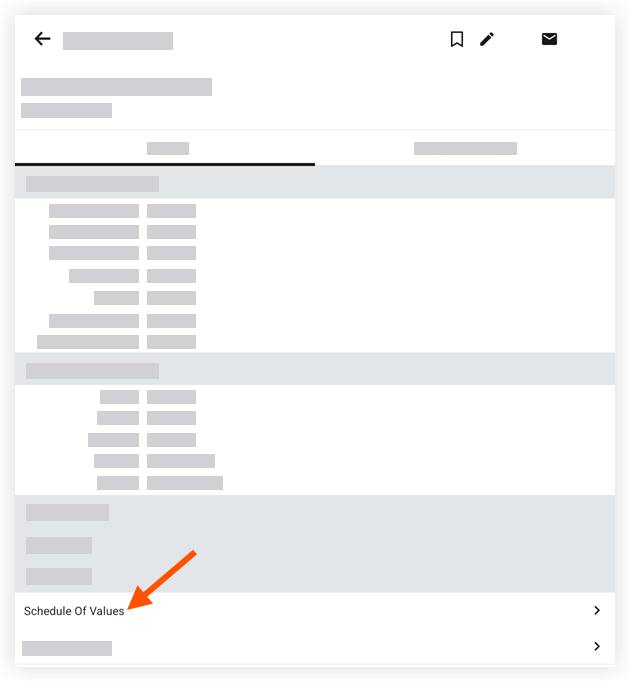
Note: This action reveals a list of the line items belonging to the purchase order's Schedule of Values (SOV).Optional: Tap a line item to view its details.
See Also
Loading related articles...