Set Up Your Outbound Email Signature in the Emails Tool
Fondo
Para personalizar la firma de los correos electrónicos que envíe desde Procore, deberá agregarla a la página "Configuración de mi perfil". Los cambios que realice siguiendo los pasos a continuación afectarán las firmas en todos los correos electrónicos que envíe desde las herramientas de Procore.
Aspectos a tener en cuenta
Permisos de usuario requeridos:
Permisos de nivel "Solo lectura" o superior en la herramienta Inicio del proyecto.
Información adicional:
Su firma de correo electrónico se aplicará a cualquier correo electrónico que envíe desde las herramientas de Procore.
Steps
Log in to the Procore web application. See Log in to Procore Web.
Click your name in the top-right corner of the program and choose My Profile Settings.
In the Personal tab, scroll down to the Email Signature box.
Note
By default, the phrase 'Sent From Procore.' appears in the box. It is recommended that you leave that text in your signature as shown below, so the messages recipients reading your message will be able to quickly see that the email was sent from Procore.
In the Email Signature box, create and format your email signature.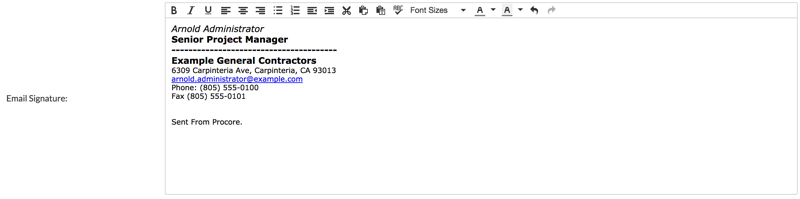
Click Update.
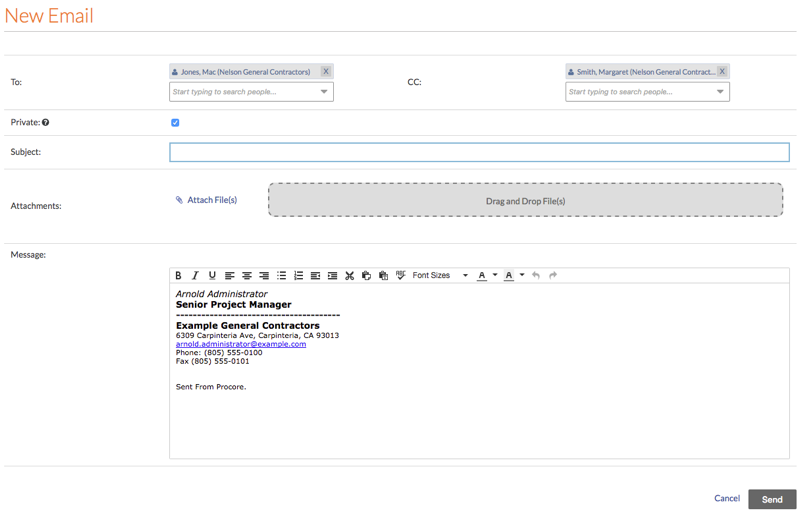
Note: This saves your email signature. Now, when you create a new email from the Emails tool, or other tools in Procore, you signature automatically appears in the new message as shown below: