Edit a Project Level Inspection Template
Things to Consider
Additional Information:
When editing a Company level inspection template in the Project level Inspections tool, only certain fields are editable.
Information on a Company level inspection template that is updated in the Project level is not synced with the source Company level inspection template.
Custom response sets can only be added to templates at the Company level. See Add Custom Response Sets to a Company Level Inspections Template.
Prerequisites
Steps
Navigate to the Project level Inspections tool.
Click the Configure Settings
 icon.
icon.Click Templates.
ImportantIf a warning banner or icon appears on your Inspection Templates list, certain response requirements (like "Require Observation") may need adjustment. See this FAQ for help.
Click Edit next to the inspection template that you want to edit.
Note: An icon indicates a Company level Inspection template has been added to the project.
Under 'General Information', edit the applicable fields.
Note: If the template you are editing is a Company level Inspection template, certain fields cannot be edited in the Project level Inspections tool. These fields are indicated by an icon.
To edit existing sections and items on the template, click on the field you want to edit.
Note: Existing sections and items cannot be edited on Company level inspection templates in the Project level Inspections tool.
To delete a template section or item, click the trash bin icon to the right of the item heading.
To bulk edit your inspection items, mark the checkbox next to the # symbol to select all the sections of your inspection.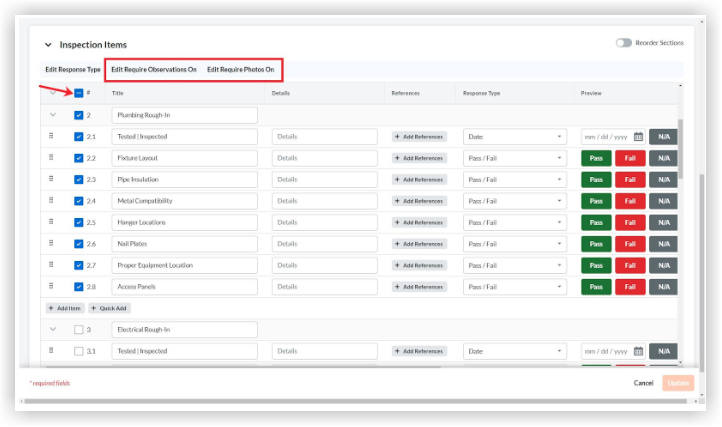
 icon. To reorder an entire section, click the toggle on
  icon next to Reorder Sections and drag the sections of your choice. Turn off Reorder Sections to continue creating your template.