Export Project Permissions Template Assignments
Background
The project permissions template assignment export allows you to review a selection of user data including the project permissions templates assigned to all users in all of your company's Procore projects.
Aspectos a tener en cuenta
Steps
Navigate to the company's Permissions tool.
Click the Project Permissions Templates tab.
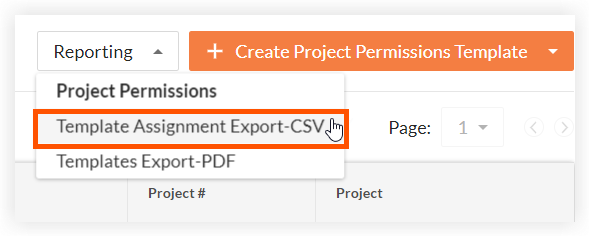
Click Reporting and select Template Assignment Export-CSV.
When the file is ready to be downloaded, Procore sends you an email with 'Your Permission Template Assignment Export for [Company Name] CSV is ready' in the subject line.
Click the file name link in the email. The following information is available for users in each project:
Company. Your company's name.
Project Name. The Procore project name.
Project ID. The Procore project ID number.
Template. The permissions template assignment for the user on the project.
Note: If no template has been assigned, this field is blank.Email. The email address for the user.
First Name. The first name of the user.
Last Name. The last name of the user.
Full Name. The user's full name.
Job Title. The user's job title as entered on their user account profile in the Project level or Company level Directory tool.
Is Employee. Indicates whether or not the user has been designated as an employee of your company.
Has Project Creation Override. Indicates whether or not the user has been granted permission to create projects.
See Also
Loading related articles...