View My Open Items in the Portfolio Tool

Background

The Portfolio tool includes a My Open Items list that shows all of the open items on your company's projects that require you to complete an action.

Things to Consider

  • Required User Permission:

    • To view 'My Open Items', Read Only level permission or higher on the company's Portfolio tool.

Steps

View My Open Items | Legacy Experience

  1. Navigate to your company's Portfolio tool.
    The Portfolio page appears. After you create a project, this page lists all the projects in your company's Procore account.

  2. Click My Open Items.
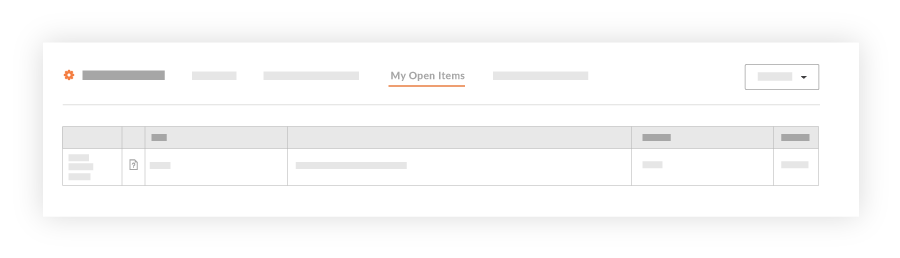
    This reveals the My Open Items page, which lists your open items by Project Name, Item Type, Details, and Status. This list is also sorted by Due Date.
    view-portfolio-open-items.png

  3. Choose from these options:

    • To navigate to the project's Home page, click the Project Name link.

    • To open the project item, click the Details link.

View My Open Items | Beta Experience

 In Beta

Company Administrators can enable the Consolidated My Open Items Workspace beta feature in Procore Explore.

View My Open Items (Beta)
There are three ways to access the My Open Items (Beta) workspace at the Company level:

  • From the Company Home (Core Tools): Show /Hide Steps

    1. Navigate to the Company level in Procore.

    2. In the Core Tools section, click My Open Items.

  • From the Portfolio Tool: Show /Hide Steps

    1. Navigate to the Portfolio tool.

    2. Click My Open Items.

  • From the Procore Home (Beta):Show /Hide Steps
    Note: Your company must have the Procore Home Beta enabled.

    1. Navigate to Procore Home.

    2. Click Menu to open the tools menu.

    3. Select My Open Items.

Review the My Open Items Table
The table provides a comprehensive view of all items assigned to you across all projects and companies.

My Open Items Field Descriptions: Show/Hide Fields

  • Company Name. The name of the company where the item originated from, including external companies.

  • Project Name. The name of the project associated with the item.

  • Item Type. The type of open item (e.g., Punch List Item, Submittal, RFI).

  • Title. The title or subject and number of the open item.

  • Progress. Groups items based on their due date.

    • Overdue. Due date has passed; displays in red. 

    • Due Today. Due at the end of the day; shows as yellow.

    • Due < 4 Days. Due in less than 4 calendar days; shows as yellow.

    • Due > 4 Days. Due in more than 4 day calendar days; shows as yellow.

    • No Due Date. Item has no due date; shows as grey.

  • Due Date. Date the item is due. Date shows in red only if the item is Overdue.

  • Status. The current status of the item.

Filter and Sort Options
Quickly filter and organize your open items to focus on what matters most.

Filter and Sort: Show /Hide Steps

  1. Click the Filter icon to open the filter panel.

  2. Select values to filter by Company Name, Project Name, Item Type, or Progress.

  3. Click any column header to sort the table in ascending or descending order.

Note
  • During the Consolidated My Open Items Workspace Beta phase, you will only see cross-company items that originate from companies within the same data zone as your company (e.g., if your company is in the USO1 zone, you will only see cross-company items from other USO1 companies).

  • General Availability (GA) Scope: The full release will expand to show cross-company items from both US data zones (USO1 and USO2).

  • Users who have a large number of open items across many projects may notice longer-than-expected loading times for the My Open Items page. We are working to improve the response time for this page before the general availability (GA) release.
See Also

Loading related articles...
