Log in to Procore Using Multi-Factor Authentication (MFA)
Procore offers companies the ability to require users in their Directory to log in with MFA. MFA helps keep company information stored in Procore secure.
Things to Consider
The secret code from your authenticator app is valid for thirty (30) seconds.
Users are prompted to enter the secret code before logging into Procore with an account that is a member of any company's Directory where MFA is enforced.
Prerequisites
Enable the 'Set Automatically' feature in your device's time settings. See How do I set the clock on my mobile device to automatic for MFA?
Steps
Go to the Procore web application at: https://login.procore.com.
Enter your Procore email address and password. Then, click Log In.
Open the MFA application on your mobile device and select your account if needed.
Tip
Are you seeing the 'Set Up Your First Account' screen? To learn how to log in for the first time, see Set up Multi-Factor Authentication (MFA) as a Procore User instead of taking the steps below.
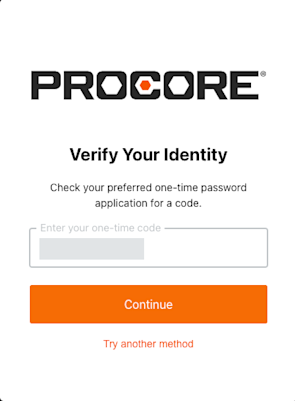
The Enter Your Password screen appears to verify your identity with MFA.
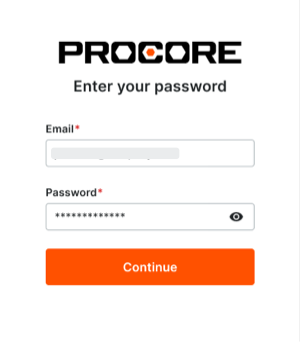
Accept the email address or click Edit to modify the email address.
Type your Password.
Click Continue.
Check the one-time password application on your mobile device for your secret code.
Tip
What is a one-time password application? A One-Time Password (OTP) application is an app that is installed on a hardware device that helps to safeguard your account from unauthorized access. It generates a random code that you enter when challenged, to verify your identity. The code is randomly generated and changes each time you are challenged by MFA to verify your identity.
What is an MFA device? An MFA device is an electronic device (such as a mobile phone or tablet) on which you have installed the one-time password application.