Resolve Power BI Service Refresh Errors Caused by Database Updates
Background
Occasional updates to the Analytics database may include changes to column data types or the removal of columns. In certain instances, these modifications can prevent your Analytics report from refreshing successfully within the Power BI Service.
This issue can occur even if the affected columns are not actively used in report visuals, as the Power BI Service still validates the entire data model during the refresh cycle. To resolve most such errors, you must perform a refresh within Power BI Desktop to accept the schema changes and then republish the report in the Power BI Service.
Steps
Open the Analytics report in Power BI Desktop.
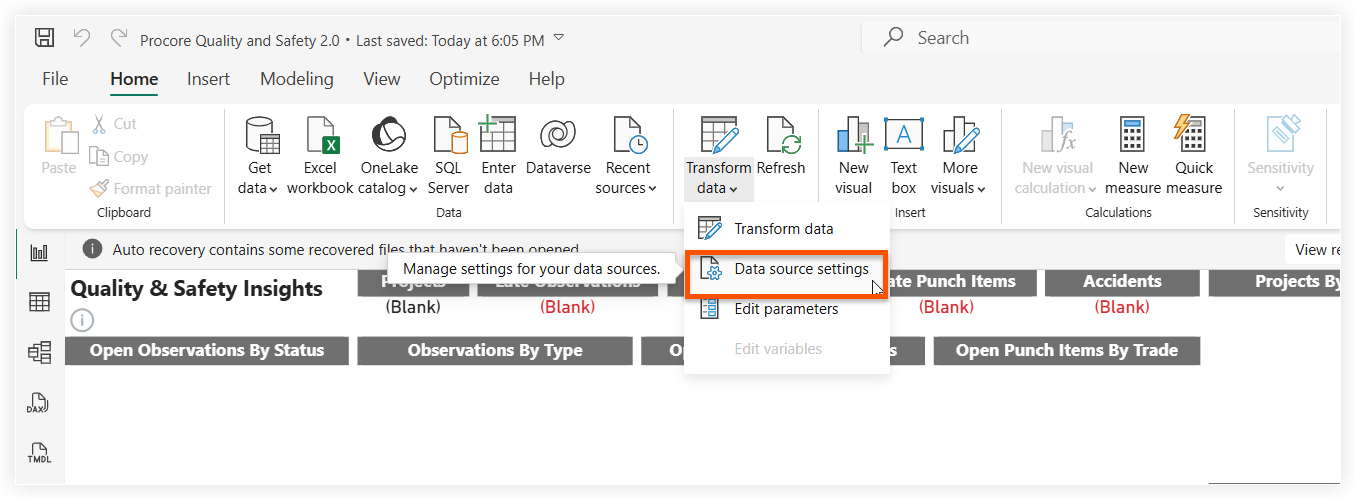
In the Home ribbon, click Transform data and select Data source settings.
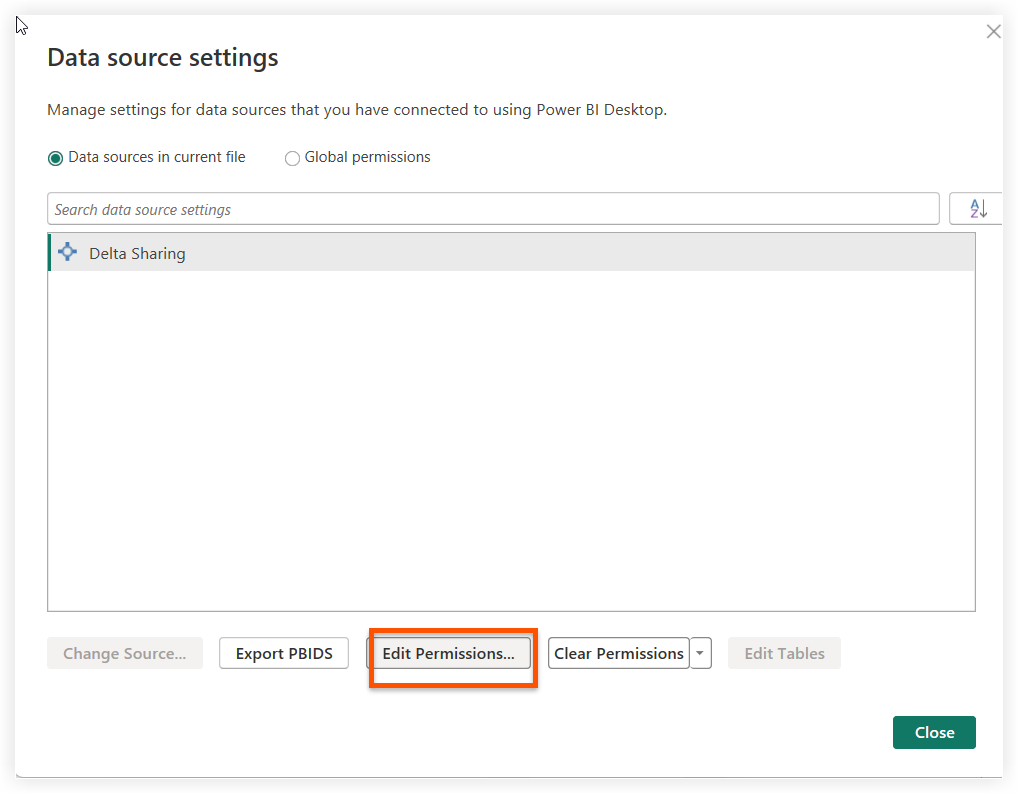
Select the Delta Sharing data source from the list and click Edit Permissions.
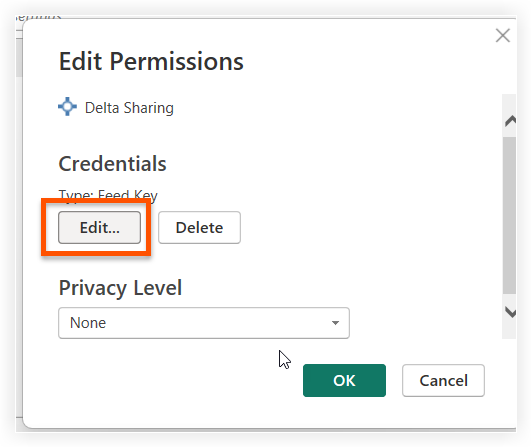
Under the Credentials section, click Edit.
Enter your bearer token in the Bearer Token field.
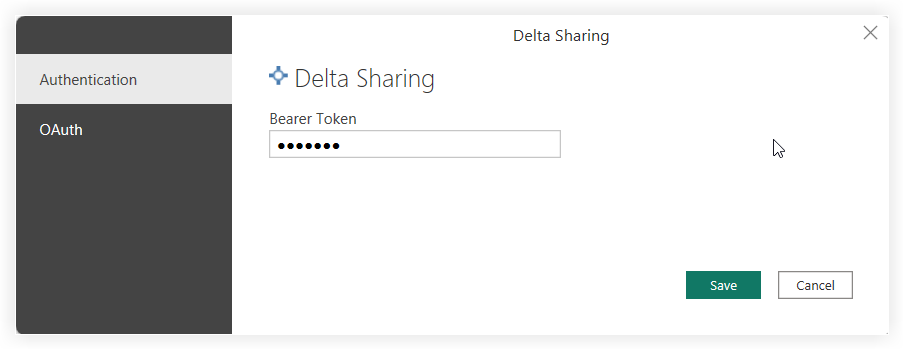
Click Save > OK > Close.
Click Refresh on the Home ribbon.
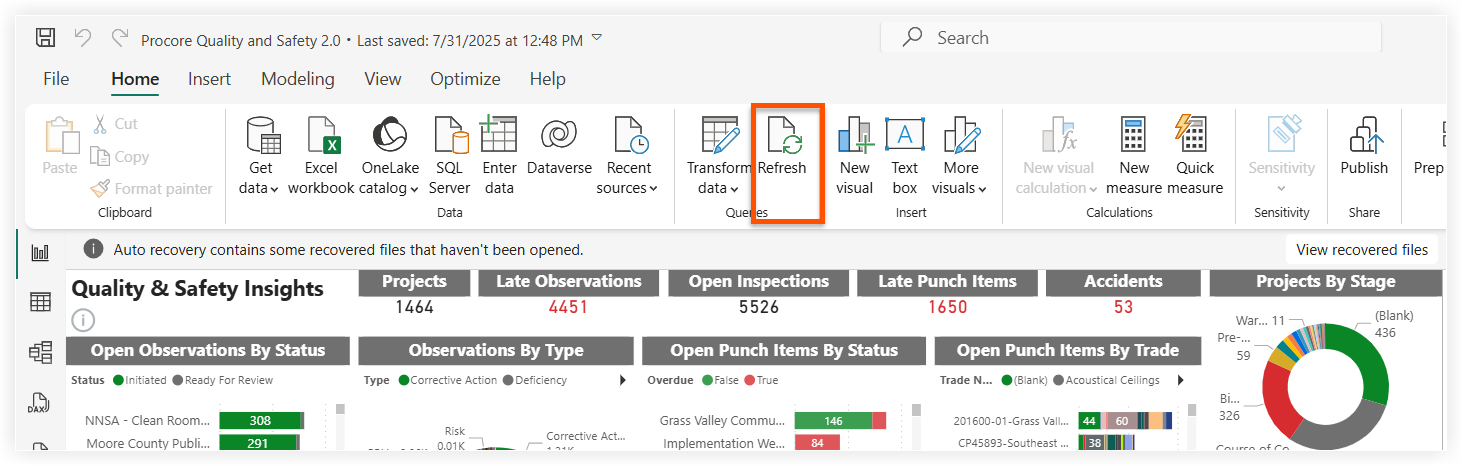
Save your report.
Click Publish on the Home ribbon.
Select the destination workspace in the Power BI Service and confirm that you want to Replace the existing dataset/report.
See Also
Loading related articles...