Gestionar un grupo en la herramienta Conversaciones
Antecedentes
Cuando crea un grupo en la herramienta Conversaciones , está creando una conversación de grupo que le permite enviar un mensaje a los miembros designados del equipo al mismo tiempo. Ver Crear un grupo en la herramienta Conversaciones. Estos mensajes de grupo pueden ser vistos y respondidos por los miembros del equipo en la sección Grupos de la herramienta Conversaciones , organizados por proyecto.
Temas a considerar
Permisos de usuario necesarios:
Usuario de Procore con el privilegio "Crear y gestionar grupo". Ver Configurar el acceso y los ajustes de la herramienta Conversaciones. Este permiso se puede establecer en "Administradores", "Empleados internos"o"Todos":
Si se selecciona "Administradores", necesitará permisos de nivel "Administrador" para la herramienta Directorio a nivel de proyecto o de empresa.
Si se selecciona "Empleados internos", debe estar marcado como empleado interno. Ver ¿Cómo añado a alguien como empleado de mi empresa?
Si se selecciona "Todos", debe ser miembro del directorio de empresa.
Información adicional:
Si la herramienta Conversaciones está configurada para permitir que solo los administradores creen y gestionen grupos, recomendamos mantener al menos un Administrador en un grupo para que pueda gestionarse. Los usuarios Administrador se muestran con
(Administrador)después de su nombre en la lista de selección de usuarios.Cada grupo de la herramienta Conversaciones puede admitir hasta 2000 miembros.
Steps
Navigate to the Conversations tool (click the conversations
 icon in the top menu of Procore).
In the 'Groups' section, click the group that you want to manage.
Click Manage Group.
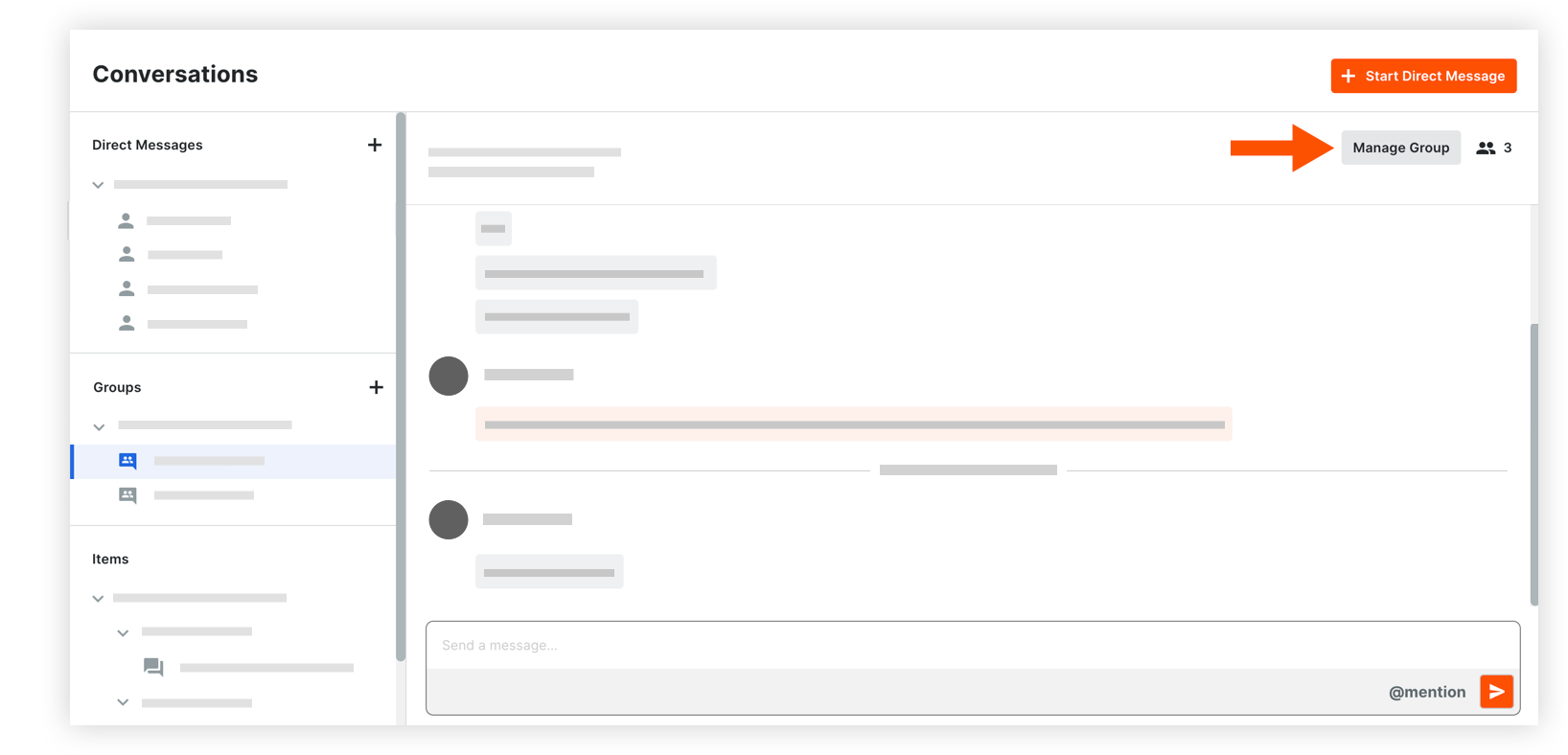
The following information can be modified:
Group Name: Edit the name for the group if necessary.
Team Members: Manage the list of team members as necessary, choosing between manual selection and using the project's Directory:* Selected users:* To add users: Click into the menu to see the list of project users. Select any users you want to add to the group.
Note: If your project has distribution groups, you can select one to add those members to the conversation group. See Add a Distribution Group to the Project Directory.* To remove users: Click the x icon on the user's name.* Everyone in this project's Directory: This includes automatic updates to the team members when any user is added or removed from the project Directory in the future.
Note: Company Admins who are not yet in the project's Directory are prompted to add themselves before proceeding with this option.
Click Save Changes.
See Also
Loading related articles...