Upload Photos to the Daily Log
Antecedentes
The Photos section allows you to upload photos associated with your daily log. This is an ideal place to collect progress photos of the jobsite for that day.
Things to Consider
Required User Permissions:
'Standard' or 'Admin' level permissions on the project's Daily Log tool.
AND
'Standard' or 'Admin' level permissions on the project's Photos tool.
Additional Information:
Only public photos can be added to the Photos section of the Daily Log tool. Anyone with access to the Photos tool can view the photos added to the daily log.
If the project's Photos tool is configured to have photos set to private by default, you will NOT be able to upload photos to the Photos section in the Daily Log tool.
Important: In the project's Photos tool > Configure Settings page, clear the 'Make photos upload to the Photos tool private by default' checkbox for photos to be added to the Daily Log tool. See Configure Advanced Settings page for the Photos tool. This setting can be managed by any user with 'Admin' permissions to the project's Photos tool.The photo album selected for the upload cannot be marked as Private.
If you need to upload Private photos to a daily log, you can add them to entries from other sections of the Daily Log tool, such as the Notes log. See Create Note Entries.
Note: You can also add photos to the Daily Log tool while uploading photos to the Photos tool. See Upload Photos to the Daily Log from the Photos Tool.
Steps
Navigate to the project's Daily Log tool.
Scroll to the Photos section.
You can also use the left navigation menu to quickly navigate to the Photos section.Click Upload.
Drag-and-drop the photos that you want to upload, or click Attach File(s) to select photos manually.
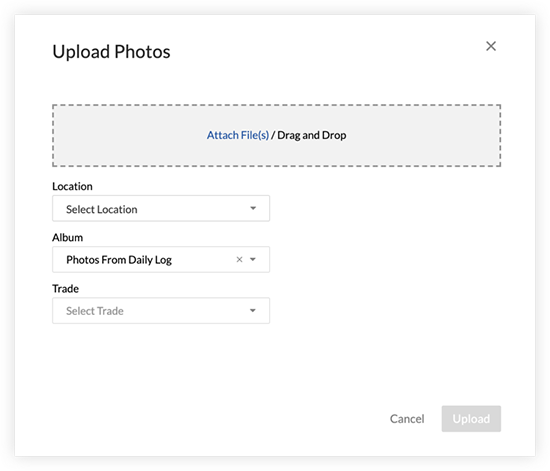
Add the following information:
Location: Select a location associated with the photos.
Album: Select an album for the photos to be added to in the Photos tool.
Note: The album you selected for the upload cannot be marked as Private, as only Public photos can be added to the Photos section of the Daily Log.Trade: Select the trade associated with the photos.
Click Upload.
Note: The photos are automatically added to the Photos section of the Daily Log tool, and the specified album in the Photos tool.
See Also
Loading related articles...