Bulk Edit Subcontractor Invoice Status with the Invoicing Tool

Using Owner or Specialty Contractor Terminology?

Procore can be configured to use terminology specific to General Contractors, Owners, or Specialty Contractors. Learn how to apply the dictionary options.
  • To learn the differences: Show/Hide

    • This table shows the differences in tool names (bold) and terms across the point-of-view dictionaries for Project Financials.

      Contratistas generales Inglés (Estados Unidos) - Predeterminado

      Inglés para promotores (terminología para promotores versión 2)

      Contratistas especializados en inglés (terminología de contratistas especializados)

      facturación

      facturación

      Facturación de avance

      Propietario

      Financiación

      Propietario

      Promotor/Cliente

      Promotor/Cliente

      CP/cliente

      Orden de cambio de contrato principal

      Orden de cambio de financiación

      orden de cambio de contrato del cliente

      Contratos principales

      Financiación

      Contratos de cliente

      Ingresos

      Financiación

      Ingresos

      subcontrato

      contrato

      subcontrato

      subcontratista

      Contratista

      subcontratista

      Desglose de partidas de subcontratista

      Desglose de partidas para contratistas

      Desglose de partidas de subcontratista

      About These Dictionaries
      • Default Setting: The 'General Contractor' dictionary is enabled by default for all accounts.

      • Availability: These alternate dictionaries in italics are available in US English only.

      How to Switch Your Dictionary

      To change your company's terminology to the Owner or Specialty Contractor dictionary, contact your company's . They will work with your Procore Point of Contact to make the change.

Background

Use the steps below to change the status of multiple subcontractor invoices at once.

Things to Consider

Prerequisites

Steps

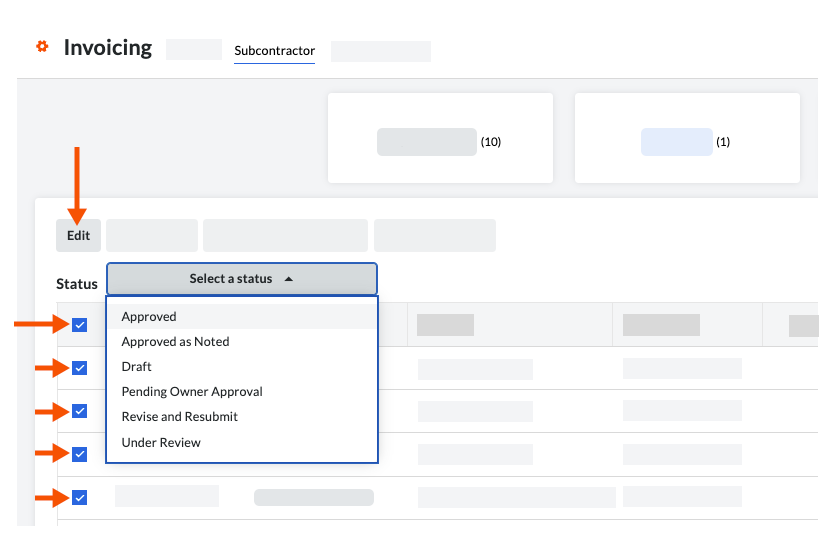
  1. Navigate to the project's Invoicing tool.

  2. Click the Subcontractor tab.

  3. Mark the checkboxes that correspond to the commitments with invoices:

     Note

    To change the status of the selected invoices in bulk, each commitment that you select must have an invoice.

    • To select all invoices, mark the checkbox that corresponds to the heading in the Status column. This selects all of the commitments in the list.

    • To select individual invoices, mark the checkbox that corresponds to an commitment line item.

  4. Click Edit.

  5. Select the appropriate status from the Select a Status drop-down list.
    bulk-edit-sub-invoice-status.png

     Notes

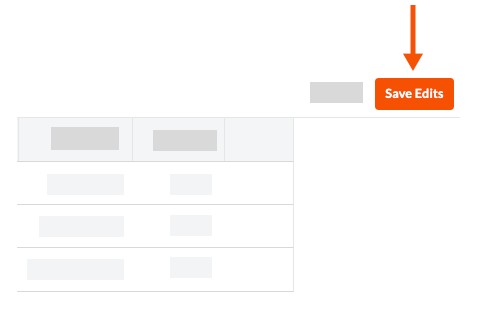
  6. Click Save Edits.
    save-edits-sub-invoice.png

     Tip

    Why isn't the Save Edits button active? An invoice doesn't exist for one (1) or more of the selected commitment(s).

See Also

Loading related articles...