Create Automatic Billing Periods

Using Owner or Specialty Contractor Terminology?

Procore can be configured to use terminology specific to General Contractors, Owners, or Specialty Contractors. Learn how to apply the dictionary options.

  • To learn the differences: Show/Hide

    • This table shows the differences in tool names (bold) and terms across the point-of-view dictionaries for Project Financials.

      Contratistas generales Inglés (Estados Unidos) - Predeterminado

      Inglés para promotores (terminología para promotores versión 2)

      Contratistas especializados en inglés (terminología de contratistas especializados)

      facturación

      facturación

      Facturación de avance

      Propietario

      Financiación

      Propietario

      Promotor/Cliente

      Promotor/Cliente

      CP/cliente

      Orden de cambio de contrato principal

      Orden de cambio de financiación

      orden de cambio de contrato del cliente

      Contratos principales

      Financiación

      Contratos de cliente

      Ingresos

      Financiación

      Ingresos

      subcontrato

      contrato

      subcontrato

      subcontratista

      Contratista

      subcontratista

      Desglose de partidas de subcontratista

      Desglose de partidas para contratistas

      Desglose de partidas de subcontratista

      About These Dictionaries
      • Default Setting: The 'General Contractor' dictionary is enabled by default for all accounts.

      • Availability: These alternate dictionaries in italics are available in US English only.

      How to Switch Your Dictionary

      To change your company's terminology to the Owner or Specialty Contractor dictionary, contact your company's . They will work with your Procore Point of Contact to make the change.

Background

A Billing Period defines the billing cycle used by a project's team and invoice contacts on Procore's invoices and progress billings. In addition to defining the frequency of the billing cycle (for example, monthly or weekly), a billing period also defines the billing cycle's start/end date and the due date for the invoice or progress billing.

Examples

Common billing periods include:

  • Monthly
    Examples of common monthly billing periods are below:

    • Starts on the 1st day of a month and ends on the 30th of the same month.

    • Starts on the 15th of one month and ends on the 14th of the following month.

  • Weekly
    Examples of common weekly billing periods are below:

    • Starts on Sunday of this week and ends on Saturday of this week.

Things to Consider

  • Required User Permissions

  • Additional Information:

    • When you create a new billing period Procore automatically sets:

      • The new billing period's status to Open.

      • The previous billing period's status to Closed.

      • There can only be one (1) billing period in the Open status at any given time.

    • You can only create billing periods in the Project level Invoicing tool.

      • You cannot create or manage billing periods at the Company level.

    • These Invoice Management features rely on billing periods:

Prerequisites

Steps

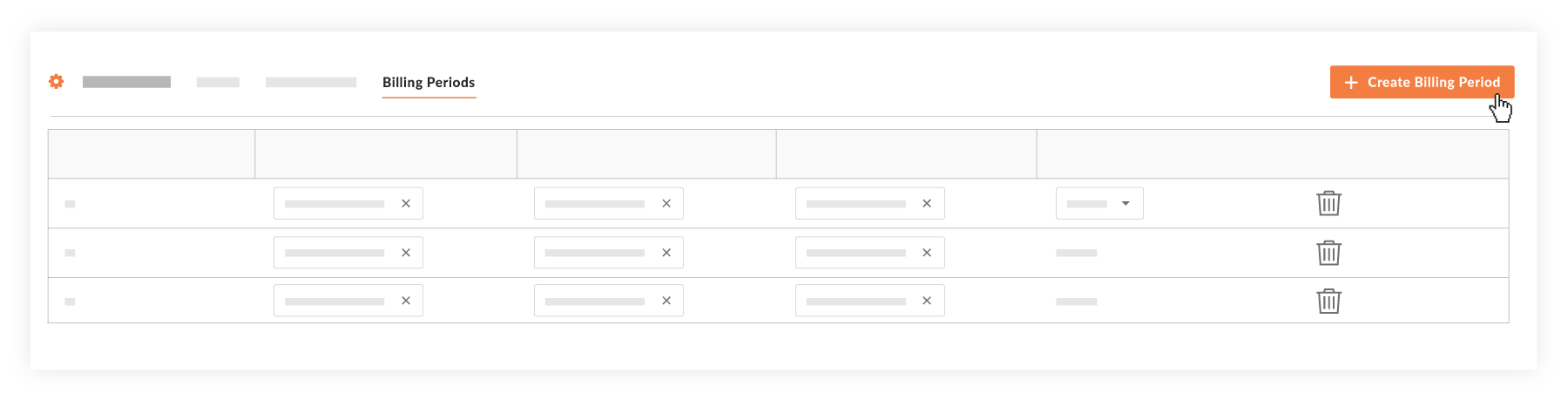
  1. Navigate to the project's Invoicing tool.

  2. Optional: Click the Billing Periods tab.

  3. Click the Create Billing Period button.
    start-new-billing-period.png

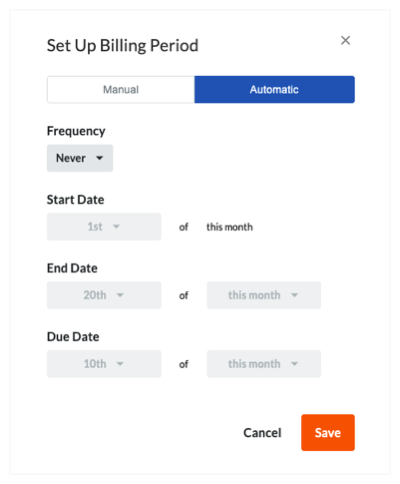
  4. In the 'Set Up Billing Period' dialog box, click Automatic.

  5. Under 'Automatic', configure the billing period's settings as follows:
    set-up-automatic-billing-period.png

    • Frequency

      • Monthly. Select this option then choose the date you want the billing period to start.

      • Weekly. Select this option then choose the date you want the billing period to start.

      • Never. Select this option to never create an automatic billing period.

         Tip

        When would I choose the 'Never' option? If you have previously configured Procore to automatically create new billing periods, you can cancel that process at a later time by clicking Create Billing Period and selecting the 'Never' option in the Automatic tab as described above. This overrides the tool's previous billing period creation settings and stops Procore from creating new ones.

    • Start Date. Select the date of each month you want the billing period to start.

       Note
      • To create automatic billing periods that occur after your selected 'Start Date', you must manually create the first billing period on your project with the Invoicing tool. See Create Manual Billing Periods.

      • Keep in mind that Procore creates automatic billing periods for future periods on the future period's start date. For example, if you want to automatically create billing periods that start on the first of the month, Procore automatically creates the new billing period on the first of each month.

    • End Date. Select the date of each month you want the billing period to end.

    • Due Date. Select the date of each month you want the invoice to be due.

  6. Click Save.

Next Steps

See Also

Loading related articles...