Remove Discipline-Specific Files from a Federated Project Model

Procore Model Manager - Beta Access & Feedback

The Model Manager (Beta) features and documentation are subject to change without notice. (Note: At the launch of the Beta, only 'Admin' level permissions are available. Additional permissions will be phased in during the product lifecycle).
To access the beta and provide feedback Show/Hide Details

  • How to Access: Participating companies must sign the Procore Beta Agreement. Once signed, your Procore Administrator coordinates with your Procore point of contact to enable Model Manager (Beta) on specific Procore projects.

  • How to Provide Feedback During Beta: Contact your dedicated Beta program lead.

  • How to report critical issues: Report breaking changes to Procore Customer Support. For general feedback or non-critical issues, contact your Beta program lead or Procore point of contact.

The Model Manager (Beta) tool allows you to maintain an accurate and up-to-date Federated Project Model by managing individual discipline-specific files. Removing outdated or incorrect files ensures that your team always collaborates using the most relevant project data

Things to Consider

Steps

Follow these steps to remove a discipline-specific file from a Federated Project Model.

  1. Navigate to the Model Manager (Beta) tool.

  2. In the Model Files card, locate the file to remove.

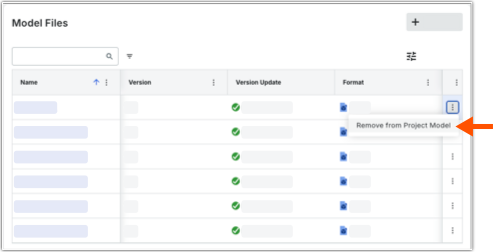
  3. Right-click the More (:) icon and choose the Remove from Project Model option.

    This images shows the Remove from Project Model option in the More menu for a Model File in the Model Manager tool.

See Also

Loading related articles...