Create a Custom Time Type
Background
Procore automatically provides standard pay types like Regular Time and Overtime for timecard entries. If your company needs more options, you can create custom time types. These will then appear in the Time Types drop-down menu when your employees create timecards.
Things to Consider
Required User Permissions:
'Admin' level permissions on the company's Timecard tool.
Default Time Types:
Regular Time
Double Time
Exempt
Holiday
Overtime
PTO
Salary
Vacation
Prerequisites
Your company's Procore Administrator must request to enable the Company level Timecard tool in Procore.
Steps
Navigate to the company's Timecard tool.
Click the Configure Settings
 icon.
icon.Scroll to the 'Time Types' section.
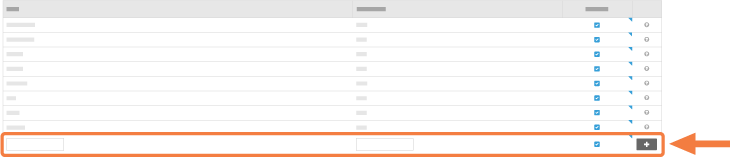
Click Add and enter the time type information.
Type: Enter a new time type in the box provided.
Abbreviation: Enter an abbreviation for the time type in the box provided.
Available: Mark the checkbox to include the pay type in the 'Time Type' drop-down menu on timecards.
See Also
Loading related articles...