Configure Advanced Settings: T&M Tickets
Background
Configure the T&M Tickets tool’s settings to enable T&M Ticket sections, build a default distribution list, and choose which users receive automatic email notifications when work is completed.
Temas a considerar
Steps
Configure T&M Settings
Configure the Change Events Export Options
Configure the T&M Settings
Navigate to the T&M Tickets tool.
Click the Configure Settings
 icon.
icon.Click the Default Distribution drop-down menu and select the people you want to receive email notifications.
Under the T&M Emails section, mark the checkboxes to specify who receives notifications based on the T&M Ticket action and Task.
Actions:
T&M Ticket Created. Send when a new T&M Ticket is added or created.
Note: Updates to existing tickets do not trigger an email notification.Signed by Company. Send when a company signee submits a signature.
T&M Ticket Signed By Customer. Send when a customer signs a T&M Ticket.
Closed: Send when a T&M ticket has been closed.
Recipients:
Creator. Send to the user who created the T&M ticket.
Company Signee. Send to the user designated as the 'Company Signee' on the ticket.
Customer Signee. Send to the email address associated with the user designated as the 'Customer Signee' on the ticket.
Distribution Group. Send to all users who have been added to the 'Default Distribution'.
Status:
In Progress: Indicates a new T&M Ticket has been created.
Ready For Review: Indicates a T&M Ticket has been signed by a company and is ready for review.
Field Verified: Indicates a T&M Ticket has been signed by a customer.
Closed: Indicates a T&M Ticket has been closed.
Click Update.
Configure the Change Events Export Options
Click the Change Events Export Options tab.
Note
This tab is only visible and available when the Change Events tool is active on the project.
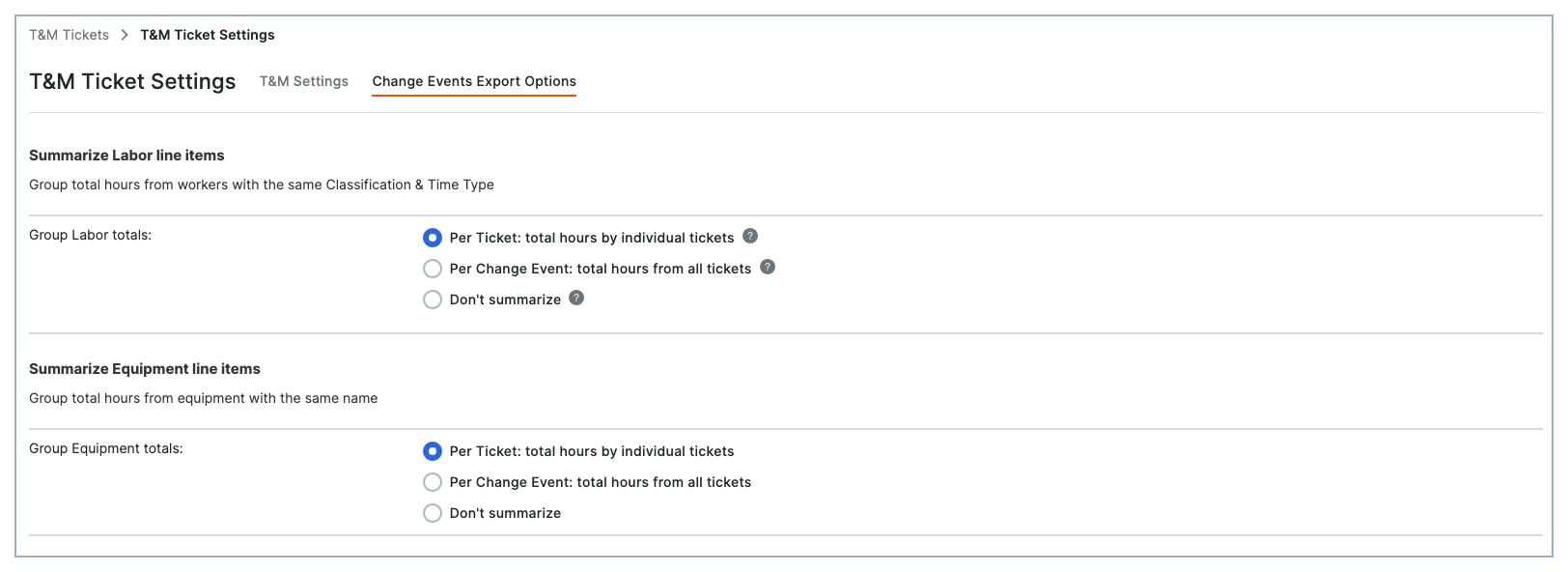
Under the Summarize Labor Line Items section, choose one of the Group Labor Totals options:
Per Ticket: Total Hours by Individual Tickets to summarize the employee hour entries on each T&M ticket and list total hours by classification and time type.
Per Change Event: Total Hours from All Tickets to summarize total hours per employee entry from each T&M Ticket added to a change event.
Don't Summarize to list total labor hours on all tickets with no summarization.
Under the Summarize Equipment Line Items section, choose one of the Group Equipment Totals options:
Per Ticket: Total Hours by Individual Tickets to summarize the total hours per equipment entry from each T&M Ticket added to a change event.
Per Change Event: Total Hours from All Tickets to summarize total hours per equipment from each T&M Ticket added to a change event.
Don't Summarize to list total equipment hours on all tickets with no summarization.
Click Update.