Edit an Action Plan
Things to Consider
Required User Permissions:
To edit an Action Plan, 'Admin' level permissions on the project's Action Plans tool.
OR'Read Only' or 'Standard' level permissions on the project's Action Plans tool with the 'Create and Edit Action Plan' granular permission enabled on your permissions template.
ANDTo add, edit, or replace assignees, users also need 'Read Only' or higher permissions in the project's Directory.
Additional Information:
When editing an action plan, the status automatically updates to 'Draft'. To update to a different status, see Update the Status of an Action Plan.
Required Assignees can only be removed while creating or editing an action plan.
Optional assignees can be removed while performing or editing an action plan.
Steps
Navigate to the project's Action Plans tool.
From the Action Plan list view, if the action plan is in View mode:
Click View next to the action plan you want to edit.
Click Edit once you are within the action plan.
Warning
If the action plan you want to edit already has signatures added for one or more Action Plan Approvers or Completed Action Plan Receivers, the 'Delete Signature' window displays. Note: Once these signatures are deleted, they cannot be recovered. Click Delete to remove these signatures and to continue editing the action plan.
If the action plan is in Edit mode:
Click Edit next to the action plan you want to edit.
Edit general information as needed.
Edit sections and items as needed.
To bulk edit sections and items, do the following:
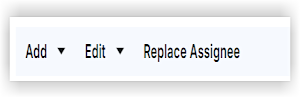
To edit all sections and items, click the first checkbox at the top of the Sections and Items table. This triggers the bulk edit menu options.
To only edit one section and all of its items, click the checkbox next to the section number. This triggers the bulk edit menu options.
Click the Edit drop-down arrow.
You can bulk edit the Acceptance Criteria, Due Date, and Item Status.
Enter your desired details.
Click Save.

When you are finished editing sections and items, click Save Draft to save it as a draft, or click Publish if you're ready for the action plan to be approved to be performed.
Bulk Add Assignees, Records, References
To bulk add assignees, records and references, do the following:
To modify all sections and items, click the first checkbox at the top of the 'Sections and Items' table. This triggers the bulk add menu options.
To only modify one section and all of its items, click the checkbox next to the section number. This triggers the bulk add menu options.
Click the Add drop-down arrow.
To add assignees, do the following:
Select the Assignee drop-down menu (an entity or a specific person).
If the person is not listed in the drop-down menu, click Create Person to add a new contact as the assignee.
Select the Verification Method the assignee should use to verify the item's completion.
If the verification method is not listed in the drop-down menu, click +Create New Verification Method. Note: You must have 'Admin' level permissions on the Company level Admin tool to perform this action.
Under Required, select the checkbox to require an assignee signature. Note: If the checkbox associated with the assignee is not selected, blocking functionality won't be enabled.
Click Add Assignee to add additional responsible parties.
Click Save.
To add records, do the following:
Click the requested record type (e.g., Inspections, Submittals, and Forms).
Choose from the available records. If there are no records to choose from, select the option to request the record.
Click Attach.
To add references, do the following:
For Documents, you can attach files from your computer or from the Drawings, Forms, and Documents tools.
For Procore Items, you can add items from the Specifications, Submittals, Observations, and Meetings tool.
Click Save.
When you are finished modifying sections and items, click Save Draft to save it as a draft, or click Publish if you're ready for the action plan to be approved to be performed.
Bulk Replace Assignees
To bulk replace assignees, do the following:
To modify all sections and items, click the first checkbox at the top of the Sections and Items table. This triggers the bulk add menu options.
To only modify one section and all of its items, click the checkbox next to the section number. This triggers the bulk add menu options.
Click Replace Assignee.
Under Current Assignee, select the assignee you want to replace.
Under New Assignee, select the new assignee.
Replace Verification Methods. If if the original assignee was also responsible for a signature or document, mark the checkbox for this to ensure the new person is now the one required to provide that proof.
Click Save.
When you are finished editing sections and items, click Save Draft to save it as a draft, or click Publish if you're ready for the action plan to be approved to be performed.