Analyze Line Item Variance Between Budget Snapshots (Beta)
Beta
An enhanced budget table is available for the Budget tool and can be accessed by opting into the Modernized Budget Table Experience through Procore Explore.
An enhanced budget table is available for the Budget tool and can be accessed by opting into the Modernized Budget Table Experience through Procore Explore.
If you maintain a project's budget in Procore, you can record how your budget changes over time with the snapshot feature. You might want to create a snapshot at the end of each month, after you update your budget.
Every project team needs to know what is changing month-over-month, so that risk can be identified and mitigated. With the Analyze Variance feature in the Budget, you can compare snapshots directly to each other, or to your Current Budget, to identify variance down to the most granular, line-item level. This allows project teams to quickly and easily identify where things are shifting on the project, directly in the Budget, without the need for side spreadsheets.
Required User Permissions:
'Standard' or 'Admin' level permissions on the project's Budget tool.
To view all snapshots created in a project, 'Read Only' level permissions or higher on the Project level Budget tool.
Prerequisites:
Additional Information:
You must enable at least one comparison setting (Comparison Data or Variance Data) to view comparison or variance values for line items of snapshots in budget columns. These settings are enabled by default.
Your comparison settings are specific to the budget view you are currently using. If you switch to a different view, you can configure a different set of comparison preferences.
Navigate to the project's Budget tool.
Select a standard or custom budget view from the View drop-down menu.
Optional: Select a snapshot from the Snapshot drop-down menu.
Note: The Current snapshot is selected by default.
Select a snapshot from the Comparison Snapshot drop-down menu to compare the snapshots.
Click the Configure  icon.
icon.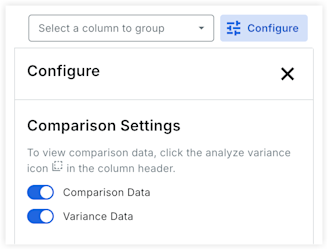
In the Configure panel, under Comparison Settings, click the toggles to enable or disable the following settings:
Comparison Data. Displays the values for line items from the comparison snapshot.
Variance Data. Displays the differences in values for the line items between the snapshots.
Procore recommends enabling only the Variance Data toggle to quickly identify budget deviations without cluttering your view with full comparison values.
Click the Variance icon in a budget column to expand it and view the snapshots and variance values based on your settings.
Loading related articles...