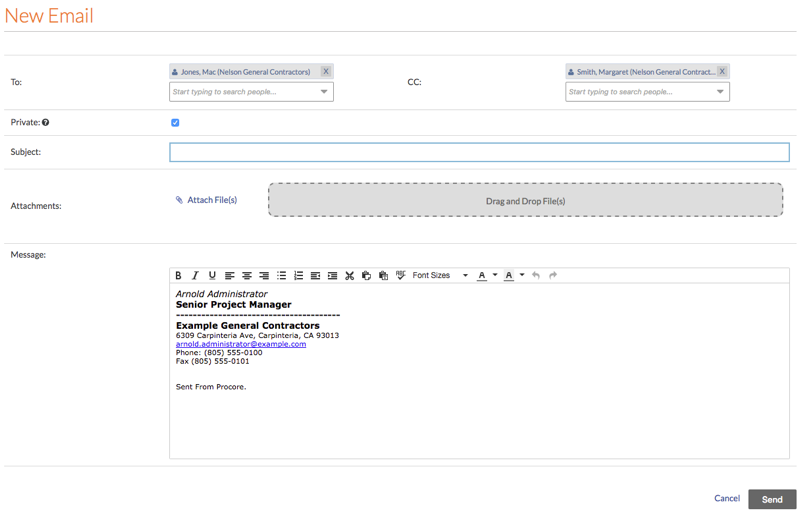
Set Up Your Outbound Email Signature in the Emails Tool
Contexte
Pour personnaliser la signature des courriels que vous envoyez depuis Procore, vous devrez l’ajouter à votre page « Paramètres de mon profil ». Les modifications que vous apportez en suivant les étapes ci-dessous affecteront les signatures de tous les courriels que vous envoyez à partir des outils de Procore.
Éléments à prendre en compte
Permissions d’utilisateur requises :
Permissions de niveau « Lecture seule » ou supérieures sur l’outil Accueil du projet.
Informations complémentaires :
Votre signature de courriel sera appliquée à tout courriel que vous envoyez à partir des outils de Procore.
Steps
Log in to the Procore web application. See Log in to Procore Web.
Click your name in the top-right corner of the program and choose My Profile Settings.
In the Personal tab, scroll down to the Email Signature box.
Note
By default, the phrase 'Sent From Procore.' appears in the box. It is recommended that you leave that text in your signature as shown below, so the messages recipients reading your message will be able to quickly see that the email was sent from Procore.
In the Email Signature box, create and format your email signature.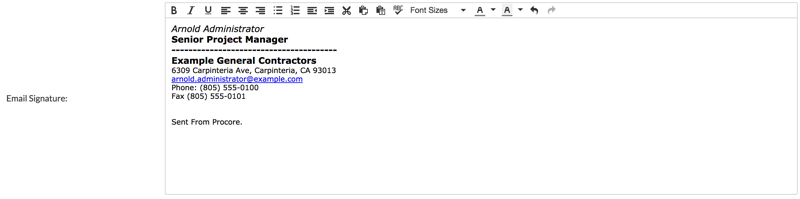
Click Update.
Note: This saves your email signature. Now, when you create a new email from the Emails tool, or other tools in Procore, you signature automatically appears in the new message as shown below: