Navigate the Model Manager Landing Page

Procore Model Manager - Beta Access & Feedback

The Model Manager (Beta) features and documentation are subject to change without notice. (Note: At the launch of the Beta, only 'Admin' level permissions are available. Additional permissions will be phased in during the product lifecycle).
To access the beta and provide feedback Show/Hide Details

  • How to Access: Participating companies must sign the Procore Beta Agreement. Once signed, your Procore Administrator coordinates with your Procore point of contact to enable Model Manager (Beta) on specific Procore projects.

  • How to Provide Feedback During Beta: Contact your dedicated Beta program lead.

  • How to report critical issues: Report breaking changes to Procore Customer Support. For general feedback or non-critical issues, contact your Beta program lead or Procore point of contact.

The Model Manager (Beta) landing page serves as the central hub for managing your project's Building Information Modeling (BIM) data within Procore. It provides a unified view of the federated project model, individual file versions, and saved project views to streamline communication and coordination.

Things to Consider

Key Functional Areas

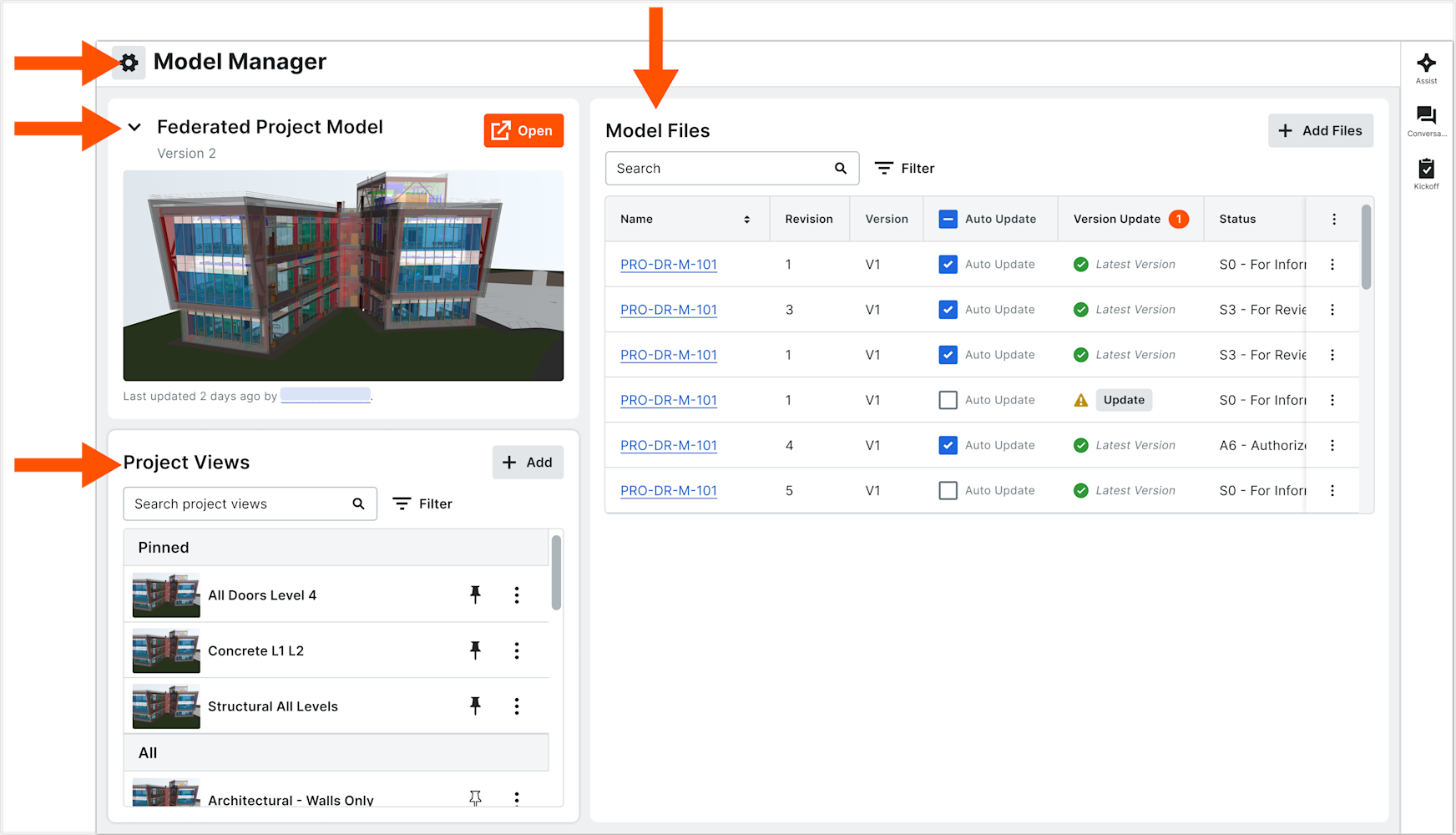
Key functional areas of the Model Manager (Beta) tool's landing page including accessing the tool's configurable settings, and cards for the Federated Project Model, its Model Files, and your Project Views.

How to Navigate to the Model Manager Tool

  • Early access content

    To navigate to the project's Model Manager (Beta) tool Show / Hide Steps

    1. Log into the Procore web application.

    2. Open a Procore project.

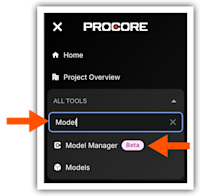
    3. In the All Tools menu, start typing: Model Manager

    4. Click the menu option in the All Tools list.
      This images shows the Project Tools menu in Procore with

      This launches the Model Manager (Beta) tool and takes you to its dashboard.

Admin View

When viewing the Model Manager (Beta) landing page as a tool Admin, you have access to the Configure Settings page and these cards: Federated Project Model, Model Files, and Project Views.

This image shows the default Admin view of the Model Manager landing page with pointers to the Configure Settings page and these cards: Federated Project Model, Model Files, and Project views

Configure Settings

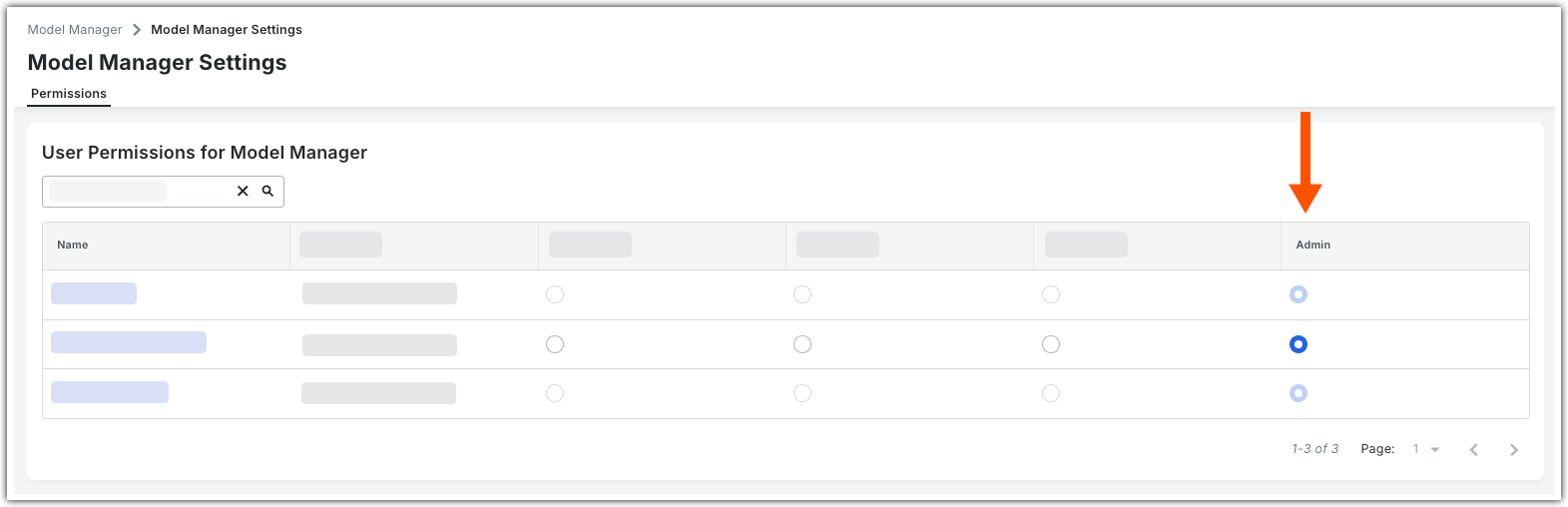
Admins can click the Configure Settings icon at the top left to open the Model Manager Settings page. In this page, use the Permissions tab to grant Procore users from the Project Directory tool access. Note that any changes you make save automatically.

This image shows the Permissions tab in the Configure Settings tab of the project's Model Manager tool.
How to Configure Model Manager Settings

To configure settings for the tool, see:

  • Early access content

    Grant project users access permissions Show / Hide Steps

    Use these steps to grant project users access to the Model Manager (Beta)tool.

    1. Navigate to the project's Model Manager (Beta) tool.

    2. Click the Configure Settings icon.

    3. In the Model Manager Settings page, click the Permissions tab. In this tool, this is the only tab.

    4. Start typing the user's name in the Search box. This filters the table to match your entry.

    5. Grant each project user the appropriate setting. (Note: At the launch of the Beta, only 'Admin' level permissions are available. Additional permissions will be phased in during the product lifecycle).
      This image shows the Permissions tab in the Configure Settings tab of the project's Model Manager tool.

    Any changes you make save automatically.

Federated Project Model

Use this card to enter the 3D environment. It shows the latest version of the federated model, a thumbnail preview of the Home viewpoint, and the date and user who made the last update. To learn how to create a new federated scene for a Procore project, see Federate a New Project Model with Model Manager.

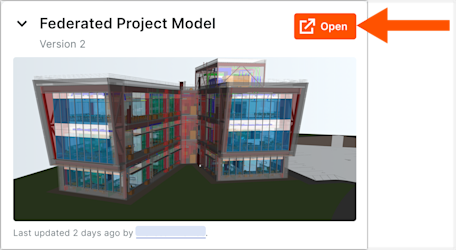
The Federated Project Model card in the Model Manager shows the latest federated model, including its version number, a thumbnail preview of the Home viewpoint, and the date and author of the last update. Click the Open button to launch the model in the Web Viewer.
How to View the Federated Project Model

To view the federated model and its data, see:

  • Early access content

    Open the federated project model Show / Hide Steps

    Follow these steps to open the federated project model:

    1. Navigate to the project's Model Manager (Beta) tool.

    2. In the Federated Project Model card, click Open.
      This image shows the Open button on the Federated Project Model card on the Admin view of the Model Manager landing page.

    Procore opens the latest federated scene directly in the viewer.

    Tip

    Can I download the federated project model? No. Instead of downloading large files, the system streams optimized data to your device. This cloud-based approach bypasses local storage limits and ensures your team always works with the most current information.

  • Check back for updates

    See contact info for the user who last updated the model Show / Hide Steps

    Check Back for Updates

    While intended for General Availability (GA), this feature's final release, functionality, and timing remain subject to change prior to commercial launch.

    1. Navigate to the project's Model Manager (Beta) tool.

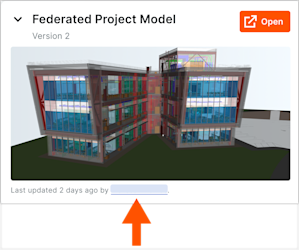
    2. In the Federated Project Model card, click the user's name link.
      This image shows the user name link at the bottom of the Federated Project Model card in the Admin view of the Model Manager landing page.

    Procore shows the contact information from the user's record in the Project Directory.

Model Files

Use this card to add new files, search for matching files, and open the trade-specific files that comprise the federated project model. You can also apply filters, configure the column display, update file versions, and remove files from the federated project model.

Note

The columns that appear in the Model Files table depend on the Procore project's chosen document repository: Documents or Document Management.

The Model Files card in the Model Manager provides access to trade-specific files that make up the federated Project Model. From here, users can add files, manage revisions, set auto-updates while tracking version status, and toggle file privacy between private and shared.
How to Navigate and Manage Discipline-Specific Files

To navigate and manage the independent model files, see:

  • Early access content

    Add files to the federated project model Show / Hide Steps

    1. Navigate to the project's Model Manager (Beta) tool.

    2. If using both Documents and Document Management, select which document repository you would like to choose from.

      Note

      If both Documents and Document Management are enabled in Procore, select your project's preferred repository. Please note that a project model can only be federated from a single repository.

    3. In the Model Files card, click Add Files.

      Important

      Missing a file? First, ensure it was uploaded to the correct document repository. To add a file to the federated project model from Document Management, it must be in the Approved or Approved with Comments status. For help, see the Document Management tutorials.

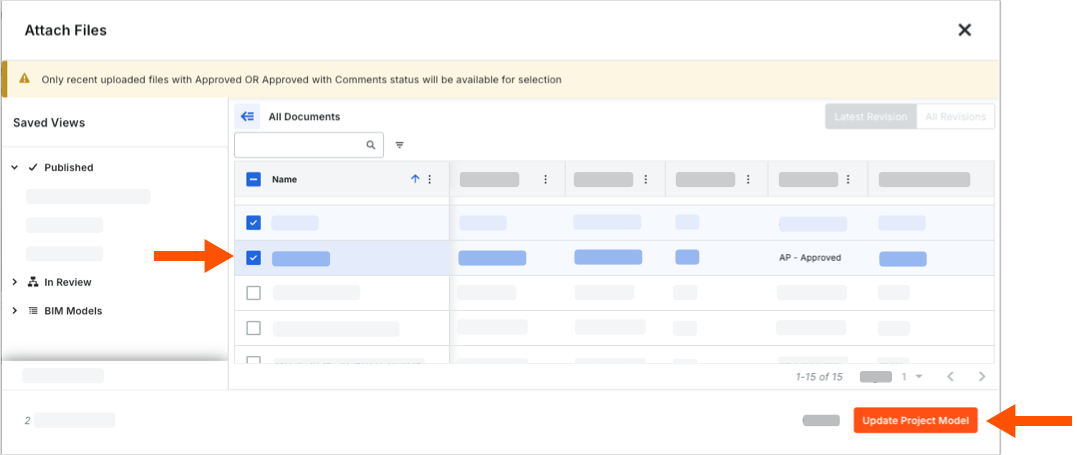
    4. In the Attach Files window, mark the check boxes to select the files to add.
      This image shows the Attach Files window that opens for the Document Management tool when a user clicks the Add Files button in the Model Files card on the Admin view of the Model Manager tool.

    5. Click Update Project Model to add the selected files to the federated project model.

  • Early access content

    Search for files in the federated project model Show / Hide Steps

    1. Navigate to the project's Model Manager (Beta) tool.

    2. In the Model Files card, start typing in the Search box.
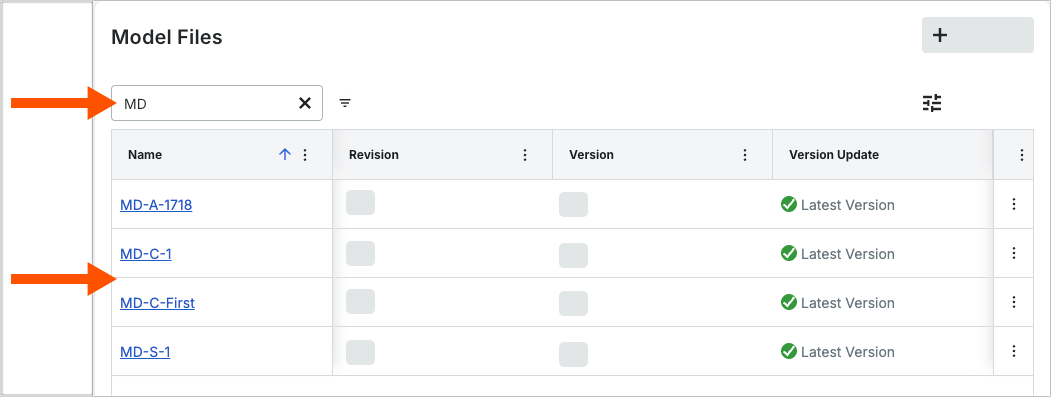
      This image shows a search for matching files in the Model Files card in the Admin View of the Model Manager landing page.

    Procore filters the table to show only items matching your entry.

  • Early access content

    View file information Show / Hide Steps

    1. Navigate to the project's Model Manager (Beta) tool.

    2. In the Model Files card, view the federated model's list of files.
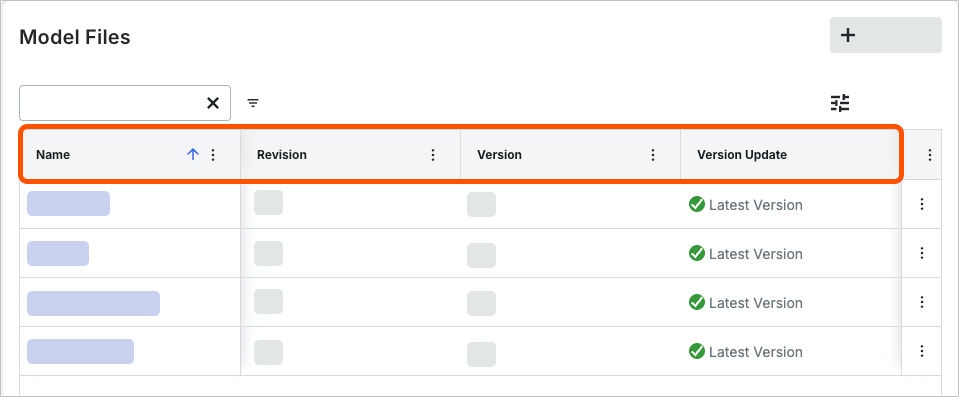
      This image shows the columns that display be default in the Model Files card that is available in the Admin View of the Model Manager Landing Page.

    The table's data columns are based on the document repository (Document Management or Documents).

  • Early access content

    Apply filters to the Model Files card Show / Hide Steps

    1. Navigate to the project's Model Manager (Beta) tool.

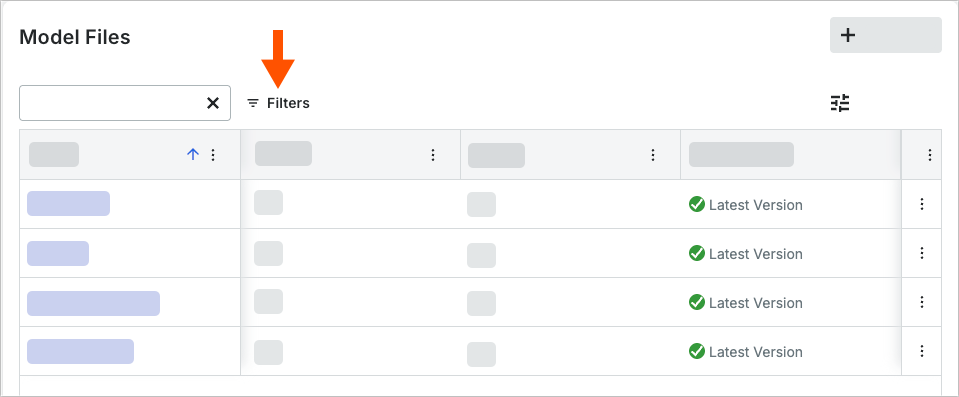
    2. In the Model Files card, click Filters.
      This image shows the Filters icon in the Model Files card, which is located in the Admin View of the Model Files card in the Model Manager landing page.

    3. In the Filters panel, choose from these options:

      • Revision. Select one (1) revision from the list.

      • Version. Select one (1) version from the list.
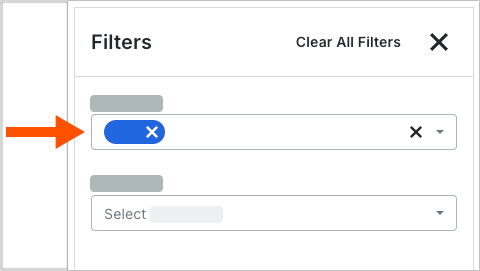
        A Blue bubble shows any active filters. Click Close (X) to remove filters.
        This image shows an open Filters panel with an arrow showing users how to select a filter to apply to a data table.

    4. Click Close (X) to quit the Filters panel.

    Note

    The Model Files card will now display your filtered results, and the button label will update to More Filters. To remove a filter, click Clear (X) on the blue filter above the table.

  • Early access content

    Configure the table settings Show / Hide Steps

    1. Navigate to the project's Model Manager (Beta) tool.

    2. In the Model Files card, click Configure.
      This image shows a Configure button in an active state with the Table Settings panel open and the controls to set a Row Height and Configure Columns.

    3. In the Table Settings panel, choose from these options:

      • Row Height. Choose Small, Medium, or Large.

      • Configure Columns. Move each toggle to the ON of OFF position:

        • Name. This column is required and always ON.

        • Revision. Show or hide the file's revision number from your project's document repository.

        • Version. Show or hide the file's revision number from your project's document repository.

        • Version Update. Shows if the file you are viewing is the latest version and whether updates are available.

    4. Click Close (X) to hide the Table settings panel.

  • Early access content

    Open a model file Show / Hide Steps

    1. Navigate to the project's Model Manager (Beta) tool.

    2. In the 'Model Files' card, click the link for the row you want to open in the Name column.

    3. If this is your first time viewing a file in Procore, choose how to view it:
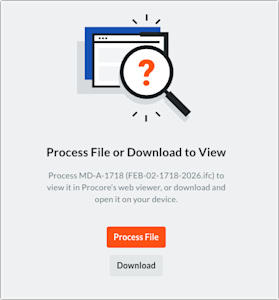
      This image shows the Process File and Download buttons when a new file in the Model Files card in the Model Manager tool is opened for the first time.

      • To open it in the viewer, click Process File. Procore processes the file and opens it in the viewer. Processing time can vary depending on the size of the file and your Internet connection.

      • To download it to your computer, click Download. Procore downloads the file to the folder specified by your web browser's settings.

  • Early access content

    Update a file version Show / Hide Steps

    If an notification counter appears in the Version Update column when new file version is available.

    Note

    The Model Manager (Beta) automatically tracks new file versions based on your project's document repository.

    • Document Management: Displays new versions only when they reach the 'Approved' or 'Approved with Comments' status in your workflow.

    • Documents: Displays all new file versions.

    1. Navigate to the project's Model Manager (Beta) tool.

    2. In the Model Files card, a notification counter appears at the top of the column to alert you about new file versions.

    3. In the appropriate file row, click Update in the Version Update column.

    This updates the file to the latest version.

  • Early access content

    Remove a file from the federated model Show / Hide Steps

    1. Navigate to the project's Model Manager (Beta) tool.

    2. In the Model Files card, locate the file to remove.

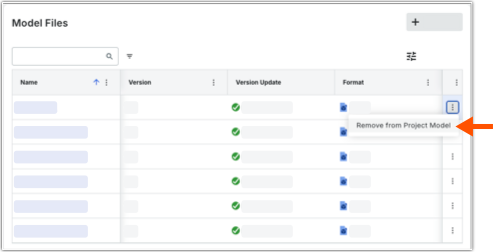
    3. Click the More (:) icon in the file's row and choose Remove from Project Model.
      This images shows the Remove from Project Model option in the More menu for a Model File in the Model Manager tool.

Project Views

Use this card to add, manage, search for, and filter saved project views. Hover your mouse cursor over the thumbnails to blow up the thumbnail. Click the Pin option for faster navigation to critical project areas, such as specific floor levels or structural systems.

This image shows the Project Views card in the Admin view of Model Manager Dashboard
How to Navigate and Manage Project Views

To perform actions in the Project Views card:

  • Early access content

    Open a project view Show / Hide Steps

    Use these steps to open a project view in the Next-Gen Viewer.

    1. Navigate to the project's Model Manager (Beta) tool.

    2. In the Project Views card, click an available view.

    This takes you to the saved camera position for your selected view.

  • Early access content

    Pin a project view to add it to your pinned items Show / Hide Steps

    Use these steps to pin a project view your pinned items list.

    1. Navigate to the project's Model Manager (Beta) tool.

    2. In the Project Views card, locate the view to pin.

    3. Click the Pin icon to add it to your list.

  • Check back for updates

    Share a project view Show / Hide Steps

    Check Back for Updates

    While intended for General Availability (GA), this feature's final release, functionality, and timing remain subject to change prior to commercial launch.

    Use these steps to share a project view.

    1. Navigate to the project's Model Manager (Beta) tool.

    2. In the Project Views card, find the view to share.

    3. Choose an option:

      • Click the Share icon.

      • Click More (:) and choose the Share menu option.

  • Early access content

    Elevate a viewpoint to a project view Show / Hide Steps

    Use these steps to elevate a viewpoint to a new project view.

    1. Navigate to the Model Manager (Beta) tool.

    2. In the Project Views card, click Add to open the Elevate Viewpoints to Project Views window.

    3. Mark the check boxes that correspond to the file or folder to add.

    4. Click Add to elevate the selected viewpoint to a new project view.

  • Early access content

    Create a new viewpoint or edit an existing one Show / Hide Steps

    Use these steps to create a new viewpoint or edit an existing one.

    1. Navigate to the Model Manager (Beta) tool.

    2. In the Project Views card, click Add.

    3. In the Elevate Viewpoints to Project View window, click Create to open the project model. The Viewpoints panel is active.

    4. In the Viewpoints box, you have these options:

      1. Create a new viewpoint. Click the Plus (+) icon and choose a menu option:

        • Create Viewpoint. This adds a new viewpoint to the list and you can type a name for it.

        • Create Folder. This adds a new folder to the Viewpoints list and you can type a name for it.

      2. Modify an existing viewpoint: Start typing some text to search for matches, and on the viewpoint you want, click the More (:) icon to choose a menu option:

        • Update. Update the viewpoint.

        • Rename. Type a new name for the viewpoint.

        • Move to Folder. Move the selected viewpoint to the folder you want.

        • Elevate to Project Views. Elevate the select viewpoint to a project view.

        • Delete. Delete the selected viewpoint.

See Also

Loading related articles...