Comment puis-je configurer l’authentification multifacteur avant la date limite d’application ?

Procore MFA: Regional Availability for SMS Verification

Procore supports Authenticator apps everywhere. SMS Verfication is only available in these countries Afficher/Masquer

SMS Verification is available in these countries.

  • Note: SMS Verification for Procore Pay (Payees) is limited to the United States.

    • US

    • Canada

    • Mexico

    • UK

    • Ireland

    • France

    • Germany

    • Spain

    • Italy

    • Australia

    • New Zealand

    • Singapore

    • Hong Kong

Strengthen Your Security: Procore MFA

Multi-Factor Authentication (MFA)—also referred to as Two-Factor Authentication (2FA)—is being rolled out to limited Procore commercial accounts. While MFA is mandatory for Procore Pay users, MFA is available on a limited basis to commercial accounts to provide our customers an extra layer of security. To enable MFA for your organization, ask your Procore Administrator to contact your Procore point of contact.

Réponse

Pour renforcer la sécurité des comptes, votre entreprise peut définir une date ultérieure pour appliquer officiellement l’utilisation de l’authentification multifacteur (MFA). Une notification par e-mail vous informera avant cette date d’application. Vous avez la possibilité de configurer l’authentification multifacteur pour votre compte de manière proactive avant cette date limite afin d’assurer une transition en douceur et d’éviter toute interruption potentielle de l’accès le jour de l’application.

Exemple

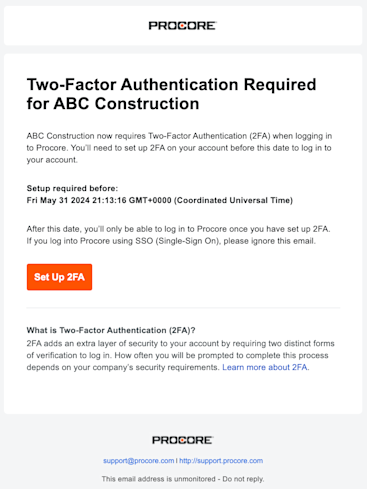
Il s’agit de l’e-mail que les utilisateurs de votre entreprise recevront une fois que votre administrateur d’entreprise aura défini la date d’application de votre entreprise.

Example email sent to Procore end users to inform them that MFA (2FA) is required for their company.

Enroll in MFA Before the Enforcement Deadline

To enroll in MFA early, use these steps to set up your preferred verification method for the first time.

  1. Go to the Procore web application at: https://login.procore.com .

  2. Go to your Account & Profile avatar and click My Profile Settings.

  3. Click the Password & Security tab.

  4. Under Two-Factor Authentication (2FA), choose your preferred verification method:

    • To enroll in MFA with an Authenticator App Afficher /Masquer les étapes

      Follow these steps to enroll in MFA with an Authenticator app:

      1. Click Add Authenticator App.

      2. Enter your account's current password.

      3. Open the Authenticator app on your mobile device.

      4. Use the Authenticator app's camera to scan the QR code on the Secure your Account page.

      5. Enter the 6-digit code from your authenticator app and click Continue.

    • To enroll in MFA with SMS verification Afficher /Masquer les étapes

      Follow these steps to enroll in MFA with SMS verification:

      1. Click Add Phone Number.

      2. Enter your account's current password.

      3. Complete the Select Your Country Code and Enter Your Phone Number fields.

      4. Click Send Text Message

      5. Enter the 6-digit code sent to your phone and click Continue.

  5. Copy or download your new recovery code and secure it in a safe place.

Avertissement

Assurez-vous d’enregistrer votre code de récupération dans un emplacement accessible en toute sécurité à partir d’un autre appareil. En cas de perte ou d’endommagement de votre appareil MFA, vous aurez besoin de votre code de récupération pour configurer l’authentification multifacteur sur un nouvel appareil. Chaque code de récupération ne peut être utilisé qu’une seule fois. Après l’utilisation d’un code de récupération, vous aurez la possibilité d’enregistrer un nouveau code de récupération.

See Also

Loading related articles...