Créer un ensemble de champs de projet
Arrière-plan
Les ensembles de champs configurables font référence à des champs dans des outils Procore spécifiques qui peuvent être définis comme facultatifs, obligatoires ou masqués. L’ensemble de champs du projet comprend des champs disponibles lors de la création et de la modification des informations du projet. Une fois configurés dans l’outil Admin de l’entreprise, ces champs peuvent être modifiés pour chaque projet dans l’outil Admin de ce projet ou dans l’onglet « Vue d’ensemble » de l’outil Planification du tableau d’appels d’offres et du portefeuille.
Things to Consider
Required User Permissions:
'Admin' level permissions on the Company level Admin tool.
Additional Information:
Only one fieldset can be created. If a fieldset already exists, the Create Fieldset button is disabled.
The fieldset will apply to all new and existing projects. It cannot be assigned to individual projects.
If you want to configure fieldsets for specific tools, see What are configurable fieldsets and which Procore tools support them?
Bid Board supports only four types of custom fields:
Number
Date
Plan Text (Short)
Checkbox
Steps
Navigate to the Company level Admin tool.
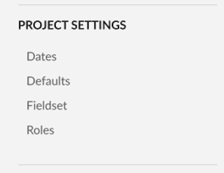
Under 'Project Settings', click Fieldset.
Click Create Fieldset.
Enter the name and click Create.
Each field name has the following options:
Click the toggle to the ON
 position to make the field visible in the section.
OR
Click the toggle to the OFF position to hide the field in the section.
Note: A faded toggle icon indicates that the field is visible and cannot be changed to hidden.
Mark the 'Required' checkbox to designate the field as required.
OR
Clear the 'Required' checkbox to designate the field as optional.
Optional: Click Create Section to create a new section.
Enter the section name, then click Create.
Optional: In the relevant section, click Add Custom Field.
Create New
Click Create New.
Enter the Field Name.
Enter the Field Type.
Click Create.
Choose Existing
Click Choose from Existing.
Click Add next to the custom field.
Note: Not all custom field types are available for all tools. See What field types are available for Custom Fields in Procore Tools?
Click Save.
In the window, click Confirm.
See Also
Loading related articles...