View a Commitment's Schedule of Values (SOV) (Android)
Things to Consider
Required User Permissions:
'Admin' level permissions on the project's Commitments tool.
OR'Read Only' and 'Standard' level permissions can only view commitments that they have been granted access via the privacy drop-down menu when editing or creating a commitment.
OR'Read Only' or 'Standard' level permissions on the project's Commitments tool with the 'View Private Purchase Order Contract' granular permission enabled on your permissions template.
Additional Information:
Cet actif ou élément peut être affiché ou modifié en mode hors connexion s’il a été précédemment affiché et mis en cache sur votre appareil mobile. Les tâches effectuées en mode hors ligne sont synchronisées avec Procore une fois la connexion réseau rétablie.
Prerequisites
Steps
Navigate to the project's Commitments tool using the Procore app on an Android mobile device.
Tap the purchase order to which you want to add a line item.
Tap Schedule of Values.
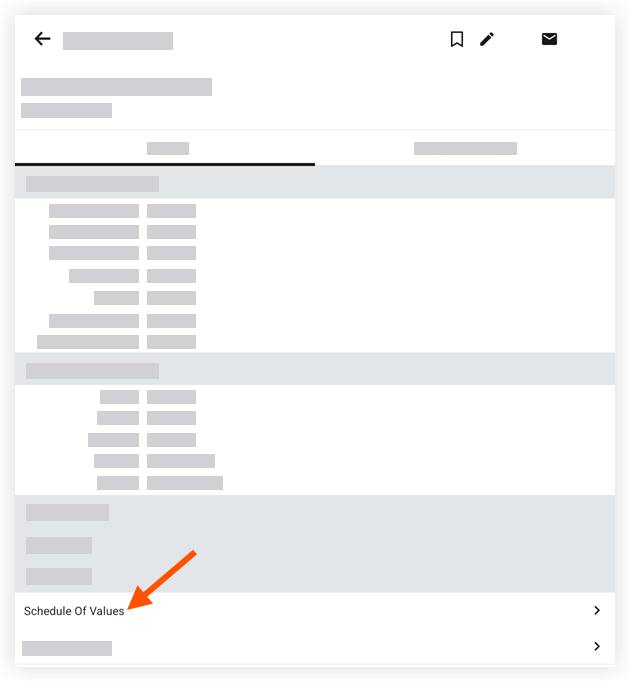
Note: This action reveals a list of the line items belonging to the purchase order's Schedule of Values (SOV).Optional: Tap a line item to view its details.
See Also
Loading related articles...