Transférer un élément de correspondance par e-mail
Fond
La fonctionnalité d’e-mail de l’outil Correspondance vous permet d’envoyer un e-mail en dehors des e-mails générés automatiquement, par exemple lors de la création d’un élément de correspondance. Voir Qui reçoit les e-mails de documents de correspondance et les notifications push pour en savoir plus sur les e-mails de correspondance automatiques.
Éléments à prendre en compte
Autorisations utilisateur requises :
Autorisations de niveau « Standard » ou supérieur sur le type de correspondance de l’élément.
Informations complémentaires :
Si une personne est absente de la liste de sélection des destinataire, ajoutez-la à la Niveau projet Annuaire disposant d’autorisations de niveau « Lecture seule » ou supérieur pour que le type de correspondance E-mail/Transférer. Si vous n’avez pas autorisation d’ajouter des utilisateurs à l’Annuaire du projet, demandez à un membre de votre équipe responsable de Annuaire gestion de les ajouter.
Remarque : Le nouvel utilisateur n’a PAS besoin d’accepter l’invitation à rejoindre le projet pour pouvoir être sélectionné dans la liste des destinataires.
Escalier
Accédez à l’outil Correspondance du projet.
Cliquez sur le lien Numéro ou Objet du document de correspondance que vous souhaitez inclure dans votre e-mail.
Cliquez sur l’onglet E-mails .
Cliquez sur Composer un e-mail.
Dans la zone « Composer un nouvel e-mail », remplissez les champs suivants :
Privé. Décidez si vous souhaitez cocher ou décocher la case Privé dans le coin supérieur.
Les e-mails marqués comme privés ne sont visibles que par les destinataires et l’administrateur de l’e-mail, dans l’application Procore.
Les e-mails non marqués comme privés sont visibles dans l’onglet E-mails par toute personne autorisée à afficher l’élément de correspondance dans Procore.
À. Choisissez un ou plusieurs utilisateurs ou groupes de distribution qui recevront l’e-mail.
Cc. Vous pouvez choisir des utilisateurs ou des groupes de distribution pour recevoir des copies de l’e-mail.
Cci. Vous pouvez choisir des utilisateurs ou des groupes de distribution qui recevront une « copie conforme invisible » de l’e-mail. Ces personnes recevront des copies de l’e-mail, mais d’autres ne peuvent pas voir qu’elles l’ont reçu.
Sujet. Ce champ est rempli automatiquement à l’aide du titre du document de correspondance que vous avez sélectionné ci-dessus. Vous pouvez modifier le texte si vous préférez un titre différent.
Message: saisissez du texte dans le corps de votre e-mail.
Note: Les informations sur l’élément de correspondance que vous transférez sont incluses dans le corps de l’e-mail sous votre message, comme indiqué ci-dessous dans les sections Détails et Réponses de l’image.Joindre des fichiers. Cliquez sur Joindre des fichiers et recherchez les fichiers que vous souhaitez joindre à l’e-mail. Cliquez ensuite sur Joindre.
Cliquez sur Envoyer.
Une copie de l’e-mail et de toutes les réponses sont stockées en tant que fil de communication dans l’onglet E-mails du livrable.
Chaque e-mail utilise une adresse e-mail unique, telle que procore-1234abcd1234abcd1234abcd@procoretech.com
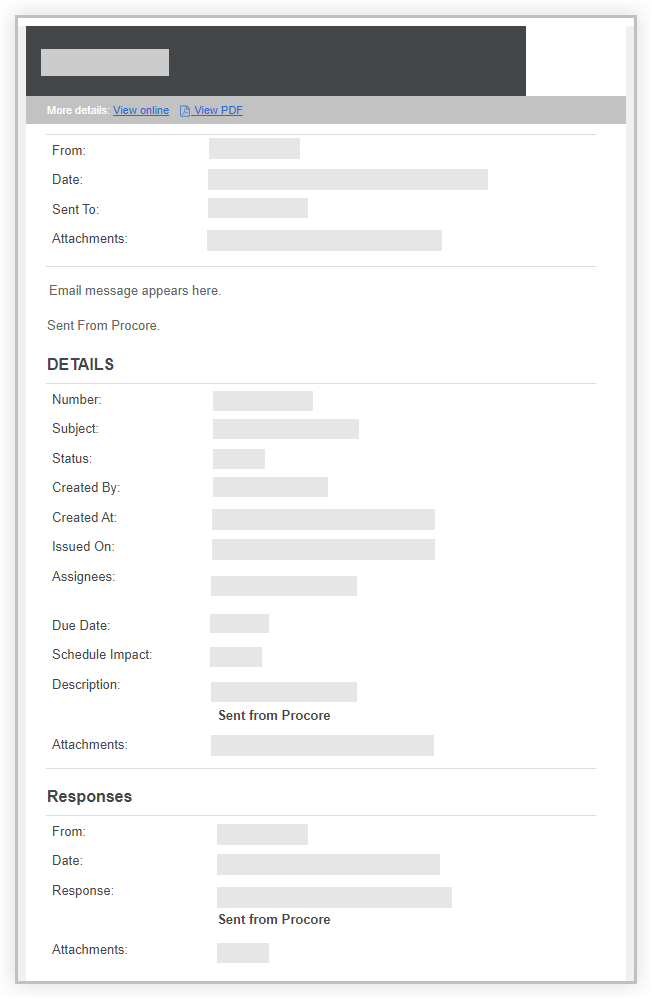
Exemple d’e-mail : les champs exacts dépendent des paramètres du projet, de l’outil et de l’élément.
Voir aussi
Chargement des articles connexes...