Copier un élément de rapport journalier (iOS)
Éléments à prendre en compte
Additional Information:
You can only copy a log entry from a single day to another day. If there are multiple entries for a single day, all entries will be copied to the new log. Copying data to/from a specified date range is currently not supported.
Attachments will only copy from Notes log entries. All other logs do not copy attachments.
You can copy one or more logs at the same time (e.g. Manpower, Timecard, etc.).
You can edit entries once they've been copied over.
You can use the copy feature on all active daily logs except the Weather log and Photos. Weather can't be copied over because the data is being pulled from the Dark Sky service for a specific day. Same with Photos, they are from certain point and time so they will not be copied over to a Daily Log entry for a new day.
The change history for the Daily Log tool will be updated to reflect these changes. The entry will also denote that the log entry was created by using the copy feature.
You can configure your Manpower log so that the 'Hours' and 'Workers' values on a copied manpower log entry are set to zero (0).
See Configure Advanced Settings: Daily Log.
Note: If this setting is not enabled, the copied manpower log entry will include the number of hours and workers from the previous entry.
Escalier
Accédez à l’outil Rapport journalier du projet à l’aide de l’application Procore sur un appareil mobile iOS.
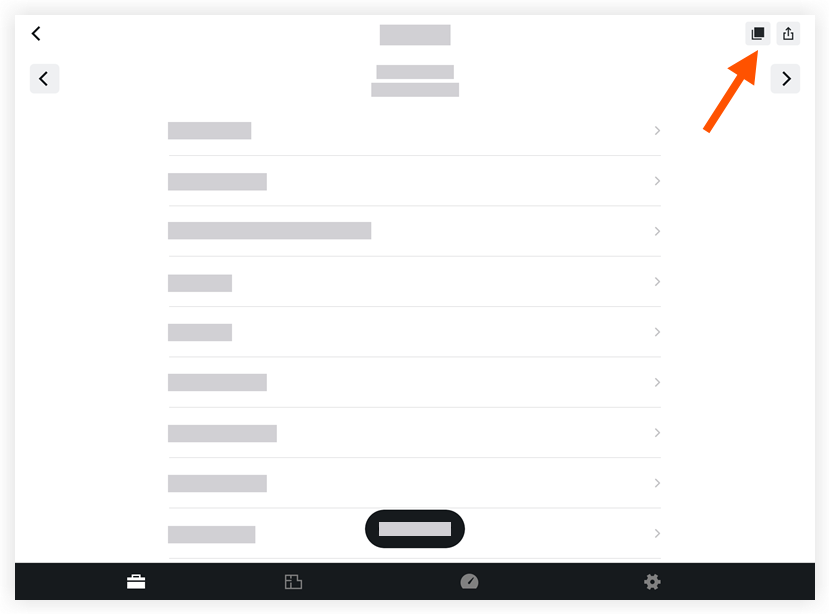
Appuyez sur l’icône Copier
 .
.
Appuyez sur Copier à partir de la date pour sélectionner la date à copier.
Appuyez sur Copier au pour sélectionner la date à laquelle vous souhaitez ajouter le registre copié.
Appuyez sur le(s) registre(s) que vous souhaitez copier.
Note: Les journaux sélectionnés seront marqués d’une coche.Appuyez sur Copier les journaux.
See Also
Loading related articles...