Afficher et gérer les autorisations de flux de travail dans l’outil de gestion de documents

Disponibilité régionale

L’outil de gestion de documents est disponible dans certains pays. Il n’est pas encore disponible pour les comptes Procore aux États-Unis. Pour en savoir plus, veuillez contacter votre point de contact Procore.

Background

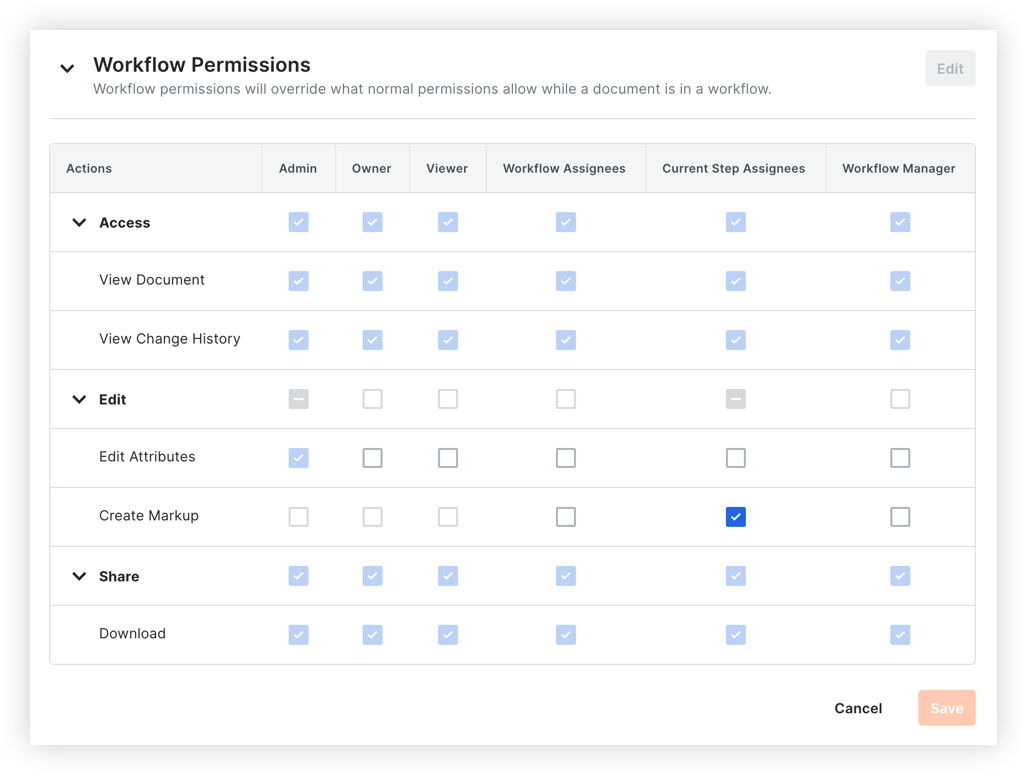
Permissions selected in Workflow Permissions section of the Configure Settings page are specific to documents in a workflow. Any permissions set here will override normal permissions set from the Document Permissions section.

Things to Consider

  • Required User Permissions:

    • 'Admin' level permissions to the project's Document Management tool.

Steps

  1. Navigate to the project's Document Management tool.

  2. Click the Configure Settings icons-settings-gear.png icon.
    This opens the Permissions tab.

  3. Scroll to Workflow Permissions and click the arrow icon-arrow-expand.png icon to expand the section.

  4. To edit permissions, click Edit.

  5. Make changes to the permissions as necessary.
    Note: Certain permissions cannot be modified.
    dm-workflow-permissions.png

    • Mark a checkbox to grant a permission to a permission level or workflow role.

    • Clear a checkbox to remove a permission from a permission level or workflow role.

  6. Click Save.

See Also

Loading related articles...