Télécharger des fichiers et des dossiers à partir de l’outil Documents au niveau entreprise
Fond
Il existe plusieurs façons de télécharger des fichiers et le contenu des dossiers à partir de l’outil Documents. Il vous montre également comment télécharger les versions précédentes d’un fichier à partir du journal de versions du fichier.
Éléments à prendre en compte
Autorisations utilisateur requises :
Autorisations « Lecture seule » ou supérieures dans l’outil Documents au niveau entreprise.
Remarque: Si vous disposez des autorisations « Admin », vous pouvez également afficher le registre des téléchargements d’un fichier ou d’un dossier. Vous disposez ainsi d’une liste des utilisateurs qui ont téléchargé le fichier à partir de l’outil Documents.
Informations complémentaires :
Jusqu’à 5 000 fichiers peuvent être téléchargés à la fois.
En plus de télécharger des fichiers ou des dossiers en suivant les étapes ci-dessous, vous pouvez également exporter des documents au format PDF ou CSV, envoyer des fichiers et des dossiers par e-mail, télécharger des fichiers à partir de Procore Drive et télécharger des dossiers à partir de Procore Drive.
Escalier
Télécharger un fichier ou un dossier individuel
Accédez à l’outil Documents .
Faites un clic droit sur le fichier ou le dossier que vous souhaitez télécharger.
Remarque: Vous pouvez également accéder aux actions en survolant ou en sélectionnant le fichier ou le dossier.Cliquez sur
 Télécharger.
Remarque: le fichier ou le dossier commence à se télécharger sur votre ordinateur.
Télécharger plusieurs fichiers ou dossiers
Vous pouvez télécharger des documents par lot s’ils se trouvent dans le même dossier. Pour télécharger d’autres documents par lot, voir Télécharger des fichiers à partir de Procore Drive.
Accédez à l’outil Documents .
Localisez les fichiers ou dossiers que vous souhaitez télécharger.
Cochez les cases à côté des fichiers et dossiers que vous souhaitez télécharger.
Faites un clic droit sur le fichier ou le dossier que vous souhaitez télécharger.
Remarque: Vous pouvez également accéder aux actions en survolant ou en sélectionnant le fichier ou le dossier.Cliquez sur
Télécharger.
Remarque: les fichiers commencent à se télécharger sur votre ordinateur dans un fichier zip.
Télécharger une version précédente d’un fichier
Accédez à l’outil Documents .
Sélectionnez le fichier dont vous souhaitez afficher les versions.
Si le panneau Informations n’est pas déjà ouvert, cliquez sur l’icône Infos
 .
.Sous Version, cliquez sur le lien correspondant au nombre de versions.
Remarque: comme indiqué dans l’image ci-dessous, vous cliqueriez sur le numéro « 2 » pour ouvrir l’historique des versions.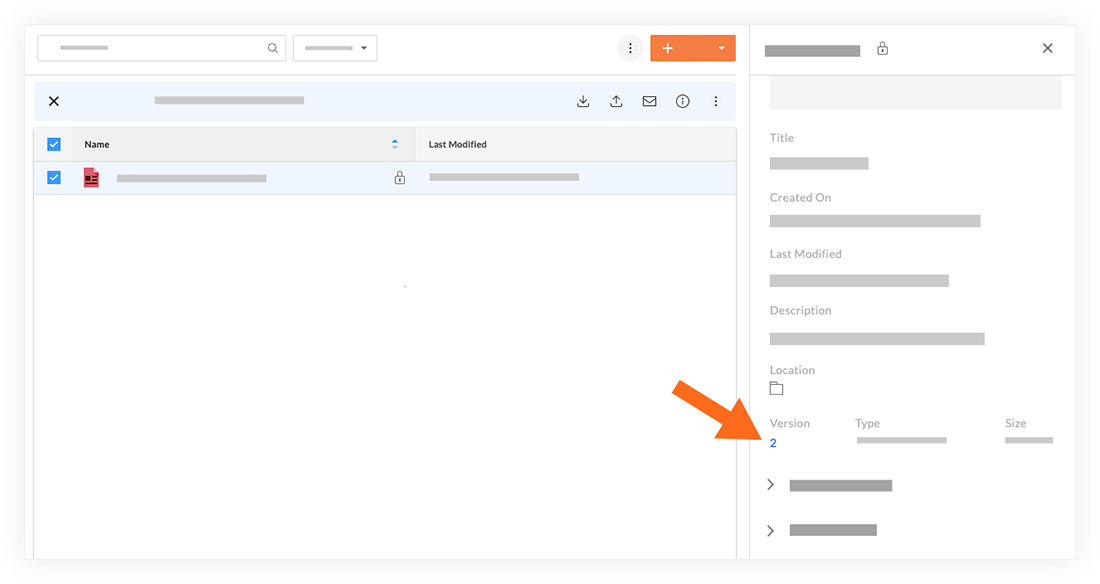
Passez votre souris sur la version que vous souhaitez télécharger.
Cliquez sur l’icône Télécharger
 .
.
Remarque: ceci télécharge une copie du fichier sur votre ordinateur.
Voir aussi
Chargement des articles connexes...