Ouvrir ou modifier un fichier dans Microsoft Office 365 à l’aide de l’outil Documents au niveau entreprise
Éléments à prendre en compte
Autorisations utilisateur requises :
Autorisations de niveau « Standard » ou « Admin » dans l’outil Documents au niveau entreprise.
Remarque: Si le fichier est « privé », l’utilisateur doit être ajouté à la liste des autorisations du fichier.
Informations complémentaires :
Un compte Microsoft Business et un abonnement Office 365 « Office pour le Web » sont nécessaires pour modifier les fichiers. Voir Comment fonctionne l’intégration d’Office 365 dans l’outil Documents de Procore ?
Remarque : si vous avez uniquement besoin d’afficher le fichier, voir Afficher un fichier dans Microsoft Office 365 à l’aide de l’outil Documents au niveau projet.La modification est limitée à ce qui peut être fait dans Microsoft « Office pour le web » (c’est-à-dire dans la version du navigateur). Pour une édition plus avancée, la version de bureau de Microsoft Office doit être utilisée.
Les fichiers Microsoft Office suivants peuvent être modifiés dans Office 365 à l’aide de l’outil Documents.
Word (.docx, .docm, .odt)
Excel (.xlsx, .xlsm, .xlsb, .ods)
Powerpoint (.pptx, .ppsx, .odp)
Escalier
Accédez à l’outil Documents .
Recherchez le fichier que vous souhaitez ouvrir et modifier dans Microsoft Office 365.
Survolez le fichier et cliquez sur l’icône correspondant au fichier que vous souhaitez ouvrir. Par exemple, pour un document Word, cliquez sur l’icône Word pour ouvrir dans Word.
conseil! Vous pouvez également faire un clic droit sur le fichier pour accéder à cette action.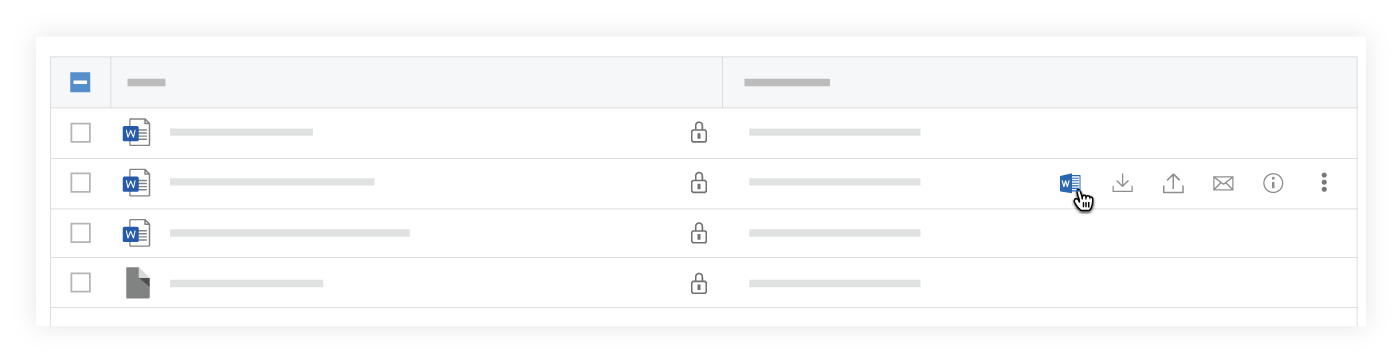
Si vous n’êtes pas déjà connecté à votre compte Microsoft dans Procore, vous serez invité à vous connecter à l’aide de vos informations d’identification de connexion Procore. Voir Comment se connecter à Microsoft Office 365 dans l’outil Documents ?
Un nouvel onglet s’ouvre dans votre navigateur et affiche le fichier dans Office 365.
Dans l’en-tête supérieur, cliquez sur Modifier.

Si vous n’êtes pas déjà connecté à votre compte Microsoft, connectez-vous à l’aide de vos informations d’identification de connexion Microsoft.
Modifiez le fichier si nécessaire.
Remarque : Au fur et à mesure que vous apportez des modifications, le fichier est enregistré. Ceci est indiqué par l’option « Sauvegarde... dans l’en-tête supérieur.
Une fois les modifications enregistrées dans Procore, le message indique « Enregistré dans Procore ».Si vous souhaitez enregistrer manuellement les modifications, cliquez sur Enregistrer et revenir à Procore.

Remarque: l’enregistrement des modifications dans Procore peut prendre quelques instants, nous vous recommandons donc de cliquer sur « Enregistrer et revenir à Procore » avant de fermer l’onglet ou votre navigateur.
Voir aussi
Chargement des articles connexes...