Charger une nouvelle version d’un fichier dans l’outil Documents au niveau projet
Éléments à prendre en compte
Autorisations utilisateur requises :
Autorisations « Standard » ou « Admin » dans l’outil Documents au niveau projet.
Informations complémentaires :
Lorsque vous chargez des fichiers dans un dossier dans l’outil Documents, Procore vérifie automatiquement les fichiers existants du dossier. Si un fichier portant le même nom est trouvé, vous pouvez le charger en tant que nouvelle version du fichier existant. Voir Charger de nouvelles versions de fichier par lot ci-dessous.
Si vous travaillez dans un environnement où plusieurs personnes ont l’autorisation de modifier les fichiers, il est vivement recommandé de toujours archiver et extraire les fichiers pour éviter les conflits (par exemple, remplacer les modifications d’un autre utilisateur). Voir Archiver ou extraire des fichiers dans l’outil Documents au niveau projet.
Escalier
Upload a New Version of a File
Navigate to the Documents tool.
Locate the file you want to upload a new version of.
Click the vertical ellipsis icon.
Drag and drop the file to the box under New Version.
ORClick the box under New Version to browse for the file.
Select the file and click Open.
Optional: Add comments about the new version of the file.
Click Upload.
Bulk Upload New File Versions
Navigate to the Documents tool.
Open the folder you want to upload files to.
After selecting files on your computer, drag and drop them to the center panel of the Documents tool.
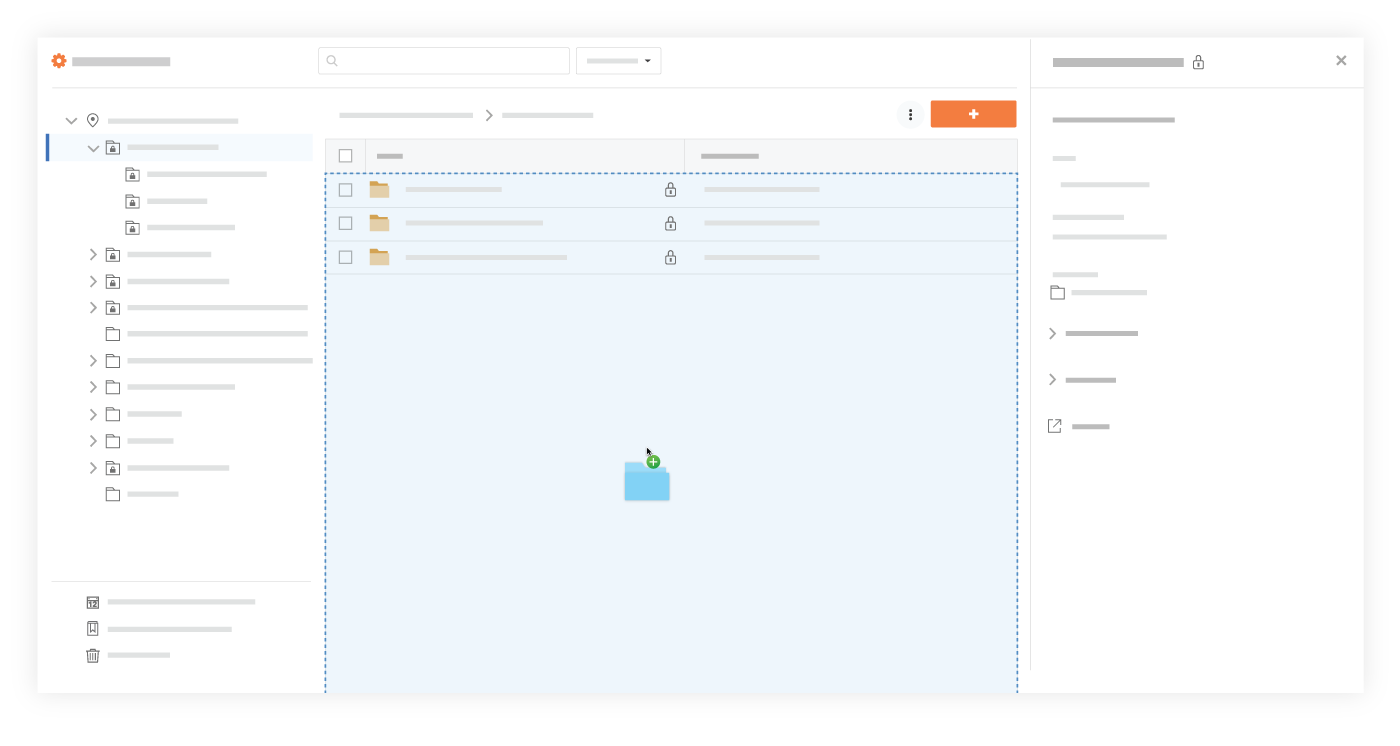
ORClick the + New drop-down menu and select File Upload.
Select the files you want to upload from your computer.
Click Open.
A window opens with a message that files with the same name already exists in the folder.
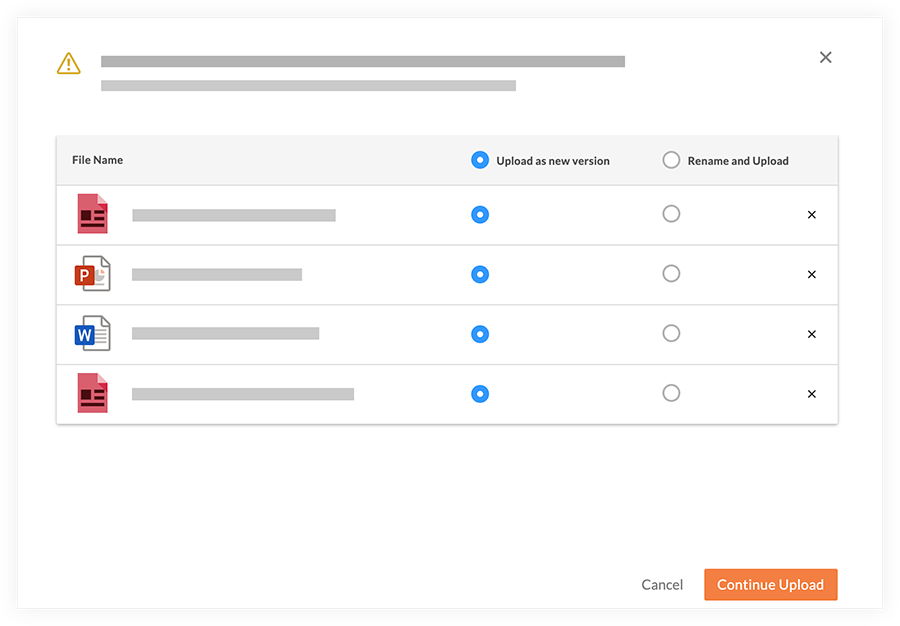
Ensure any files you want to upload new versions of have Upload as new version selected.
Click Continue Upload.
Note: The files automatically begin uploading as new versions.
See Also
Loading related articles...