Ce site Web n'est pas encore complètement disponible dans votre langue
La seule page du site de support V2 disponible dans vos paramètres régionaux est celle de la bibliothèque vidéo. Le lancement complet du site Web arrivera prochainement.
Vous recherchez d'autres contenus ? Retournez sur le site de support V1.
Manuels de produits populaires
Les manuels de produits les plus utilisés sur le chantier
Pour revenir à l’ancien Accueil de projet, les administrateurs Procore peuvent accéder à l’outil Accueil entreprise Portefeuille / ProcoreAccueil, cliquer sur Gérer les paramètres et désactiver Aperçu du projetbascule.
Cependant, plus tard cette année, il sera au coucher du soleil et ne sera plus disponible. Si votre entreprise est revenue à l’ancienne expérience projet Accueil, les administrateurs Procore peuvent réactiver l’Aperçu du projet en activant Aperçu du projet bascule ACTIVÉ.
Arrière-plan
La fonctionnalité de liens de projet permet aux utilisateurs de Procore avec autorisation Admin de créer des liens hypertexte sur la page d’accueil du projet vers d’autres ressources sur le web. Les chefs de projet peuvent ajouter des liens vers les sites Web de l’entreprise, des webcams, des ressources de l’industrie ou toute entité Web pouvant fournir des informations utiles aux utilisateurs de Procore travaillant sur le projet.
Éléments à prendre en compte
Autorisations utilisateur requises :
Pour ajouter, modifier ou supprimer des liens de projet:
Autorisations de niveau Admin sur la page Niveau projet Accueil.
Pour visualiser et cliquer sur les liens du projet:
Autorisations de niveau « Lecture seule » ou supérieures sur la page d'accueil au niveau Projet. Remarque: les utilisateurs ne peuvent accéder aux liens vers d’autres outils et éléments Procore dans Procore que s’ils disposent des autorisations nécessaires pour afficher ces outils et éléments.
Escalier
Accédez à la vue d’ensemble du projet.
Accédez à l’Accueil du projet pour être redirigé vers l’Aperçu du projet.
Cliquez sur Menu et sélectionnez Aperçu du projet.
Dans la section « Liens du projet », cliquez sur les points de suspension verticaux et sélectionnez Modifier les liens du projet.
Gérer les liens.
Ajouter un lien
Si nécessaire, faites défiler vers le bas, puis cliquez sur Ajouter un lien.
Entrez le nom et l’URL.
Modifier un lien
Cliquez sur le nom ou l’URL du lien et modifiez les informations.
Supprimer un lien
Cliquez sur les points de suspension verticaux et sélectionnez Modifier les liens du projet.
À côté du lien, cliquez sur l’icône Supprimer.
Réorganiser les liens
Cliquez et maintenez l’icône de poignée à côté du lien, puis faites-la glisser vers le lieu souhaité.
Cliquez sur Soumettre pour enregistrer.
Escalier
Accueil du projet (Héritage)
Accédez à la page Accueil d’un projet.
Gérer les liens
Ajouter des liens
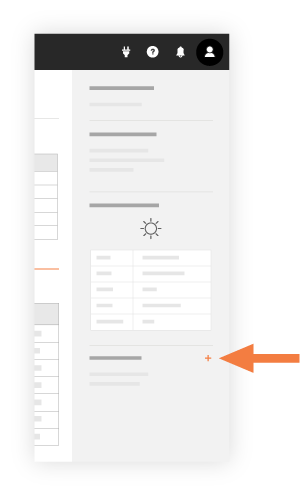
Sous « Liens du projet », cliquez surl’icôneAjouter.
Saisissez un titre pour votre lien.
Saisissez une URLvalide.
Cliquez sur Enregistrer pour l’ajouter à la page d’accueil.
Modifier les liens
Sous « Liens du projet », passez la souris sur le lien et cliquez surl’icôneModifier.
Saisissez un titre pour votre lien.
Saisissez une URLvalide.
Cliquez sur Enregistrer pour l’ajouter à la page d’accueil.
Supprimer des liens
Sous « Liens du projet », passez la souris sur le lien et cliquez surl’icôneSupprimer.
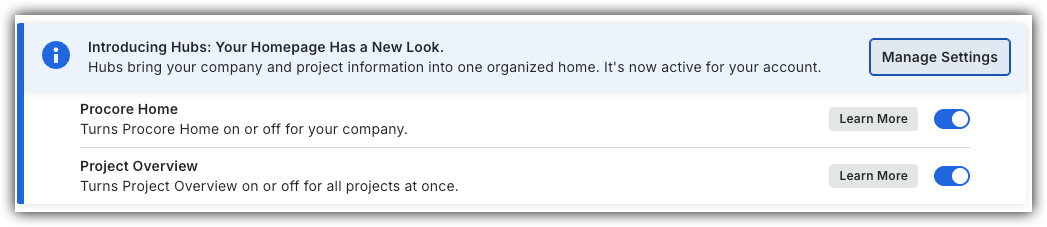
 bascule.
 ACTIVÉ.
 verticaux et sélectionnez Modifier les liens du projet.
 .
. à côté du lien, puis faites-la glisser vers le lieu souhaité.
 .
.
 .
. .
.