Ce site Web n'est pas encore complètement disponible dans votre langue
La seule page du site de support V2 disponible dans vos paramètres régionaux est celle de la bibliothèque vidéo. Le lancement complet du site Web arrivera prochainement.
Vous recherchez d'autres contenus ? Retournez sur le site de support V1.
Manuels de produits populaires
Les manuels de produits les plus utilisés sur le chantier
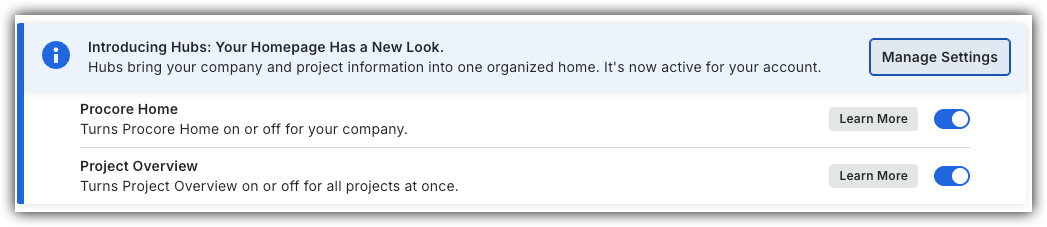
Pour revenir à l’ancien Accueil de projet, les administrateurs Procore peuvent accéder à l’outil Accueil entreprise Portefeuille / ProcoreAccueil, cliquer sur Gérer les paramètres et désactiver Aperçu du projetbascule.
Cependant, plus tard cette année, il sera au coucher du soleil et ne sera plus disponible. Si votre entreprise est revenue à l’ancienne expérience projet Accueil, les administrateurs Procore peuvent réactiver l’Aperçu du projet en activant Aperçu du projet bascule ACTIVÉ.
Éléments à prendre en compte
Autorisations utilisateur requises :
Pour configurer les paramètres d’accueil du projet et les dates du projet : Autorisations de niveau « Admin » sur la page d’accueil du projet.
Pour configurer le tableau des autorisations : Autorisations de niveau « Admin » sur la page d’accueil du projet et autorisations de niveau « Admin » dans l’outil Annuaire au niveau projet.
Arrière-plan
Si vous avez été désigné pour agir en tant qu’administrateur de projet pour un projet Procore, vous trouverez peut-être utile de personnaliser la page d’accueil du projet. À partir de la page de configuration des paramètres de la page d’accueil du projet, vous pouvez mettre à jour divers paramètres.
Escalier
Accédez à la page Accueil du projet.
Cliquez sur l’icône Configurer les paramètres.
Cliquez sur les liens dans la barre latérale droite pour configurer les paramètres suivants :
Mettre à jour les paramètres de l'Accueil projet
Mettre à jour les dates du projet
Mettre à jour le tableau autorisations
Mettre à jour les paramètres de l'Accueil projet
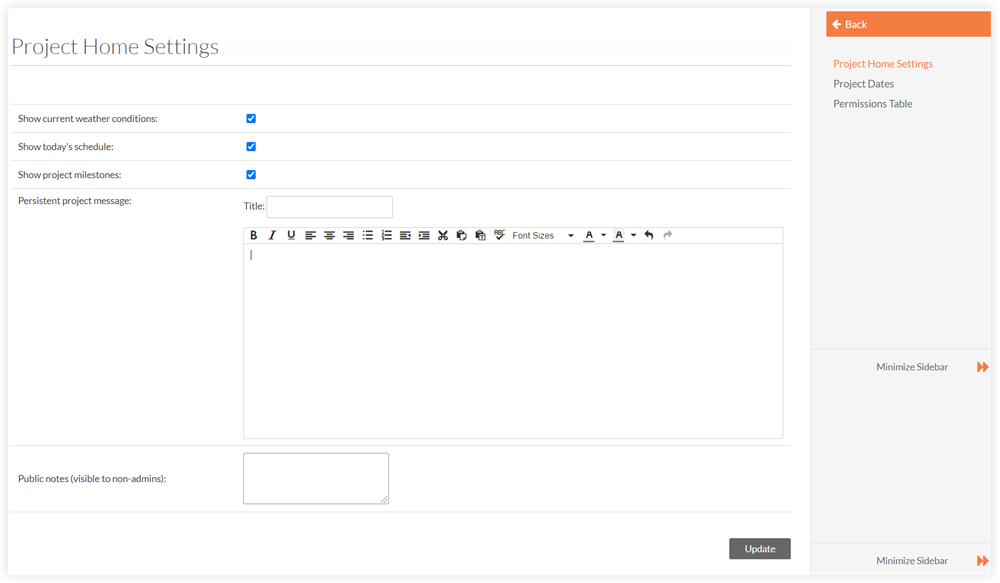
Sur la page Paramètres d’Accueil du projet, vous disposez des options suivantes :
Afficher les conditions météorologiques actuelles : cochez cette case pour afficher les conditions météorologiques actuelles sur la page d’Accueil du projet.
Afficher le Planning du jour : cochez cette case pour afficher le Planning du jour sur la page d’Accueil du projet.
Afficher les jalons du projet : cochez cette case pour afficher les jalons du projet sur la page d’Accueil du projet.
Message et titre de projet persistants. Saisissez le titre et le corps de votre message de projet persistant. Celui-ci apparaît en haut de la page d'Accueil du projet et est visible par tous les utilisateurs du projet. Ce message peut être utilisé pour accueillir les membres de l’équipe dans un projet, pour publier des annonces de projet, pour annoncer les jalons du projet, etc. Voir Configurer un message de projet persistant pour la page d’Accueil du projet.
Notes publiques (visibles par les non-admins). Les notes que vous saisissez ici s’affichent dans la colonne « Remarques » de l’outil Portefeuille de l’entreprise.
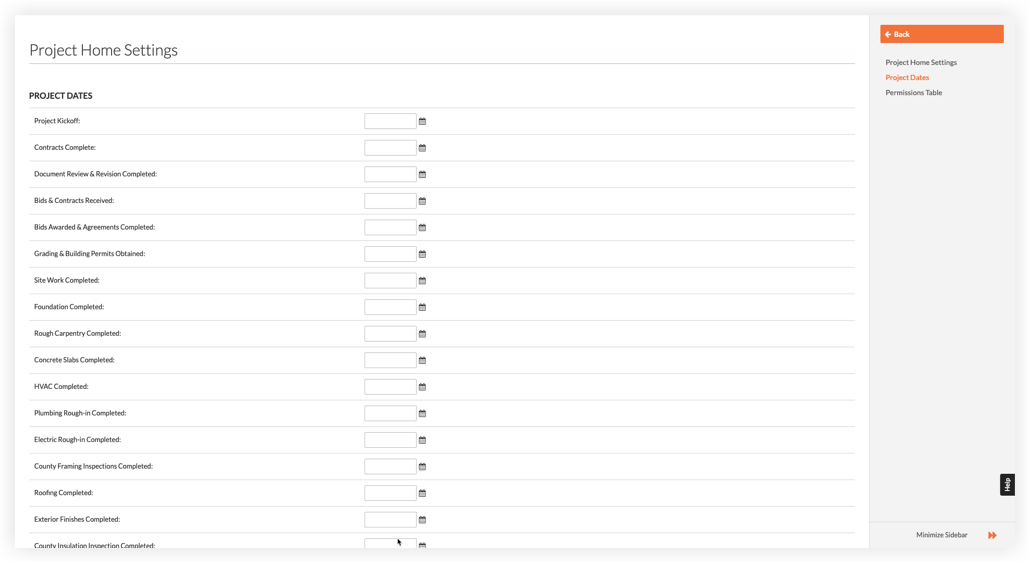
Mettre à jour les dates du projet
Les dates qui apparaissent sous Dates du projet sont configurées dans l’outil Admin de l’entreprise. Pour plus de détails, voir Ajouter de nouvelles dates de projet.
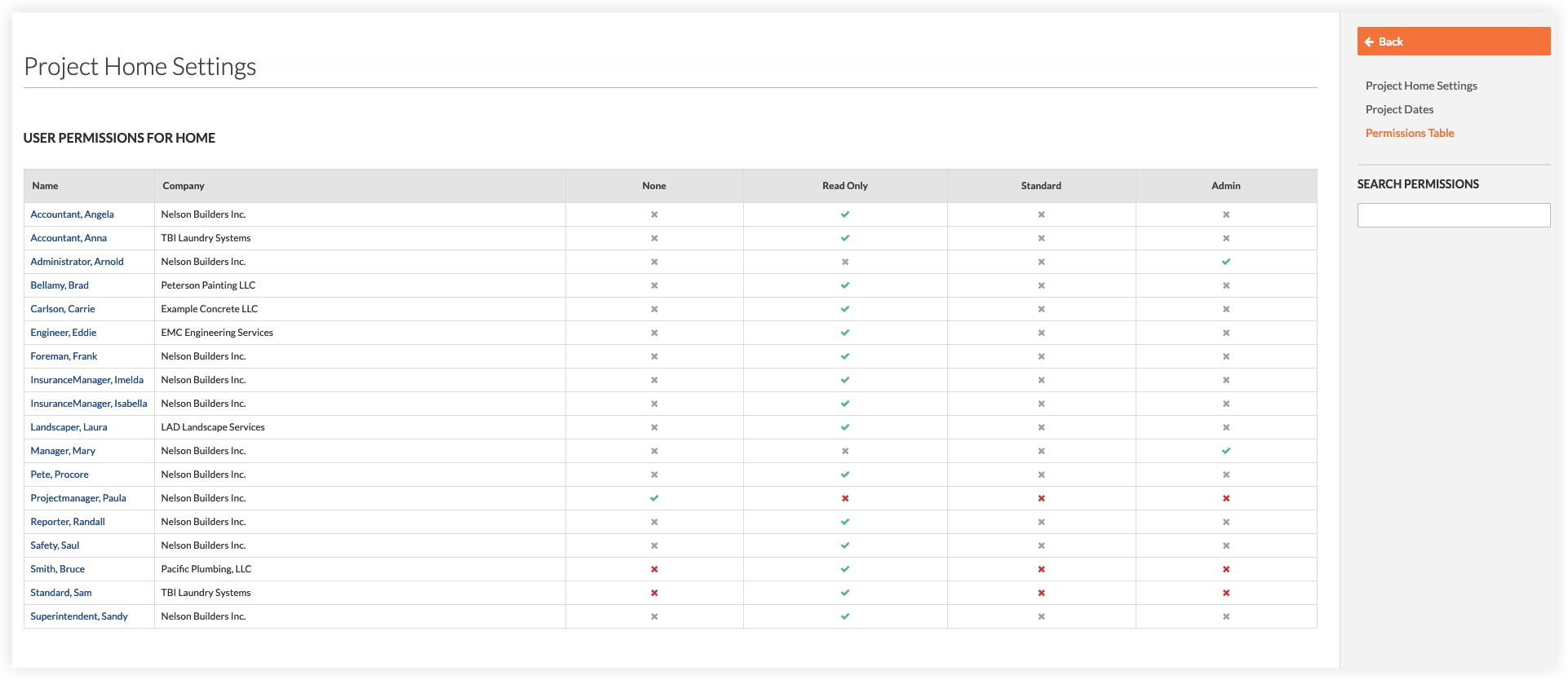
Mettre à jour le tableau autorisations
Le tableau Utilisateur Autorisations de l'Accueil affiche les autorisations d’accès de chaque utilisateur à la page d'Accueil. Pour modifier les autorisations d’un utilisateur, cliquez sur la cellule qui correspond au niveau d’autorisation souhaité.
L’utilisateur dispose de ce niveau d’autorisation d’accès à l’outil.
ROUGE
L’utilisateur n’a PAS reçu cette autorisation d’accès à l’outil.
GRIS
Soit l’utilisateur est un administrateur Procore, soit il s’est vu accorder des autorisations sur les outils Procore de ce projet à l’aide d’un modèle d’autorisation (voir Qu’est-ce qu’un modèle d’autorisation ?).
Pour en savoir plus sur les tâches qui peuvent être effectuées dans la page Accueil du projet pour chaque niveau de autorisation, consultez la matrice Permissions.
 bascule.
 ACTIVÉ.
 .
.