Configure Project Insights
Background
Project administrators can access configuration settings from the Insights sidepanel to quickly update the most relevant fields that impact their Project Insights availability and accuracy.
Éléments à prendre en compte
Steps
Navigate to the Insights card within the side panel of your project.
Click the gear
 icon to update the following project information:
Note: Updating these fields automatically updates the details for everyone who can view the insight.Start Date
Completion Date
Project Sector
Type
Total Value
Important
The Total Value field varies based on the setup of your Procore Financials products. For example:
If you have Procore Financials enabled, the data pulls from Procore Financials with specific calculations based on how you use your financial products. The two options are based on:
The sum of all Prime Contracts and approved PCCOs
The sum of the original budget + approved budget modifications/changes + approved PCCOs
If you do not have Procore Financials enabled, you will manually enter and update this field over time to ensure the insights remain accurate.
Project without Procore Financials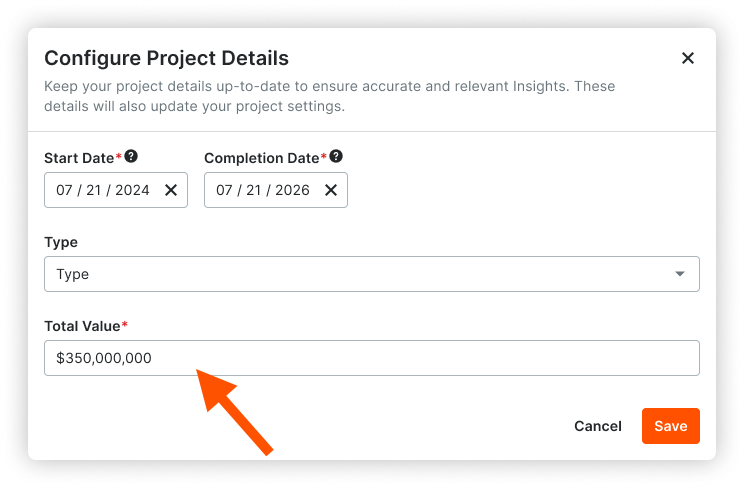
Project with Procore Financials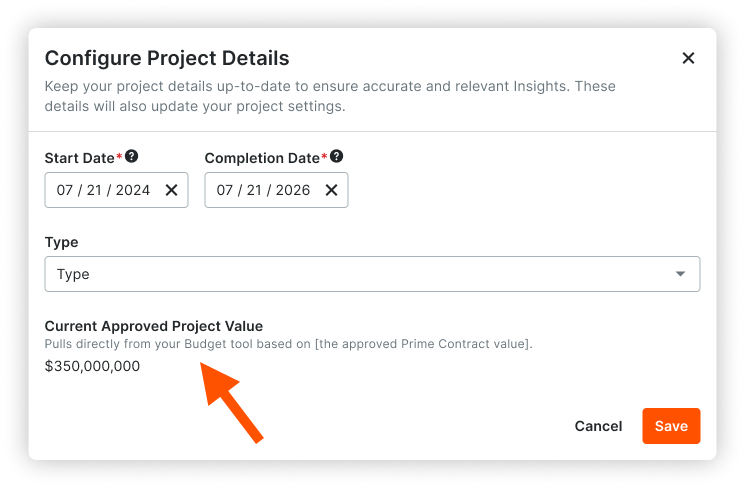
Click Save.
Note: Your insights can take up to 15 minutes to reflect changes.