Escalier
Assigner un responsable de Flux de travail de projet et un groupe de distribution à un Flux de travail personnalisé
Personnaliser les étapes standard d’un Personnalisé Flux de travail pour un projet
Définir un flux de travail par défaut
Assigner un responsable de Flux de travail de projet et un groupe de distribution à un Flux de travail personnalisé
Accédez à l’outil Facturation ou Facturations proportionnelles au niveau projet.
Cliquez sur l’icône Configurer les paramètres  .
.
Recherchez le flux de travail à mettre à jour dans le tableau « Paramètres Sous-traitant Flux de travail ».
Cliquez sur le bouton Configurer pour ouvrir le flux de travail dans l’outil Niveau entreprise Flux de travail.

En haut de la flux de travail, procédez comme suit

Affecter le gestionnaire de flux de travail. Sélectionnez l’utilisateur du projet qui est affecté à ce rôle dans la liste déroulante en haut de la page.
Assigner un groupe de distribution. Sélectionnez un groupe de distribution dans cette liste. Ces utilisateurs sont les personnes qui recevront des e-mails de notification de Procore lorsque des actions sont déclenchées par les étapes de votre flux de travail.
Cliquez sur Enregistrer dans le coin inférieur droit de l’outil Flux de travail.
Un message VERT indiquant « Les paramètres flux de travail ont été mis à jour avec succès confirme vos nouveaux paramètres et le nom du gestionnaire d’éléments par défaut et de la liste de distribution par défaut que vous avez sélectionné apparaît dans le poste du flux de travail.
Cliquez sur Enregistrer dans la page Configurer les paramètres de l’outil Facturation ou Facturations proportionnelles.
Personnaliser les étapes standard d’un Personnalisé Flux de travail pour un projet
Accédez à l’outil Facturation ou Facturations proportionnelles au niveau projet.
Cliquez sur l’icône Configurer les paramètres .
Recherchez le flux de travail à mettre à jour dans le tableau « Paramètres Sous-traitant Flux de travail » et cliquez sur Configurer.
Cliquez sur une étape standard du personnalisé flux de travail pour ouvrir le volet droit de cette étape.
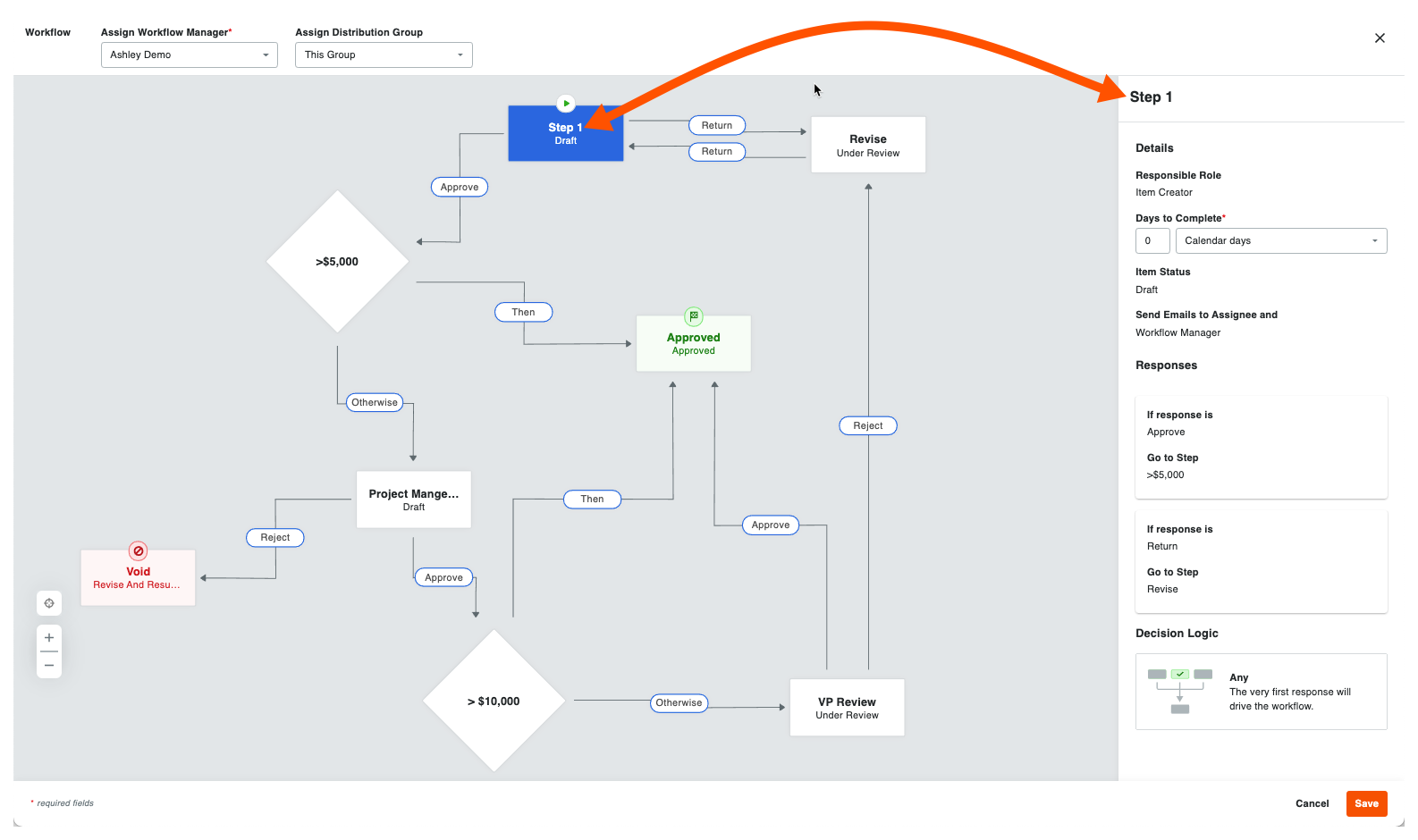
Procédez comme suit :
Personne assignée(s). Sélectionnez un (1) ou plusieurs noms d’utilisateurs Procore dans cette liste déroulante. Pour apparaître dans cette liste, l’individu doit être ajouté à l’outil Annuaire du projet. Remarque : si « Élément Créateur » a été sélectionné pour le rôle personne assignée d’une étape dans le générateur de niveau Entreprise flux de travail, vous ne pouvez pas choisir d’autre personne assignée spécifique.
Jours pour terminer*. Saisissez un nombre dans la première case. Sélectionnez ensuite jours calendaires ou Jours ouvrables dans la liste déroulante. L’option par défaut de Procore est Jours calendaires. Cela définit le nombre de jours dont disposent les « personnes assignées » pour réaliser l’étape du flux de travail. Si les « Personnes assignées » n’effectuent pas ces étapes, Procore envoie une notification automatisée à la ou aux personnes assignées en guise de rappel.
Facultatif : envoyer des e-mails à la personne assignée et _. Sélectionnez les groupes ou les rôles qui doivent recevoir une notification automatique lorsque l’étape du flux de travail n’est PAS terminée dans le nombre de jours spécifié ci-dessus. Les destinataires nommés ici recevront également un e-mail lorsque l’étape du flux de travail sera terminée. Cette étape n’est requise que lorsque l’auteur du personnalisé flux de travail a spécifié un rôle ou un groupe dans le modèle de personnalisé flux de travail de la Niveau entreprise Flux de travail outil. Si l’auteur du flux de travail a ignoré cette étape, vous avez la possibilité d’ajouter une ou plusieurs personnes assignées.
Cliquez sur Enregistrer dans l’outil Flux de travail. Un message VERT indiquant « Les paramètres flux de travail ont été mis à jour avec succès confirme vos nouveaux paramètres et le nom du gestionnaire d’éléments par défaut et de la liste de distribution par défaut que vous avez sélectionné apparaît dans le poste du flux de travail.
Répétez les étapes ci-dessus pour chaque étape standard du personnalisé flux de travail.
Cliquez sur Enregistrer dans la page Configurer les paramètres de l’outil Facturation ou Facturations proportionnelles.
Définir un flux de travail par défaut
Un par défaut flux de travail doit être configuré et défini avant qu’un flux de travail puisse être utilisé sur un facture.
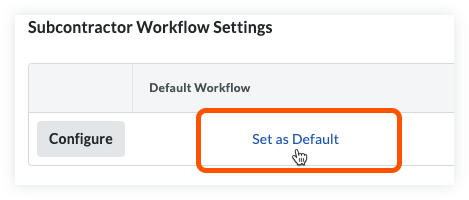
Passez la souris sur la colonne « Par défaut Flux de travail » dans le tableau des paramètres sous-traitant flux de travail.
Cliquez sur Définir comme valeur par défaut. Remarque : si un par défaut flux de travail a déjà été défini, la même action supprimera la sélection par défaut.
Une fois le par défaut flux de travail défini, un coche apparaîtra dans la colonne « Par défaut Flux de travail » à côté de ce modèle.
Voir aussi
Chargement des articles connexes...