Ajouter un commentaire à une observation (iOS)
Éléments à prendre en compte
Escalier
Accédez à l’outil Observations sur un appareil mobile iOS.
Appuyez sur l’outil Observations .
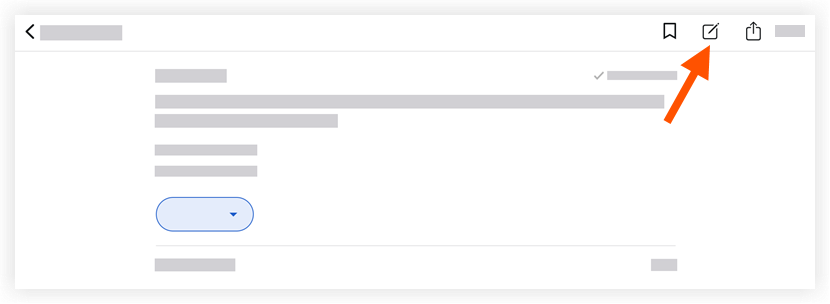
Appuyez sur l’observation à laquelle vous souhaitez ajouter un commentaire.
Appuyez sur Ajouter un commentaire
 .
.
Optionnel: Joignez des photos ou des fichiers pertinents en suivant la procédure ci-dessous :
Ajouter une photo
Appuyez sur Ajouter une photo
 et choisissez parmi les options suivantes :
Prendre une photo : Appuyez sur cette option pour prendre et ajouter une photo à l’observation.
Choisissez dans la bibliothèque : Appuyez sur cette option pour ajouter une photo existante de votre galerie à l’observation.
Ajouter des pièces jointes
Appuyez sur Ajouter des pièces jointes
 pour ajouter un fichier local de votre appareil à l’observation.
Appuyez sur Envoyer pour enregistrer votre commentaire.
Note: Votre commentaire apparaîtra dans le fil « Activité » de l’observation.
Voir aussi
Chargement des articles connexes...