Envoyer un appel d’offres
Bienvenue chez Procore !
Lorsque vous êtes ajouté en tant que Destinataire de l’appel d’offres, Procore envoie un e-mail « Invitation à soumettre un appel d’offres » pour vous informer de l’opportunité. Cependant, vous n’avez pas besoin de cet e-mail pour commencer. Toute votre équipe peut accéder à l’appel d’offres directement via l’outil Salle de planification. Étant donné que tous les utilisateur liés à votre Fournisseur entreprise dans le compte Procore du solliciteur y ont accès, vous pouvez collaborer à la soumission de manière transparente.
Éléments à prendre en compte
Autorisations requises :
Autorisations de niveau « Lecture seule » ou supérieures dans l’outil Salle de planification de l’entreprise.
ETVous devez être ajouté en tant que destinataire de l’appel d’offres par l’avocat pour soumettre une offre.
Informations complémentaires :
Tous les utilisateurs liés à votre Fournisseur entreprise dans le compte Procore du notaire peuvent accéder à l’offre via l’outil Salle de planification.
Nous vous recommandons d’indiquer votre intention d’enchérir (Will Bid ou Will Not Bid) à l’avance pour tenir le notaire informé de votre statut.
Une fois que vous avez soumis une offre, l’avocat en est informé. Si vous n’êtes pas prêt à soumettre, cliquez sur Enregistrer pour plus tard pour revenir sur votre formulaire d’appel d’offres à un autre moment.
Vidéo
Escalier
Accédez à votre formulaire d’appel d’offres et soumettez votre offre
Consultez l'e-mail « Invitation à soumettre un appel d’offres » vue d'ensemble pour savoir comment afficher et répondre à un appel d'offres.
Dans l’e-mail d’invitation à soumettre un appel d’offres, cliquez sur Afficher dans Procore pour vous connecter et afficher le formulaire d’appel d’offres.
Nouveaux utilisateurs : Vous serez invité à créer un mot de passe lors de l’ouverture de votre première invitation. Votre adresse e-mail vous sert d’identifiant de connexion.Si vous n’êtes pas automatiquement redirigé, accédez à l’outil de
l’entreprise. Voir Salle de planification pour plus d’informations.L’outil Salle de planification est le hub central du compte Procore du notaire où vous gérez votre offre. Il vous permet d’accéder aux documents, de suivre le statut et de soumettre des offres.
Cliquez sur un dossier d’appel d’offres pour voir le formulaire d’appel d’offres, le projet et les informations de l’appel d’offres.
Dans la bannière du formulaire d’appel d’offres, indiquez si vous avez l’intention de répondre à un appel d’offres ou non.
Cliquez sur Envoyer un appel d’offres et remplissez les informations de votre appel d’offres :
Formulaire d’appel d’offres: ajoutez un montant à côté de chaque poste de votre appel d’offres. Le champ « Total » calcule automatiquement le total de tous les montants que vous saisissez.
Si l’entreprise qui vous a invité à soumettre un appel d’offres a mis à jour son compte Procore vers la nouvelle expérience améliorée de gestion des appels d’offres:
Les postes sur lesquels vous avez été invité à soumettre un appel d’offres s’afficheront dans les sections Appel d’offres de base et Alternatives.
Saisissez un montant pour chaque poste dans les colonnes Coût unitaire ou Montant.
NoteSi le verrou Unité et Quantité est activé dans le lot d’appel d’offres par le solliciteur, les champs Unité et Quantité sont en lecture seule. Les candidats ne peuvent modifier que le coût unitaire.
Si l’entreprise utilise l’ancienne expérience de gestion des appels d’offres, une section Portée des travaux s’affiche :
Cliquez sur Ajouter la portée des travaux et sélectionnez un code de coût dans le menu déroulant.
Dans la colonne Montant , saisissez un montant.
Ajoutez une portée supplémentaire des travaux si nécessaire.
Inclusions: saisissez toute inclusion qui pourrait ne pas être clairement indiquée dans les documents contractuels connexes.
Exclusions: saisissez toutes les exclusions qui ne sont pas clairement énoncées dans les documents contractuels connexes.
Commentaires : ajoutez des commentaires que vous souhaitez envoyer à l’entreprise.
Pièces jointes : ajoutez toutes les pièces jointes pertinentes à votre formulaire d’appel d’offres.
Cliquez sur Enregistrer pour plus tard si vous souhaitez revenir sur votre formulaire d’appel d’offres à un autre moment.
Lorsque vous êtes prêt à envoyer votre offre, cliquez sur Soumettre.
Vous pouvez également soumettre une offre en répondant à l’e-mail d’invitation à répondre à un appel d'offres en joignant un ou plusieurs fichiers à votre e-mail. Après avoir envoyé votre soumission d’appel d’offres, le solliciteur d’appel d’offres verra que vous avez répondu à un appel d'offres et pourra examiner tous les fichiers joints à votre e-mail.
Les types de fichiers suivants sont acceptés : .pdf., doc, .docx, .xls, .xlsx, fichier zip, .ods, .odt, .fods, .fodt, et .txt.
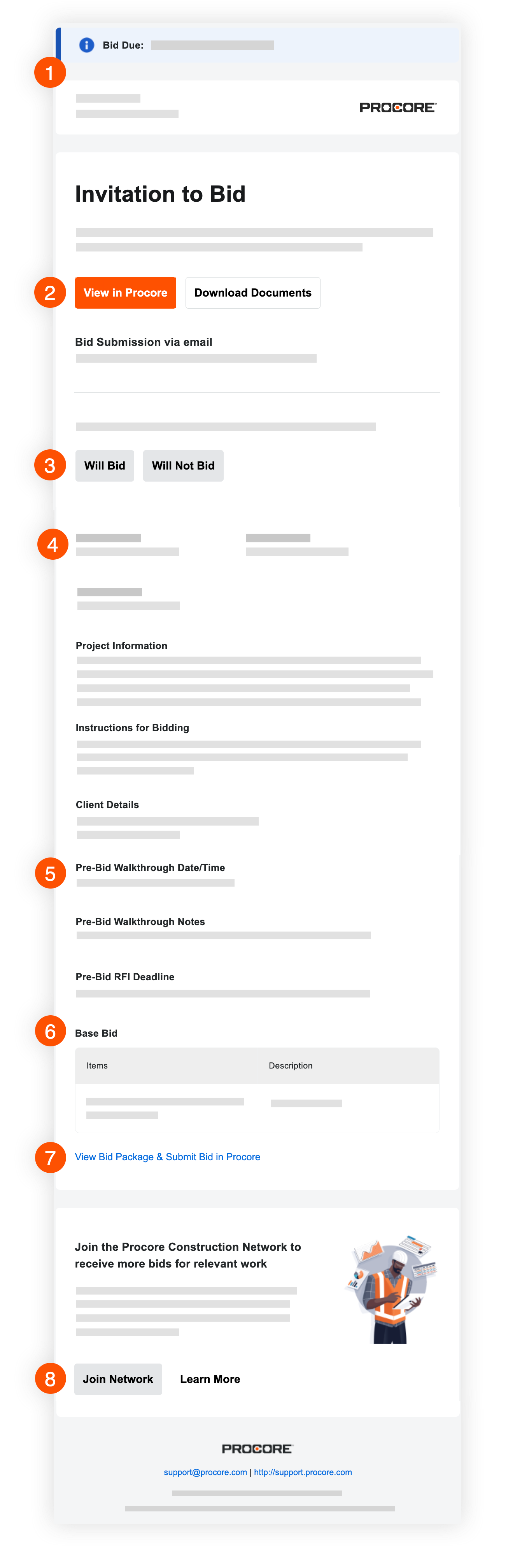
 Date d'échéance pour répondre à un appel d'offres et informations
 Afficher ou télécharger les documents pour répondre à un appel d'offres
 Indiquez votre intention de répondre à un appel d’offres
 Afficher les détails de l’offre, du projet et du client
 Préalable à l'offre visite d'inspection et FQR informations
 Afficher l’appel d’offres de base
 Afficher le lot pour répondre à un appel d'offres et le soumettre dans Procore
 Facultatif : rejoignez le Réseau de construction de Procore