Export Grids from Autodesk® Revit® to a Model in Procore
Background
Use the Procore BIM Plugin to export grid lines from your Autodesk® Revit® model. These grids help mobile users orient themselves within the model by displaying it correctly in the 2D View of the Models tool on the Procore for Mobile app.
Things to Consider
Required User Permissions:
'Admin' level permissions on the Models tool.
Additional Information:
To export grids, your Windows® computer must be running a supported version of Autodesk® Revit®. See
To prevent misalignment in the 2D View, the Coordinate System selected in the Procore BIM Plugin during the export must match the coordinate system used when the 3D model was published to Procore. See Why aren't my grids aligned in the Models tool?
Steps
Because the Navisworks API cannot natively publish grid lines to Procore, you must use the Procore BIM Plugin to export them from Revit® and into Procore. This is a critical step that requires a BIM Lead or qualified coordinator to verify that coordinates are aligned. Accurate grid placement is mandatory, as field teams rely on this data for precise installation.
Open the Revit® model that contains the grid line you want to export. Typically, this is an Architectural or Structural model.
In Revit®, click the Procore tab to use the Procore BIM Plugin.
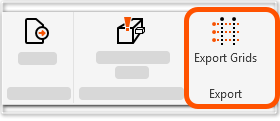
In the ribbon, click Export Grids.
In the Export Grids page:
Confirm that the Procore Company and Project are correct.
Under Coordinate System, select Internal or Shared.
Important
To prevent misalignment in the 2D View, the Coordinate System selected in the Procore BIM Plugin during the export must match the coordinate system used when the 3D model was published to Procore. See Why aren't my grids aligned in the Models tool?

Under Export To:
Find the correct Model Name.
Click Add Grids.
When successful, a checkmark and an Added message appears where the button once did.
Tip
Where can you view your exported grids? Exported grids assist viewers with on-site orientation, so they are only visible in the Procore for Mobile app. Grids do not appear in the Procore web application.
To confirm the grids were successfully exported:
Open the Procore for Mobile app.
Navigate to the Models tool.
Locate the model's card. A grid icon appears in the bottom left corner of the card, indicating that grids are available for the model.