Extraire les données du projet à l’aide de Procore Extracts
Arrière-plan
L’application Procore Extracts est utile lorsque votre entreprise souhaite enregistrer une archive des informations d’un projet. L’application exporte les données vers une série de fichiers et de dossiers organisés dans un seul dossier sur votre ordinateur. Une fois le processus d’extraction terminé, vous pouvez ouvrir le dossier pour afficher les données du projet par outil.
Éléments à prendre en compte
Autorisations utilisateur requises :
Autorisations de niveau Admin sur les outils dont vous souhaitez extraire des données.
Informations complémentaires :
C’est important ! Pour que l’extraction s’exécute et aboutisse, il doit y avoir une connexion Internet active et l’ordinateur doit rester sous tension. Si vous perdez la connexion Internet, ou si votre ordinateur se met en veille ou s’éteint, le système tente de reprendre la progression jusqu’à trois fois, puis interrompt l’opération. Une fois Internet ou le courant rétabli, l’extraction reprend automatiquement.
Par défaut, les fichiers téléchargés à partir de l’extrait sont enregistrés dans un dossier « Extracts » sur votre ordinateur. Le dossier Extracts contient une structure de dossiers avec le nom du projet, la date et l’heure de l’extrait, les outils du projet et les éléments des outils.
Nous vous recommandons d’enregistrer les données extraites sur un lecteur local de votre ordinateur plutôt que sur un lecteur partagé.
La plupart des éléments de Procore sont téléchargés au format PDF. Les fichiers tels que les documents et les photos sont téléchargés en tant que type de fichier d’origine (par exemple, .xls et .jpeg).
Si le nom du chemin du fichier a été modifié pendant l’extraction afin de réussir l’enregistrement, un fichier CSV « Informations sur le changement de nom de fichier » apparaît dans le dossier. Ce fichier répertorie le nom du fichier d’origine, ainsi que le nom du fichier après sa modification. Voir En quoi consiste le fichier « Informations sur le changement de nom de fichier » inclus avec mes données de projet extraites ?
Conditions préalables
Escalier
Ouvrez Procore Extracts sur un ordinateur Windows.
Connectez-vous à Procore.
Choisissez l’entreprise et le projet dont vous souhaitez extraire des informations.
Remarque: vous ne pouvez extraire de projets que les projets définis sur « Actif ». Voir Changer le Statut d’un projet à actif ou inactif.Par défaut, l’extraction est enregistrée dans un nouveau dossier « Extraits » dans le dossier des documents de votre ordinateur (par ex. C :\Utilisateurs\Personne\Documents\Extraits).
Cliquez sur Changer Lieu si vous souhaitez choisir un lieu différent pour les fichiers à enregistrer sur votre ordinateur. Nous vous recommandons d’enregistrer les données extraites sur un lecteur local de votre ordinateur plutôt que sur un lecteur partagé.Utilisez l’explorateur de fichiers pour sélectionner un dossier ou cliquez sur Créer un nouveau dossier pour créer un nouveau dossier dans lequel les extraits seront enregistrés.
Cliquez sur OK pour confirmer la nouvelle lieu ou sur Annuler pour revenir au par défaut lieu.
Cochez les cases à cocher à côté des outils dont vous souhaitez extraire des éléments ou cochez la case à cocher à côté de « Sélectionner tout » pour sélectionner tous les outils disponibles.
Remarque:Par défaut, tous les éléments qui étaient joints à d’autres éléments dans les outils sélectionnés sont extraits. Si vous ne souhaitez pas inclure les pièces jointes, décochez la case à côté de « Inclure les pièces jointes ».
L’outil Plans dispose d’une option supplémentaire pour inclure uniquement les plans du « Lot actuel ». Décochez la case à cocher si vous souhaitez extraire tous les plans du projet.
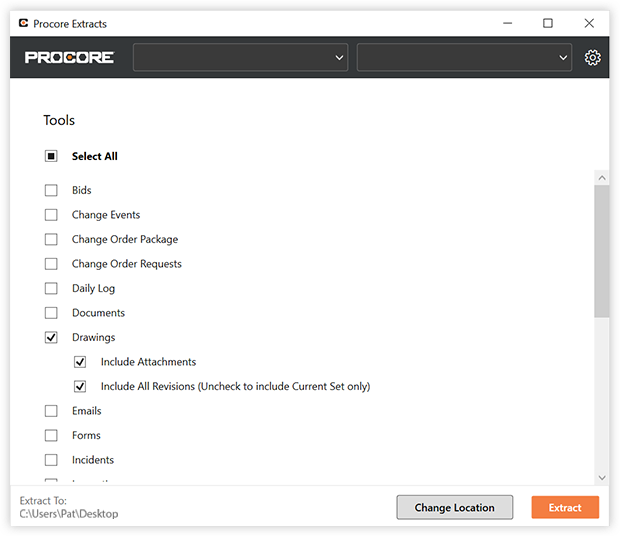
Cliquez sur Extraire.
Une barre de progression s’affiche, ainsi que le temps écoulé.
Remarque: Si vous souhaitez annuler l’extraction, cliquez sur Annuler. Si l’extraction est réussie, un message d’achèvement s’affiche.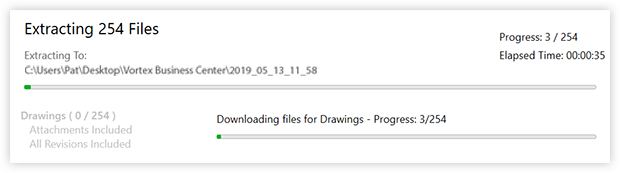
Cliquez sur Afficher dans le dossier pour accéder directement au dossier contenant les éléments.
Cliquez sur Quitter pour fermer l’application.
OU
Cliquez sur Effectuer un autre extrait pour commencer un autre extrait.
Remarque: si vous souhaitez effectuer une extraction pour une autre entreprise ou un autre projet, utilisez les menus déroulants en haut de l’application.
Voir aussi
Chargement des articles connexes...