How can I set up Procore MFA before the enforcement deadline?

Procore MFA: Regional Availability for SMS Verification

Procore supports Authenticator apps everywhere. SMS Verfication is only available in these countries Show/Hide Details

SMS Verification is available in these countries.

  • Note: SMS Verification for Procore Pay (Payees) is limited to the United States.

    • US

    • Canada

    • Mexico

    • UK

    • Ireland

    • France

    • Germany

    • Spain

    • Italy

    • Australia

    • New Zealand

    • Singapore

    • Hong Kong

Strengthen Your Security: Procore MFA

Multi-Factor Authentication (MFA)—also referred to as Two-Factor Authentication (2FA)—is being rolled out to limited Procore commercial accounts. While MFA is mandatory for Procore Pay users, MFA is available on a limited basis to commercial accounts to provide our customers an extra layer of security. To enable MFA for your organization, ask your Procore Administrator to contact your Procore point of contact.
Answer

To enhance account security, your company can set a future date to enforce the use of Multi-Factor Authentication (MFA) officially. An email notification will notify you before this enforcement date. You have the option to set up MFA for your account proactively before this deadline to ensure a smooth transition and avoid any potential access interruptions on the enforcement day.

Example

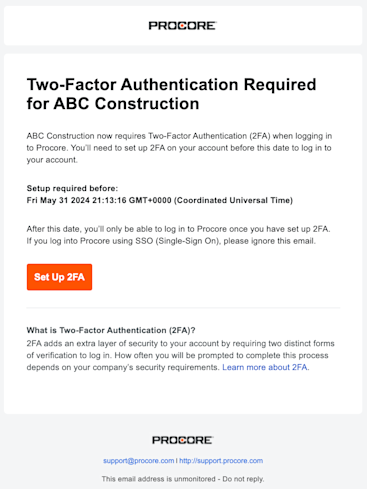
This is the email that users at your company will receive once your Company Admin sets your company's enforcement date.

Example email sent to Procore end users to inform them that MFA (2FA) is required for their company.

Enroll in MFA Before the Enforcement Deadline

To enroll in MFA early, use these steps to set up your preferred verification method for the first time.

  1. Go to the Procore web application at: https://login.procore.com .

  2. Go to your Account & Profile avatar and click My Profile Settings.

  3. Click the Password & Security tab.

  4. Under Two-Factor Authentication (2FA), choose your preferred verification method:

    • Add Authenticator App. Choose this option to enroll in MFA with an Authenticator app.

    • Add Phone Number. Choose this option to enroll in MFA with SMS verification.

  5. Follow the on-screen prompts to enroll with your preferred verification method.

  6. Copy or download your new recovery code and secure it in a safe place.

 Warning

Be sure to save your recovery code in a location that is securely accessible from another device. If your MFA device is lost or damaged, you will need your recovery code to set up MFA on a new device. Each recovery code can be used only once. After a recovery code is used, you will have the option to save a new recovery code.

See Also

Loading related articles...