Configure the Financial Health Section for the Health Dashboard

Background

Set up a budget view to view budget information in the Financial Health section of the Portfolio tool.

Things to Consider

  • Required User Permission

     Important
    • The Dashboard only includes data from the project budgets to which you have been granted access permission.

  • The Procore Standard Budget View is a default view.

  • It provides users with the ability to select the Budget as a source for a custom single tool report in the company's 360 Reporting tool.

  • It allows the Financial Health section of the Dashboard to source data from the Procore projects to which it is assigned.

  • If you customize this view, it is recommended that you create a copy of the 'Procore Standard Budget' and give it a unique name.

  • Do not change the header names in the Column Configuration section. The Financial Health section uses the header names when generating data; changing the header names may cause errors.

  • The Portfolio tool's Financial Health section will display the data from all active projects even if you do not assign the view to any projects.

  • For companies using the ERP Integrations tool, there are additional customization steps. Review the calculations in the Procore Standard Budget to ensure they meet your requirements, as they may differ from your existing budget views.
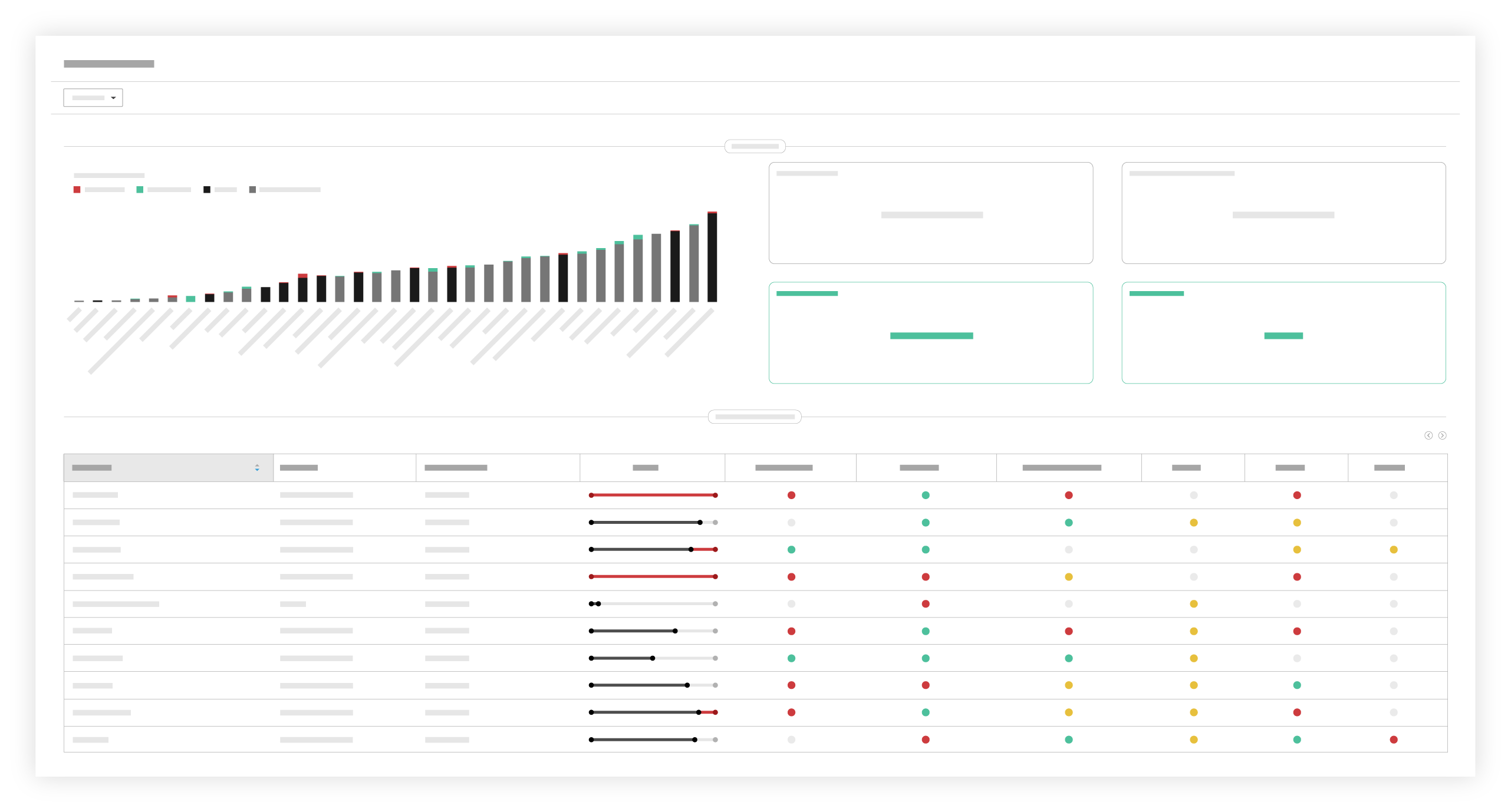
Prerequisites

  • Your company must be using Procore's Construction Financials and Project Financials tools.

  • You must enable the Budget tool on your projects.

  • You must set up a budget view and assign it to your company's Procore projects. See .

  • You must create a budget in all of the Procore project's that you want your data visualizations to source data from.

Steps

  1. Navigate to the Company level Admin tool.

  2. Under 'Tool Settings,' click Budget.

  3. Click Set Up New Budget View.

  4. Select Procore Standard Budget and click Create.

  5. Enter the View Name and View Description.

  6. Click the 'Assign to Projects' drop-down menu, assign the view to projects where you want to reference the view.
    Notes:

    • Important! Do not change the header names in the Column Configuration section. The Financial Health section uses the header names when generating data; changing the header names may cause errors.

    • The Portfolio tool's Financial Health section will display the data from all active projects even if you do not assign the view to any projects.

  7. Configure columns as needed.

  8. Click Done.

  9. Navigate back to the Company level Portfolio tool

  10. Click Health Dashboard to view your configured Financial Health section.
    Portfolio Health Dashboard

See Also

Loading related articles...