会話ツールでグループを管理する
バックグラウンド
会話ツールでグループを作成すると、指定されたチーム メンバーに同時にメッセージを送信できるグループ会話が作成されます。「 会話ツールでグループを作成する」を参照してください。これらのグループ メッセージは、プロジェクトごとに整理された会話ツールの [グループ] セクションでチーム メンバーが表示および返信できます。
考慮すべき事項
必要なユーザー権限:
「グループの作成と管理」権限を持つ Procore ユーザー。「会話ツールのアクセスと設定を構成する」を参照してください。この権限は、「管理者」、「社内従業員」、または「全員」に設定できます。
「管理者」を選択した場合は、プロジェクトまたは会社レベルのディレクトリ ツールに対する「管理者」レベルの権限が必要です。
「社内従業員」を選択した場合は、社内従業員としてマークされている必要があります。「 会社の従業員として誰かを追加するにはどうすればよいですか?」を参照してください。
[全員] を選択した場合は、会社ディレクトリのメンバーである必要があります。
追加情報:
会話ツールが管理者のみがグループを作成および管理できるように構成されている場合は、管理できるように、少なくとも1人の管理者をグループに保持することをお勧めします。管理者ユーザーは、ユーザー選択リストの名前の後に
(Admin)と表示されます。会話ツールの各グループは、最大 2,000 人のメンバーをサポートできます。
Steps
Navigate to the Conversations tool (click the conversations
 icon in the top menu of Procore).
In the 'Groups' section, click the group that you want to manage.
Click Manage Group.
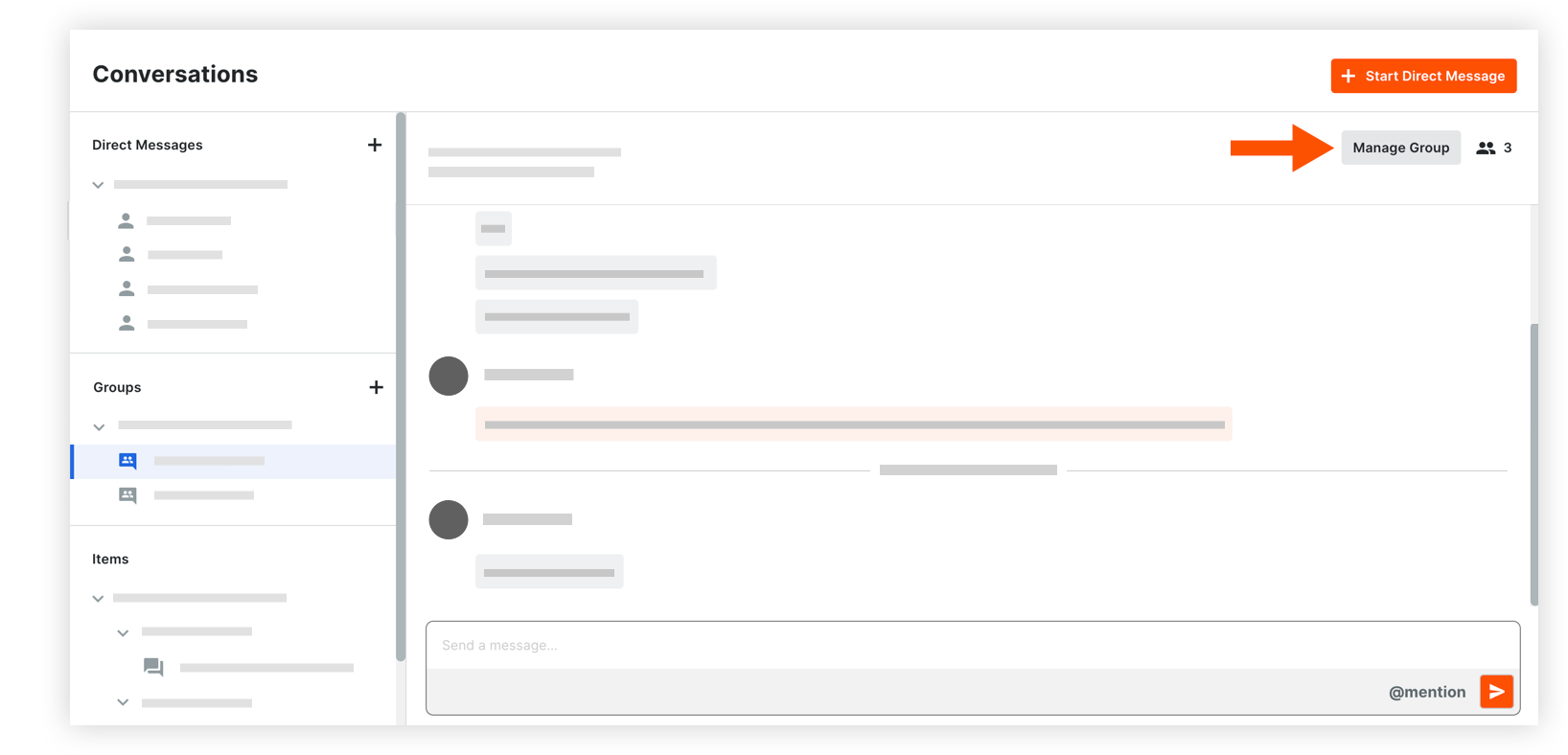
The following information can be modified:
Group Name: Edit the name for the group if necessary.
Team Members: Manage the list of team members as necessary, choosing between manual selection and using the project's Directory:* Selected users:* To add users: Click into the menu to see the list of project users. Select any users you want to add to the group.
Note: If your project has distribution groups, you can select one to add those members to the conversation group. See Add a Distribution Group to the Project Directory.* To remove users: Click the x icon on the user's name.* Everyone in this project's Directory: This includes automatic updates to the team members when any user is added or removed from the project Directory in the future.
Note: Company Admins who are not yet in the project's Directory are prompted to add themselves before proceeding with this option.
Click Save Changes.
See Also
Loading related articles...