Compare Drawings (iOS)
Things to Consider
Required User Permissions:
'Read Only' or higher level permission on the project's Drawings tool.
Additional Information:
Tip! Swipe up to view older revisions of the drawing.
Steps
Open the Procore app on an iOS mobile device.
Tap the project's Drawings tool.
Compare Drawing Revisions
Tap a drawing that you want to compare.
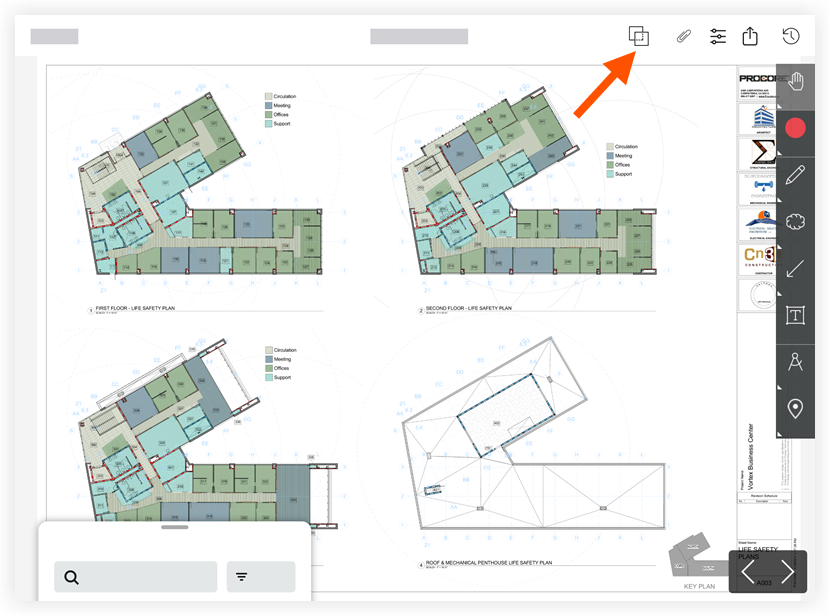
Tap Compare Drawings
 .
.
View the comparison of the two most recent drawing revisions of the sheet you selected.
Note: Lines added will be highlighted in blue. Lines removed will be highlighted in red.To compare the drawing with a different revision of the drawing:
Tap the Comparing this drawing header.
Tap Compare with different drawing.
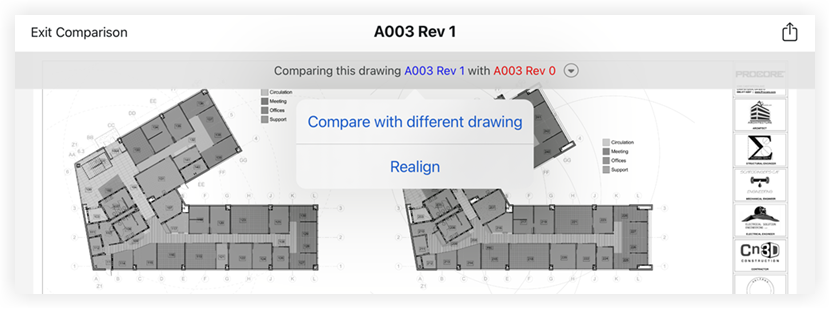
Tap the revision that you want to use in the comparison.
Compare with Another Drawing
Tap a drawing that you want to compare.
Tap Compare Drawings
.Tap the Comparing this drawing header.
Tap Compare with different drawing.
Tap the drawing.
Note: Your initial drawing is displayed in blue. The drawing with which you are comparing is displayed in red.
Compare Drawing Batches
Tap the Drawing Set you want to compare.
Tap the drawing you want to begin viewing comparisons for.
Tap the Compare Drawings
icon.Tap the arrows or swipe left and right view the next drawing in the batch and its most recent version.
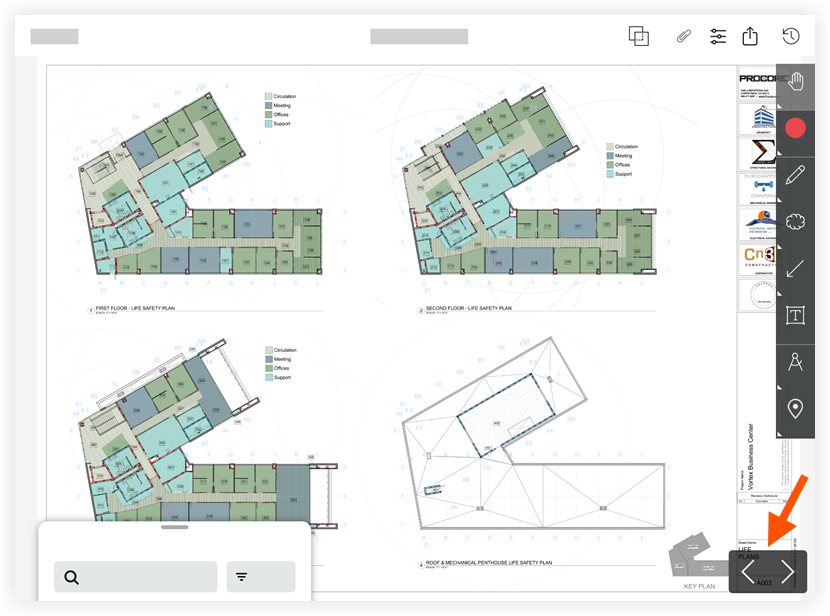
To return to the Drawings Tool, tap Exit Comparison.
Troubleshooting (realign sheets)
If your drawing appears to have every line highlighted in red and blue, your PDFs may have been shifted a few pixels when the revision was created (see example below).
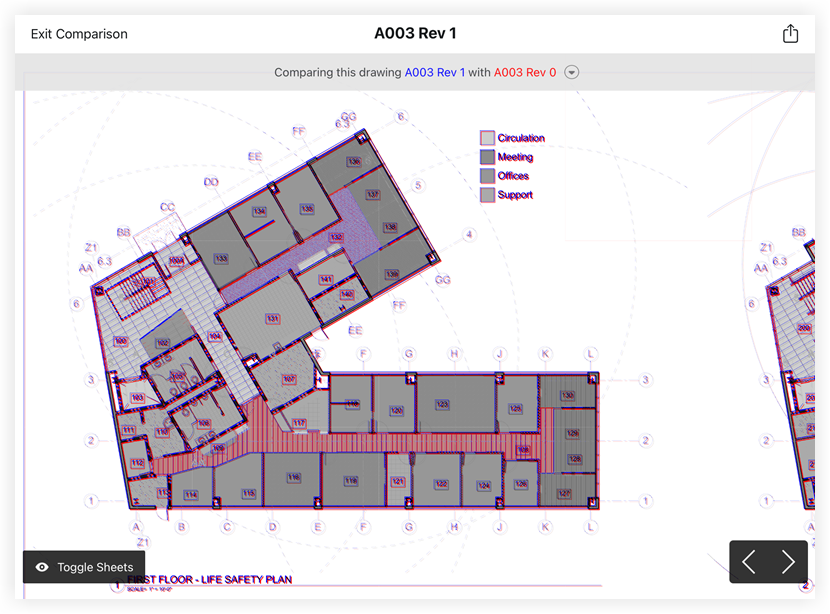
Tap the Comparing this drawing header.
Tap Realign.
Drag or use the arrows to align the sheets until you align your drawings.
Tap Done.
See Also
Loading related articles...