Manage Project Links on the Project Home Page
Background
The project links feature allows Procore users with admin permission to create hyperlinks on the project's home page to other resources on the web. Project Managers can add links to company websites, webcams, industry resources, or any web entity that may provide helpful information for Procore users working on the project.
Things to Consider
Required User Permissions:
To add, modify, or remove project links:* 'Admin' level permissions on the Project level Home page.
To view and click on project links:* 'Read Only' level permissions or higher on the Project level Home page.
Note: Users can only access links to other Procore tools and items within Procore if they have been granted the permissions to view those tools and items.
Steps
Navigate to a project's Home page.
Manage Links
Add Links
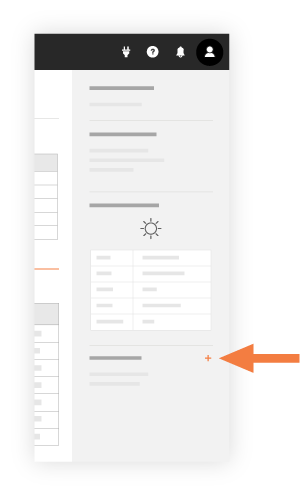
Under 'Project Links', click the add
 icon.
icon.
Enter a title for your link.
Enter a valid URL.
Click Save to add it to the homepage.
Edit Links
Under 'Project Links', hover over the link and click the edit
 icon.
icon.Enter a title for your link.
Enter a valid URL.
Click Save to add it to the homepage.
Delete Links
Under 'Project Links', hover over the link and click the delete
 icon.
icon.
Beta
A new version of the Project Home page is available. See Project Overview.
Company Administrators can enable the Project Overview beta in Procore Explore. (US 2 | UK)
Navigate to the Project Overview.
Navigate to the project's Home to be redirected to the Project Overview.
Click Menu and select Project Overview.
Locate the 'Project Links' section.
Manage links.
Add a Link
Click the add
 icon.
icon.If needed, scroll to the bottom, then click Add Link.
Enter the name and URL.
Click Submit to save.
Edit a Link
Click the vertical ellipsis
 and select Edit Project Links.
Click the link's name or URL and edit the information.
Click Submit to save.
Delete a Link
Click the vertical ellipsis
and select Edit Project Links.Next to the link, click the delete
 icon.
icon.Click Submit to save.