Add and Remove Project Tools
Background
Users with Admin permissions on the project's Admin tool can enable or disable project level tools. While a tool is enabled, users with the appropriate permissions can view the tool in the Project Tools menu. While a tool is disabled, it is not visible to anyone in the menu and cannot be used.
Things to Consider
Removing a tool as an active tool on the project only removes the tool name from the Project Tools menu. It does not remove the tool's data.
Some tools are
 Active by default and cannot be removed.
Steps
Navigate to the project's Admin tool.
Under 'Project Settings', click Tool Settings.
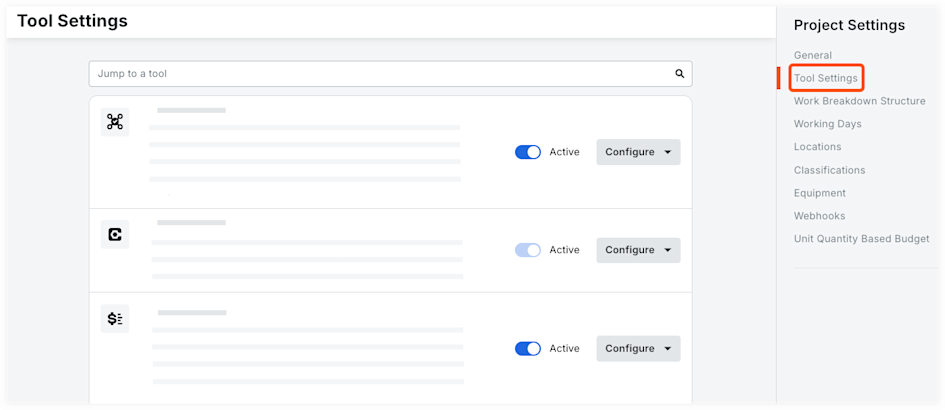
Add and remove tools from your project.
Click the toggle
 to Active to add the tool to your project.
Click the toggle
 to Inactive to remove it from your project.
Changes are automatically saved.
See Also
Loading related articles...