Connect Analytics Reports for Non-US Data Zones
Background
This workflow applies to your account if you are hosted on a non-US data zone. You can check this by looking at the web address you use to log into Procore:
If your URL is https://app.uk01.procore.com or any address other than the standard US zones (US01/US02), you must follow the steps below.
For details on how Procore provisions these zones, see Where and how does Procore store customer information?
Things to Consider
Prerequisites:
Delta Share Credentials. Access to config.share file containing the Delta Sharing credentials.
Steps
Power BI Desktop
Open the Analytics report in Power BI Desktop.
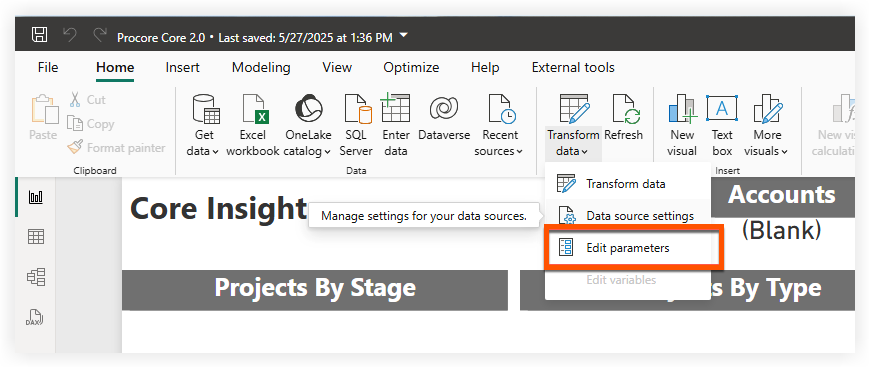
In the Home ribbon, click Transform data and select Edit parameters.
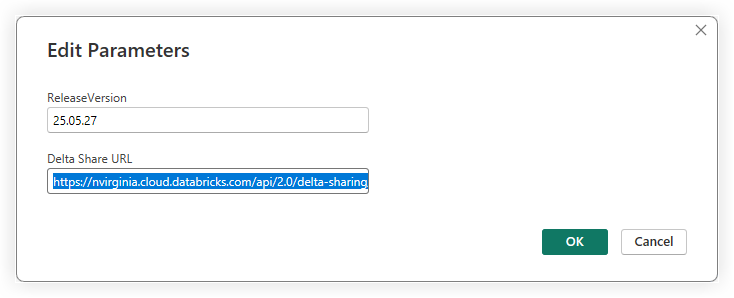
Enter the Delta Share URL, and click OK.
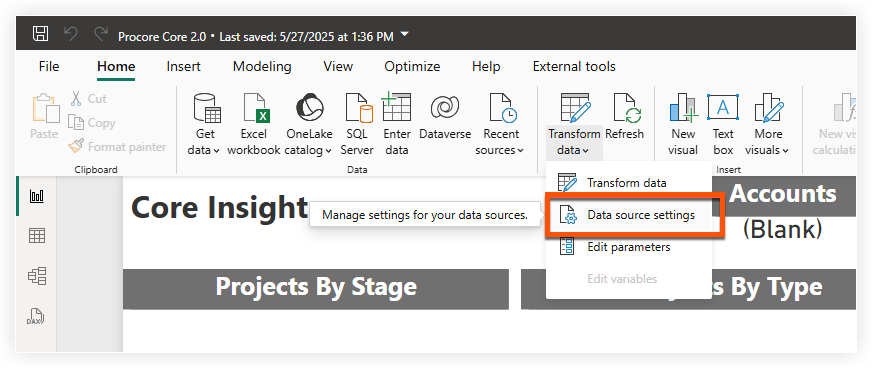
In the Home ribbon, click Transform data and select Data source settings.
Click Edit Permissions.
Under the Credentials section, click Edit.
Enter the Bearer Token.
Click Save > OK > Close.
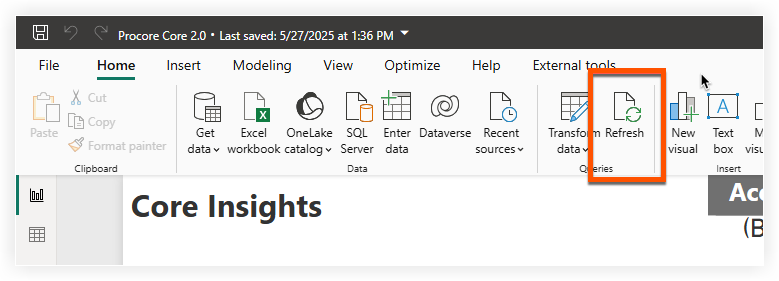
Click Refresh on the Home ribbon.
Power BI Service
Navigate to the Power BI service.
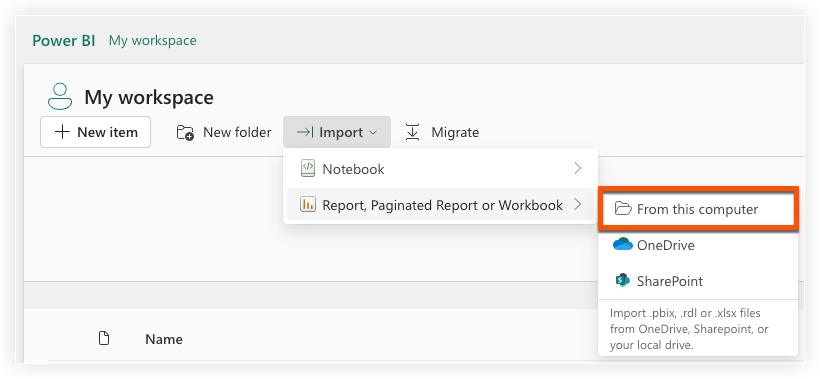
Upload your Analytics report to your desired workspace:
Navigate to the workspace.
Click Import.
Select Report, Paginated Report, or Workbook.
Select From this computer.
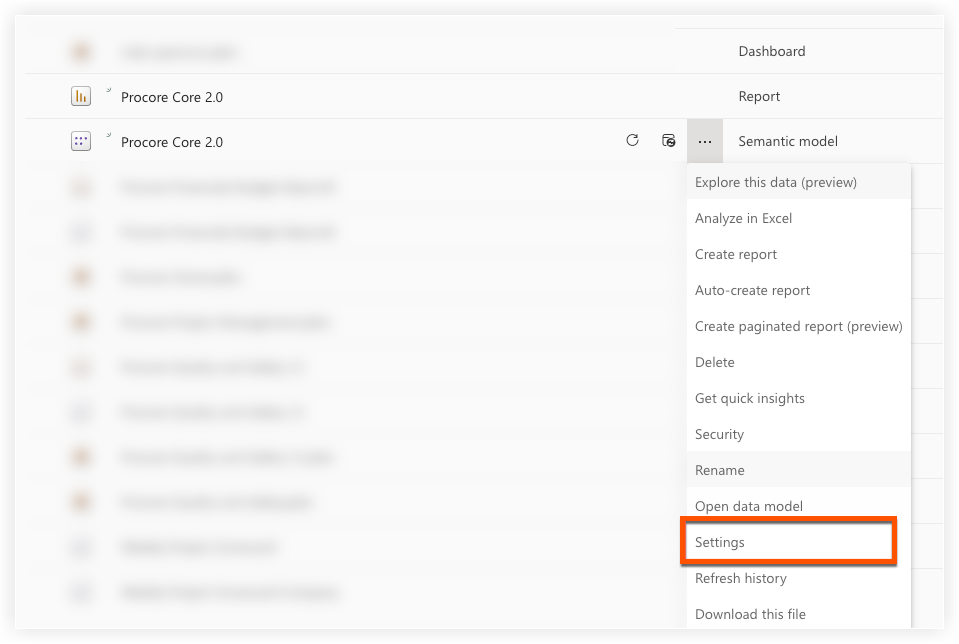
Go to the settings of the semantic model for the report you just uploaded.
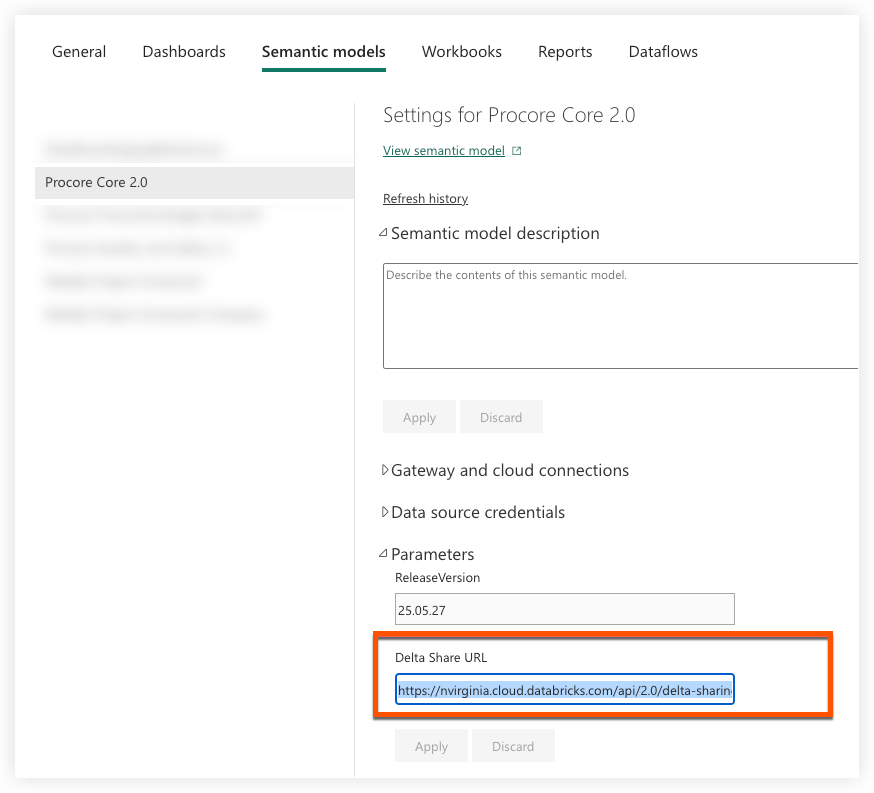
Navigate to the Parameters section in the settings.
Enter the Delta Share URL, and click Apply.
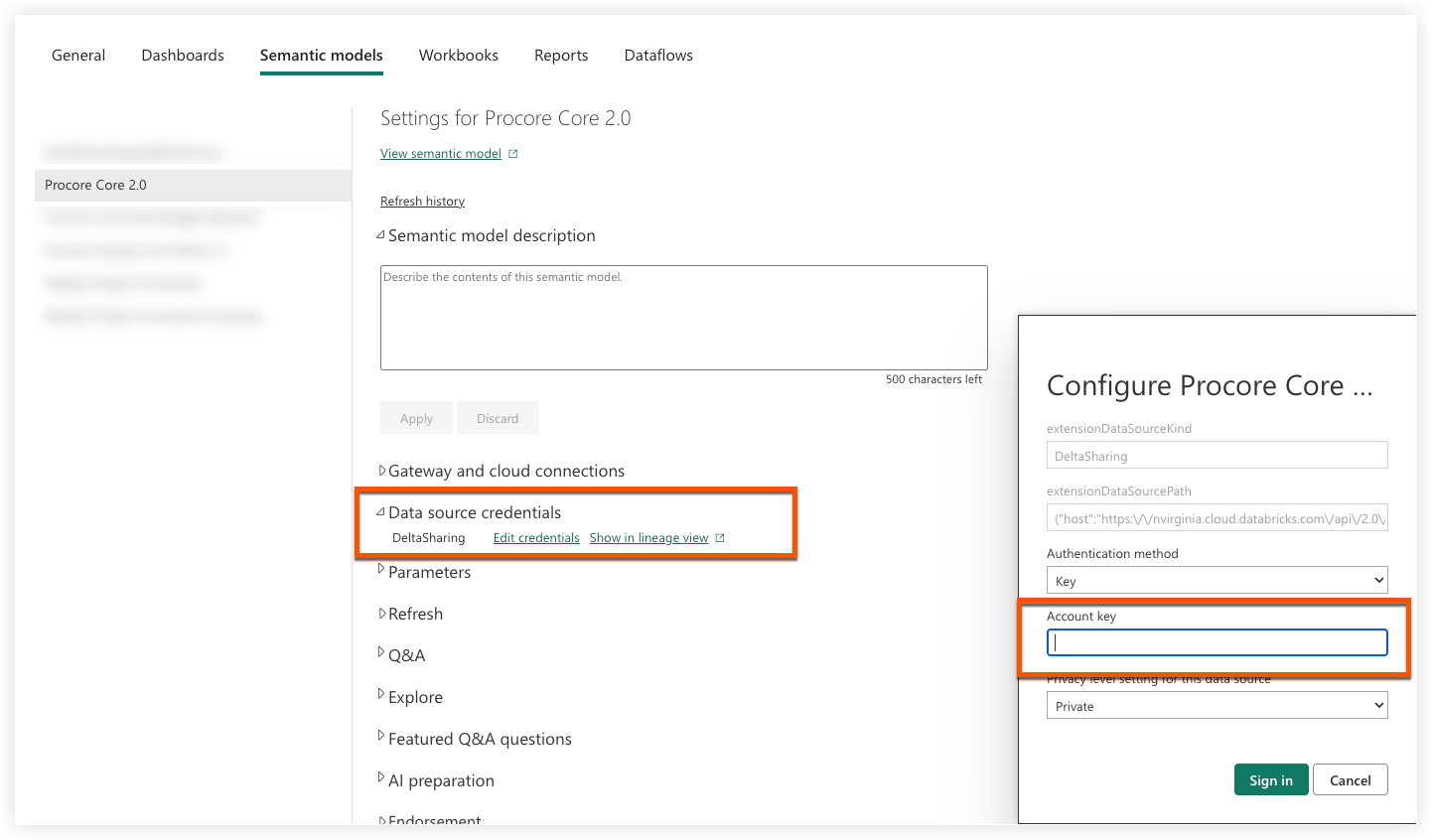
In the Data source credentials section, click Edit Credentials.
Enter your bearer token in the Account Key field.
Click Sign In.
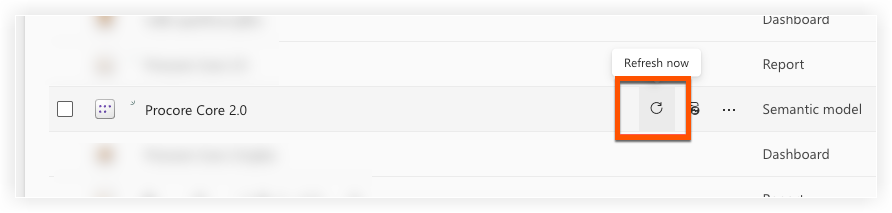
Navigate back to the workspace. You can now manually refresh the report or wait until your next scheduled refresh, if one is configured.
See Also
Loading related articles...