Manage and Set Tags for a File in the Project Level Documents Tool
Things to Consider
Required User Permissions:
'Admin' on the project's Documents tool.
Note: 'Read Only' or 'Standard' users can view and filter by tags, but not create or set them.
Additional Information:
This feature is only available for files in the Project level Documents tool.
Tags cannot be imported or copied over to another project.
Once a tag has been created for a file, it cannot be deleted from the list of tags.
Steps
Navigate to the project's Documents tool.
Locate the file you want to add a tag to.
Note: Hover over or click once on an individual file (not a folder).If the Information panel is not already open, click the Info
 icon.
icon.Click File Tags to expand the section.
Click Manage File Tags.
The following actions are available:
Important
To save your changes after adding, applying, or deleting tags, you must click Set Tags before navigating to another file or page.
To add a new tag:
Click the Create or Select Tags drop-down menu.
Enter a name for the tag in the text field.
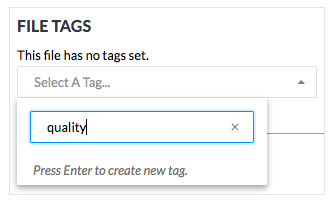
Click Add tag: to add the tag.
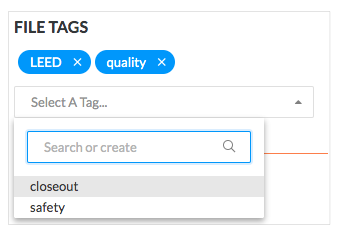
To apply an existing tag:
Click the Create or Select Tags drop-down menu.
Choose an existing tag to apply by browsing through the list or entering a search term.
Click the tag you want to apply.
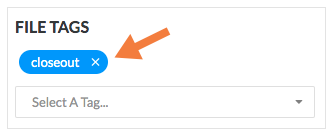
To remove a tag from a file:
Click the 'x' on the tag you want to remove.
Click Set Tags to save your changes.