View My Open Items

Background

The Portfolio tool includes a My Open Items list that shows all of the open items on your company's projects that require you to complete an action.

Beta

Company Administrators can enable the Consolidated My Open Items Workspace beta in Procore Explore. (US 2 | UK)

My Open Items shows all of the open items across all your companies and projects that require you to complete an action.

Things to Consider

  • Required User Permissions

  • Beta

    • During the beta phase, you will only see cross-company items that originate from companies within the same data zone as your company (e.g., if your company is in the USO1 zone, you will only see cross-company items from other USO1 companies).

    • Users who have a large number of open items across many projects may notice longer-than-expected loading times for the My Open Items page. We are working to improve the response time before My Open Items becomes generally available.

Steps

Beta

  1. Navigate to My Open Items.

    • From the My Open Items icon - my open items icon in the navigation bar: Show / Hide Steps

      screen - my open items in global navigation

    • From the Company Tools Menu: Show / Hide Steps

      1. Navigate to the Company level in Procore.

      2. Click the Company Tools menu.

      3. In the 'Core Tools' section, click My Open Items.

    • From the Portfolio Tool: Show / Hide Steps

      1. Navigate to the Portfolio tool.

      2. Click My Open Items.

    • From the Procore Home (Beta): Show / Hide Steps
      Note: Your company must also be enrolled in the Procore Home beta enabled.

      1. Navigate to Procore Home.

      2. Click Menu to open the tools menu.

      3. Select My Open Items.

  2. Optional: Search and Filter Open Items.

  3. Click the title of any open item to view it.

Legacy

  1. Navigate to your company's Portfolio tool.
    The Portfolio page appears. After you create a project, this page lists all the projects in your company's Procore account.

  2. Click My Open Items.
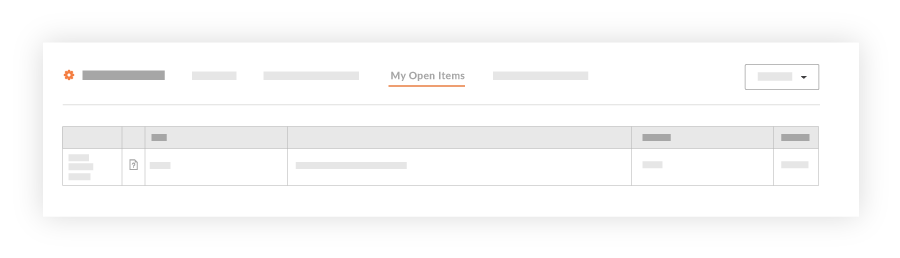
    This reveals the My Open Items page, which lists your open items by Project Name, Item Type, Details, and Status. This list is also sorted by Due Date.
    View Portfolio Open Items

  3. Choose from these options:

    • To navigate to the project's Home page, click the Project Name link.

    • To open the project item, click the Details link.

See Also

Loading related articles...