Manage Takeoffs in Procore Estimating
Background
The Takeoff page of the Estimating tool is where you can add and manage a wide variety of takeoffs for different trades. Procore Estimating offers advanced features to help manage takeoffs with ease. The Tool Pallet helps optimize your takeoff experience with its advanced yet straightforward functionality.
Things to Consider
Required User Permissions:
'Estimator' project role or higher.
Additional Information:
Before starting a material count, make sure that the drawing scale is properly configured. See Set the Drawing Scale for Takeoffs.
To see steps for all takeoff types, see Add Takeoffs.
Steps
Log in to Procore Estimating.
Select the relevant project and click the Take-Off tab.
Click the takeoff you want to manage.
View the tables below to see the actions that are available on the Take-Off page:
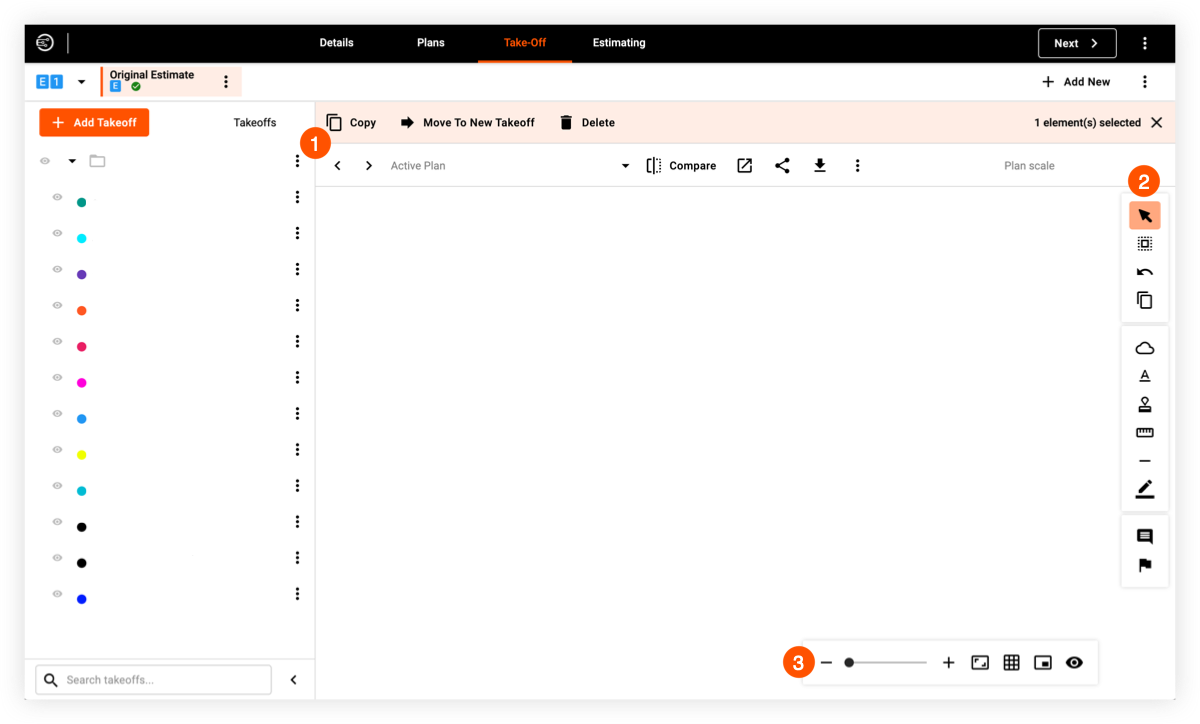
 Top Toolbar
Icon | Tool | Description |
|---|---|---|
| Copy | Click Copy to copy the current selection to the clipboard. |
| Paste | Click Paste to paste a selection that has been copied to the clipboard. |
| Move to New Takeoff | Click Move to New Takeoff to move selected items to another takeoff. |
| Delete | Click Delete if you want to delete selected items or materials on the drawing. Select the item or material using the Edit or Multiselect tool, then click Delete. |
| Compare | Click the Compare icon to select another drawing to compare the current drawing with. |
| Open | Click the Open icon to open the drawing in a new tab. |
| Share | Click the Share icon to share the drawing through email. |
| Download | Click the Download icon to download a PDF version of the drawing. |


 Tool Pallet
Icon | Tool | Description |
|---|---|---|
| Edit / Selection | Click the Edit / Selection tool to select single items from the drawing. When an item is selected, you are able to edit, move, or delete it. |
| Multiselect | Click the Multiselect tool to select multiple items from the drawing. When these items are selected, you are able to edit, group, move, or delete them |
| Undo | Click the Undo icon if you want to undo the last action. |
| Duplicate Drawing Area Tool | Click the Duplicate Drawing Area icon to duplicate the selected area of the drawing. After confirming the selection, a new drawing will be created. |
| Cloud | Click the Cloud tool to add callouts on a section or area of the drawing. This is useful if you want to add notes, descriptions, feedback, and suggestions to your clients. This tool best works with the Annotation Tool, which allows you to add characters to the call outs. |
| Annotation | Click the Annotation tool to create annotations, labels, notes, descriptions, suggestions, and feedback on materials or areas of the drawing. This tool works best with the Cloud Tool, which allows you to add callouts on a section or area of the drawing. |
| Symbol Stamp | Click the Symbol Stamp tool to add symbols to existing drawings. This is a powerful tool that lets you add missing materials or client requested materials to a drawing. You can choose from a wide variety of designs by trade, or add custom symbols. |
| Measure | Click the Measure tool to measure distance based on the drawing scale. This tool generates the actual distance of a measured area. |
| Line / Arrow / Arc | Click the Line / Arrow / Arc tool to add lines, arrows, or arcs to the drawing. Hold the SHIFT key down while using a tool as needed. |
| Highlight | Click the Highlight tool to highlight an area of the drawing. You can point and click on the area that you want to highlight, and drag it to complete. |
| Note | Click the Note tool to add notes on the drawing. |
| Task | Click the Task tool to add and assign tasks on the drawing. |


 Bottom Toolbar
Icon | Tool | Description |
|---|---|---|
| Show Grid | Click the Show Grid icon to add overlayed grids to the drawing. The specialized grids are customizable depending on needs. This tool is useful for fire safety planning since you can efficiently add fire sprinklers and other related materials. |
| Show Legend | Click the Show Legend icon to add a legend to the drawing indicating the material name and individual count of each material. |
| Takeoff Settings | Click the Takeoff Settings icon to configure display settings for the takeoff. |
| Zoom In | Click the plus icon to zoom in on the drawing. |
| Zoom Out | Click the minus icon to zoom out on the drawing. |


See Also
Loading related articles...